Operation
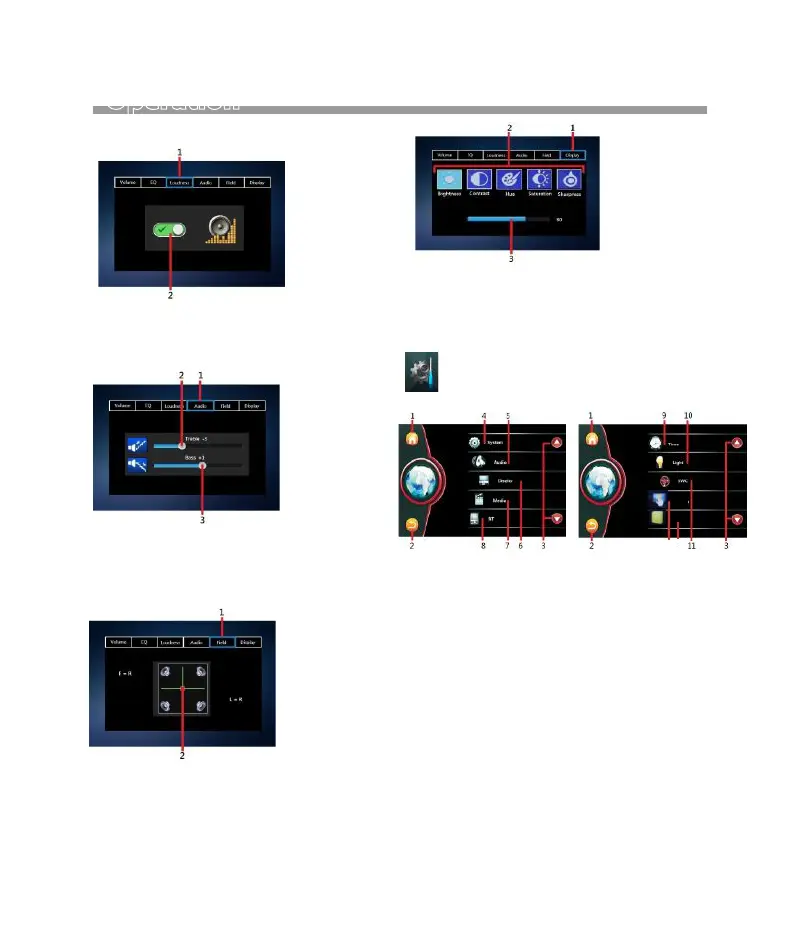
LOUDNESS
Visual Control
Audio Control
1. Touch to shift to Loudness control .
2. Touch to switch On or Off.
1. Touch to shift to Display control .
2. Touch to select the desired setting mode:
Brightness.Contrast,Hue, Saturation, Sharpness.
3. Hold & Slide to adjust the level.
1. Touch to shift to MAIN MENU for operation mode
selection.
2. Touch to back to previous setting menu.
3. Touch to shift to previous /next SETTINGS MENU.
4. Touch to shift to SYSTEM MENU for system setting.
5. Touch to shift to AUDIO MENU for audio setting.
6. Touch to shift to Display MENU for display setting.
7. Touch to shift to MEDIA MENU for media setting.
8. Touch to shift to Bluetooth MENU for bluetooth
setting.
9. Touch to shift to Time MENU for time setting.
10. Touch to shift to Light MENU for illumination
backlight setting.
11. Touch to shift to SWC MENU for steering wheel
control setting.
12. Touch to shift to Calibration.
13. Touch to show the VERSION informations.
At MAIN MENU, touch on screen and shift to
SETTINGS MENU for various setup selection
of the unit.
1. Touch to shift to Audio control .
2. Hold & slide to set for Treble.
3. Hold & slide to set for Bass.
Field Control
1. Touch to shift to Field control .
2. Hold & slide to set for the Fader
and Balance.
Touch
Version
12 13
10


 To Next Page