Operation
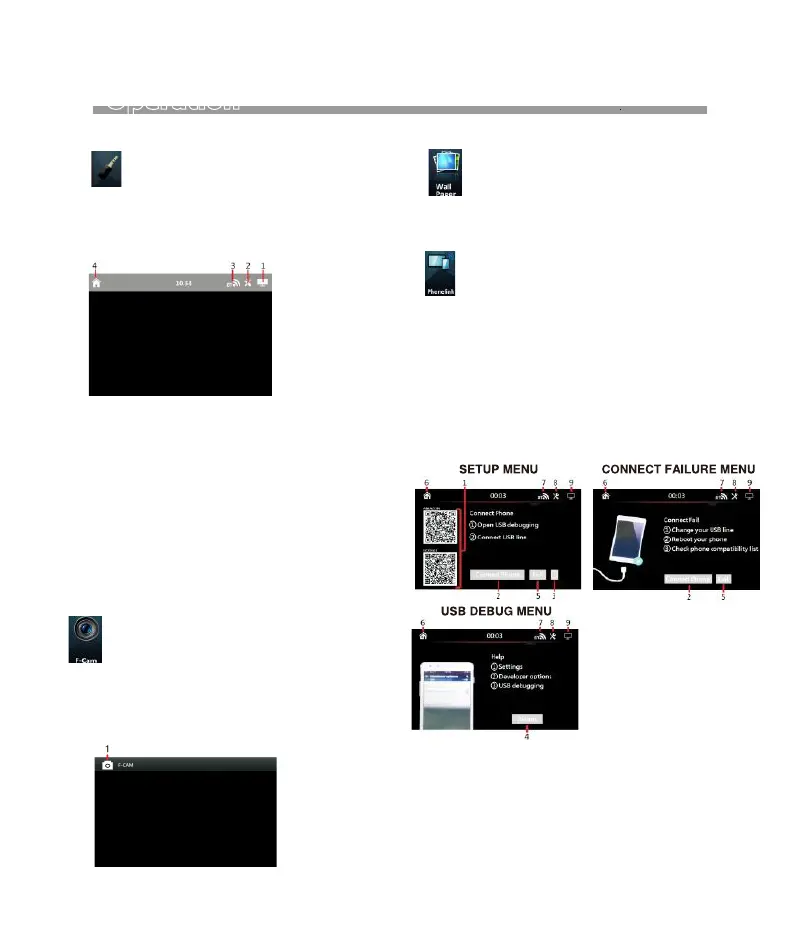
1. Touch to turn off the screen. When the screen is
off, touch any portion of screen to turn on the
screen.
2. Touch to activate AUDIO & VISUAL MENU for
various audio & visual settings.
3. This Bluetooth icon will light up if the unit has
connected to a mobile phone.
Touch to access Bluetooth operaion.
4. Touch to shifr screen to MAIN MENU.
1. Touch to turn off the screen. When the screen is
off, touch any portion of screen to turn on the
screen.
2. Touch to activate AUDIO & VISUAL MENU for
various audio & visual settings.
3. This Bluetooth icon will light up if the unit has
connected to a mobile phone.
Touch to access Bluetooth operaion.
4. Touch to shifr screen to MAIN MENU.
1. Scan the QR code by using the connected android
phone.
Follow the instruction of the connected phone &
download “ AUTOLINK” application from Google
Play Store or Amazon site.
Open “AUTOLINK” application after download,
mirror linking appeared on screen and mobile
phone operation can be started and controlled
by touching screen of the headunit.
1. Scan the QR code by using the connected android
phone.
Follow the instruction of the connected phone &
download “ AUTOLINK” application from Google
Play Store or Amazon site.
Open “AUTOLINK” application after download,
mirror linking appeared on screen and mobile
phone operation can be started and controlled
by touching screen of the headunit.
For ISO devices, mobile phone linking operation will
start automatically without any setting. Mirror linking
appeared on screen and mobole operation can be
controled by touching screen of the headunit.
For Android devices, when the phone is connected
at the first time, SETUP MENU appeared on screen.
For ISO devices, mobile phone linking operation will
start automatically without any setting. Mirror linking
appeared on screen and mobole operation can be
controled by touching screen of the headunit.
For Android devices, when the phone is connected
at the first time, SETUP MENU appeared on screen.
1. Touch to shifr screen to MAIN MENU.1. Touch to shifr screen to MAIN MENU.
AUX IN OPERATIONAUX IN OPERATION
Front Camera OPERATIONFront Camera OPERATION
At MAIN MENU, touch on screen to shift
to AUX IN MENU for audio input operation
(provided an AV device had been connected).
At MAIN MENU, touch on screen to start
mobile phone linking (mirror linking) of the
connected mobile phone operation.
Follow the instruction as shown on screen
for the first time connection.
At MAIN MENU, touch on screen to shift
to front camera viewing (provided
front camera and the pink/black wire
connected).
AUX MODE
AUX
AUX Mode
During AUX input operation, touch any portion on
screen to activate AUX IN operation.
WALLPAPER OPERATIONWALLPAPER OPERATION
PHONELINK OPERATIONPHONELINK OPERATION
At MAIN MENU, touch to select the
desired wallpaper of the headunit.
At Front camera viewing mode,touch any
portion on screen to activate FRONT CAMERA
INPUT MENU for operation.
19


 To Next Page