Operation
BLUETOOTH OPERATION
12. At video playback mode, touch repeatedly to select
different speeds of slow motion playback.
13. DVD Mode, touch to display on screen the menu
of the disc.
VCD mode, touch to turn on or off of PBC mode.
At PCB on mode, playback will start at the
beginning in sequence order.
14.Touch to activate KEYBOARD INTERFACE to input
track number directly for playback
15.Hold & slide to select the position (time) for playback.
16.Hold & slide to select the position (time) for playback.
(for music).
17. Touch to select music playback mode.
18. Touch to select photo playback mode.
19. Touch to select video playback mode.
20. Touch to shift to FOLDER PLAYLIST or PLAYLIST
to select desired folder or file for playback.
To start playback, touch twice on the selected
track.
21. Touch to shift to previous FOLDER / PLAYLIST
MENU.
22. Touch to shift page up or down.
23. Touch to erase the digital input by error.
24. Touch to confirm the playback after inputting the
track number.
25. Show current playback device ( DISC/USB/SD).
26. Touch to shift back to PLAYBACK MENU.
27. Touch to turn off the screen. When the screen is
off, touch any portion of screen to turn on the
screen.
28. Touch to activate AUDIO & VISUAL MENU for
various audio & visual settings.
29. This Bluetooth icon will light up if the unit has
connected to a mobile phone.
Touch to access Bluetooth operaion.
30. Touch to shifr screen to MAIN MENU.
12. At video playback mode, touch repeatedly to select
different speeds of slow motion playback.
13. DVD Mode, touch to display on screen the menu
of the disc.
VCD mode, touch to turn on or off of PBC mode.
At PCB on mode, playback will start at the
beginning in sequence order.
14.Touch to activate KEYBOARD INTERFACE to input
track number directly for playback
15.Hold & slide to select the position (time) for playback.
16.Hold & slide to select the position (time) for playback.
(for music).
17. Touch to select music playback mode.
18. Touch to select photo playback mode.
19. Touch to select video playback mode.
20. Touch to shift to FOLDER PLAYLIST or PLAYLIST
to select desired folder or file for playback.
To start playback, touch twice on the selected
track.
21. Touch to shift to previous FOLDER / PLAYLIST
MENU.
22. Touch to shift page up or down.
23. Touch to erase the digital input by error.
24. Touch to confirm the playback after inputting the
track number.
25. Show current playback device ( DISC/USB/SD).
26. Touch to shift back to PLAYBACK MENU.
27. Touch to turn off the screen. When the screen is
off, touch any portion of screen to turn on the
screen.
28. Touch to activate AUDIO & VISUAL MENU for
various audio & visual settings.
29. This Bluetooth icon will light up if the unit has
connected to a mobile phone.
Touch to access Bluetooth operaion.
30. Touch to shifr screen to MAIN MENU.
LINK UP WITH MOBILE PHONE
To linkup Bluetooth connection with the mobile
phone, take your phone and follow the steps:
- set the mobile phone to Bluetooth state
- start to search new device
- after searched, new device (model number of
this unit) searched out, confirm the search
- in case of need, input default code “0000”
or “8888” in the mobile phone
- at the same time, Bluetooth icon light up
on screen
- connection succeeded and you can start using
Bluetooth function.
LINK UP WITH MOBILE PHONE
To linkup Bluetooth connection with the mobile
phone, take your phone and follow the steps:
- set the mobile phone to Bluetooth state
- start to search new device
- after searched, new device (model number of
this unit) searched out, confirm the search
- in case of need, input default code “0000”
or “8888” in the mobile phone
- at the same time, Bluetooth icon light up
on screen
- connection succeeded and you can start using
Bluetooth function.
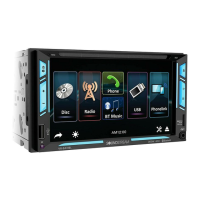
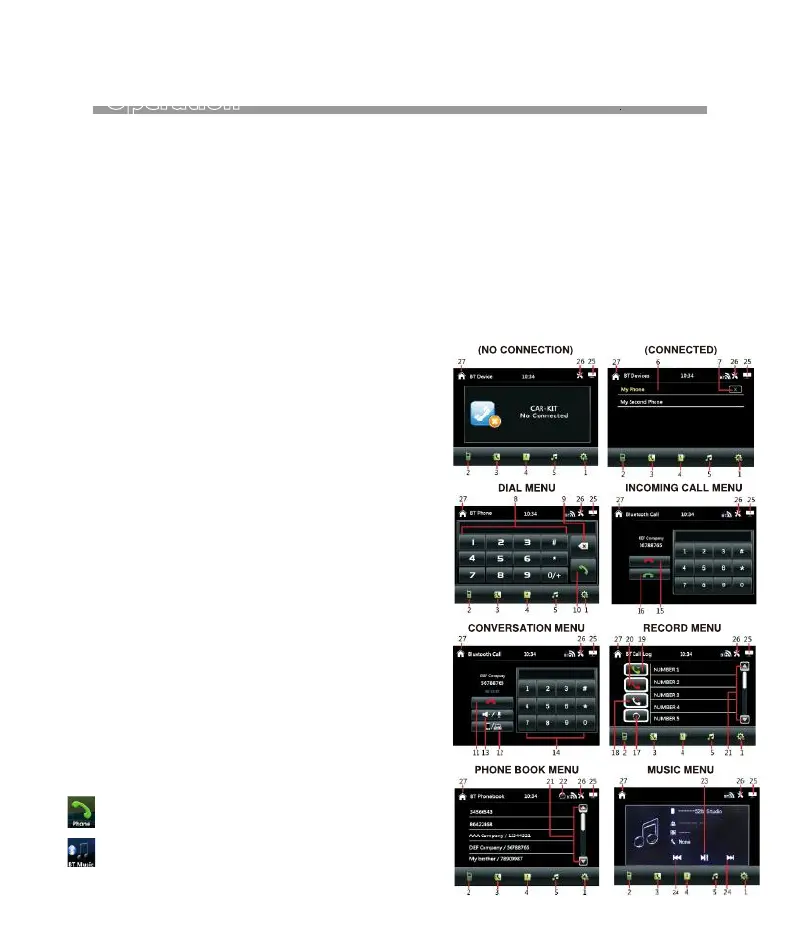
At MAIN MENU, touch on screen and shift
to PHONE (KEYPAD) MENU for Bluetooth
Operation.
At MAIN MENU, touch on screen and shift
to BT MUSIC for Bluetooth music operation.
17


 To Next Page
 Loading...