EasyManua.ls Logo

Soundstream VRCPAA-106 - User Manual

Soundstream VRCPAA-106
27 pages
Print Icon
To Next Page IconTo Next Page
Loading...
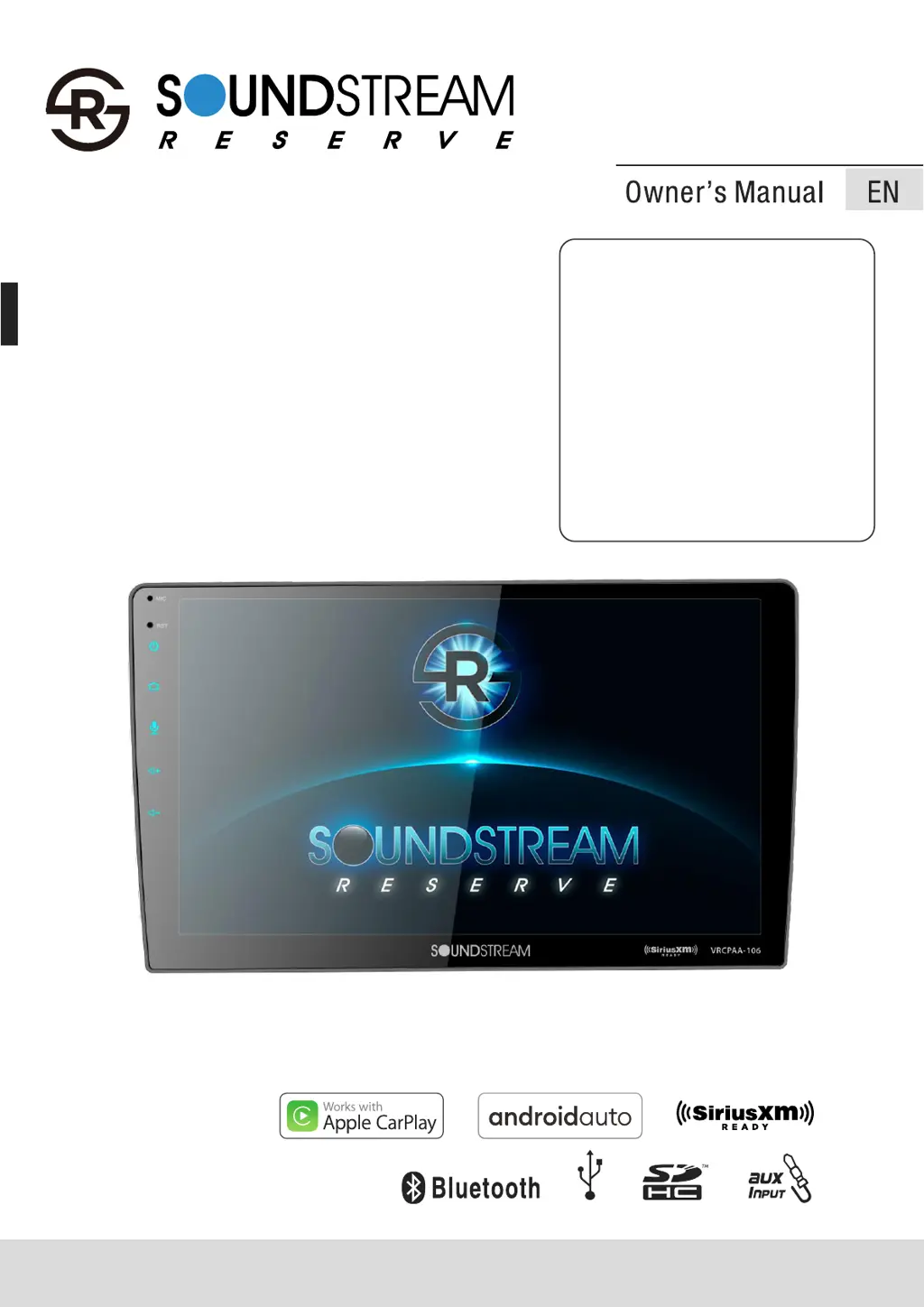
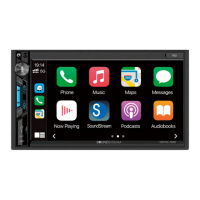
2 DIN 10.6" Monitor
Full touch screen
DVD/CD/MP3/MP4/
USB/SD
AM/FM Radio
Support Apple CarPlay
Support Android Auto
Support Bluetooth
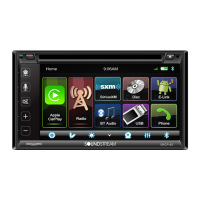
Siriusxm READY
VRCPAA-106
AV Center
2-DIN DVD Head Unit
TM
TM
DVD

Questions and Answers

  • D
    donaldgonzalezJul 28, 2025
    What to do if my Soundstream VRCPAA-106 shows 'No Signal'?
    • D
      Daniel HamiltonJul 28, 2025
      If your Soundstream Car Video System displays 'No Signal', it means the SiriusXM Connect Vehicle Tuner is having trouble receiving the satellite signal. First, make sure your vehicle is outside with a clear view of the southern sky. Then, check that the SiriusXM magnetic mount antenna is properly mounted on a metal surface on the outside of your vehicle, away from any obstructions. Inspect the antenna cable for any damage or kinks; replace the antenna if needed. If the issue continues, try disconnecting and reconnecting the tuner.
  • E
    Eric MooreJul 31, 2025
    How to fix 'Check Antenna' error on Soundstream VRCPAA-106?
    • C
      caldwellscottJul 31, 2025
      If your Soundstream Car Video System displays a 'Check Antenna' error, it means the radio has detected a fault with the SiriusXM antenna. This could be because the antenna cable is either disconnected or damaged. To resolve this, first verify that the antenna cable is securely connected to the SiriusXM Connect Vehicle Tuner. Next, carefully inspect the antenna cable for any signs of damage or kinks. If you find any damage, you will need to replace the antenna.
  • M
    Melissa CalhounAug 5, 2025
    What to do if my Soundstream Car Video System says 'Check Tuner'?
    • L
      Laura JacksonAug 5, 2025
      If your Soundstream Car Video System displays 'Check Tuner', the radio is having trouble communicating with the SiriusXM Connect Vehicle Tuner, or the tuner might be disconnected or damaged. First, verify that the SiriusXM Connect Vehicle Tuner cable is securely connected to the radio's SiriusXM connector/cable. If the problem continues, try disconnecting and reconnecting the tuner.
  • T
    Tiffany WilliamsAug 10, 2025
    Why does my Soundstream VRCPAA-106 say 'Channel Not Subscribed'?
    • R
      Regina ThomasAug 10, 2025
      The 'Channel Not Subscribed' message on your Soundstream Car Video System means the channel you're trying to access isn't included in your current SiriusXM subscription package, or the channel you were listening to is no longer included.
  • D
    Derek WilliamsAug 14, 2025
    Why does my Soundstream VRCPAA-106 say 'Channel Not Available'?
    • M
      Michelle McdonaldAug 14, 2025
      The 'Channel Not Available' message on your Soundstream Car Video System means that the channel you've requested is not a valid SiriusXM channel, or the channel you were listening to is no longer available. This message may also appear briefly when initially connecting a new SiriusXM Connect Vehicle tuner.
  • A
    Allison GriffinAug 17, 2025
    What to do if I entered the wrong passcode on my Soundstream Car Video System?
    • K
      Kevin ThompsonAug 18, 2025
      If you've entered the wrong passcode on your Soundstream Car Video System, it means the unlock code you entered is incorrect. To fix this, input the correct four-digit code to unlock the channel. If you don't remember the code, reset the lock code to the default following the instructions.
  • Z
    Zachary HamiltonAug 22, 2025
    What does 'Please Enter the Lock Code' mean on my Soundstream VRCPAA-106?
    • C
      Chloe ParkerAug 22, 2025
      The 'Please Enter the Lock Code' message on your Soundstream Car Video System means you're being prompted to enter the lock/unlock code. Enter the four-digit code to unlock the channel.

Summary

Accessories and Installation

Installation Accessories

Details the accessories included for installation.

Wiring

Speaker Connection Diagram

Diagram for connecting the unit's speakers correctly.

Settings

System and Language Settings

Configure language, date, time, and beep settings.

Display Settings

Adjusts screen brightness, dimming, and wallpaper.

Audio and EQ Settings

Adjusts audio balance, fader, subwoofer, and equalizer.

Bluetooth Settings

Manages Bluetooth connection, pairing, and device records.

CarPlay & Android Auto

Apple CarPlay Setup

Connects and uses Apple CarPlay on the unit, including Siri.

Android Auto Setup

Connects and uses Android Auto for driving.

Radio Mode

Radio Operation

Accesses and uses the radio function, tuning, and presets.

USB Operations

USB Media Playback

Connects and plays media from a USB device.

Disc Operations

Bluetooth Music

Bluetooth Music Playback

Accesses music playback via Bluetooth.

Bluetooth Phone

Sirius XM Operation

SiriusXM Readiness and Signal

Overview of SiriusXM features and signal strength indicators.

Sirius XM Troubleshooting

Antenna and Tuner Issues

Troubleshoots antenna and tuner connectivity problems.

Specifications

AV IN

Troubleshooting

General Power and Sound Issues

Solves common power and sound output problems.

Soundstream VRCPAA-106 Specifications

General IconGeneral
BrandSoundstream
ModelVRCPAA-106
CategoryCar Video System
LanguageEnglish

Related product manuals