EasyManua.ls Logo

Soundstream VRN-65HXB - User Manual

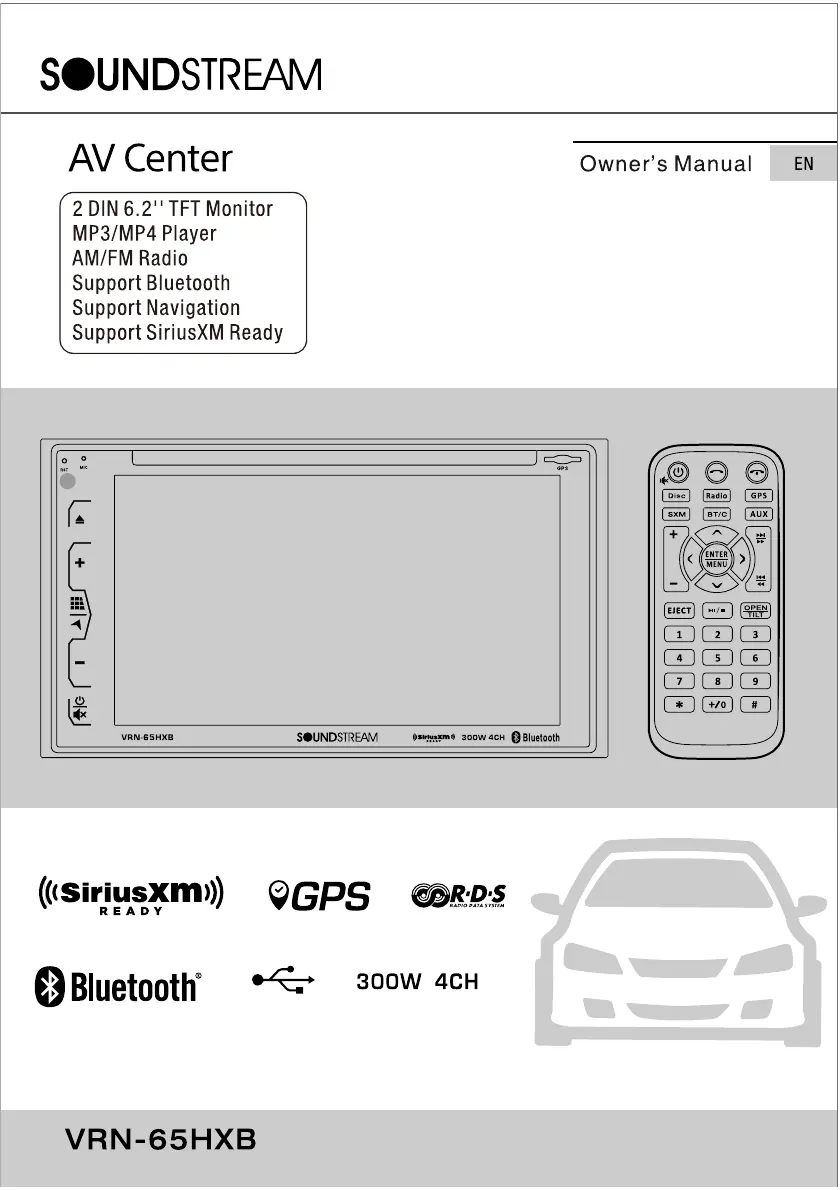
Soundstream VRN-65HXB
41 pages
Print Icon
To Next Page IconTo Next Page
Loading...

Questions and Answers

  • Q
    qboltonJul 28, 2025
    Why my Soundstream VRN-65HXB does not turn on?
    • H
      henry47Jul 28, 2025
      If your Soundstream Car Video System isn't powering on and there's no sound, first check the fuse. If it's blown, replace it with a fuse of the same amperage. If it blows again, it's best to consult the store where you purchased it. Also, incorrect wiring could be the cause, in which case you should consult your local retailer.
  • A
    Andrew ClineAug 4, 2025
    What to do if buttons are not working on Soundstream VRN-65HXB Car Video System?
    • C
      christiancynthiaAug 4, 2025
      If the buttons on your Soundstream Car Video System aren't working or the display isn't accurate, it could be due to a microprocessor malfunction. Try turning off the power, then press the [no open] button and remove the DCP. Next, press the reset button for about 2 seconds using a thin rod. Alternatively, the panel or main unit connectors might be dirty. If so, gently wipe them with a soft cloth moistened with cleaning alcohol.
  • P
    Paula RamirezAug 12, 2025
    How to fix no sound with amplifiers on Soundstream VRN-65HXB?
    • J
      jenniferkellyAug 12, 2025
      If you're getting no sound output from your Soundstream Car Video System when using amplifiers or a power antenna, the power antenna lead might be shorted to ground, requiring excessive current, or there may be an issue with the remote on the amplifiers or power antenna. Here's how to troubleshoot: 1. Turn off the unit. 2. Remove all wires attached to the power antenna lead and check each wire for a possible short to ground using an ohm meter. 3. Turn the unit back on. 4. Reconnect each amplifier remote wire to the power antenna lead one by one. If the amplifiers turn off before all wires are attached, use an external replay to provide remote-on voltage (excessive current required).
  • R
    Robert HoldenAug 19, 2025
    What does ERROR 3 mean on Soundstream VRN-65HXB?
    • R
      Richard CampbellAug 19, 2025
      If your Soundstream Car Video System shows an error message on the LCD display: * **ERROR 1** (deck mechanism error): Reset the unit. * **ERROR 2** (disc or servo error): Try changing the disc or resetting the unit. * **ERROR 3** (USB error): 1. Remove the USB and insert it again. 2. Check the file for errors. 3. Reset the unit.

Summary

SAFETY AND OPERATION PRECAUTIONS

ACCESSORIES LIST

INSTALLATION AND UN-INSTALLATION

Unit Removal Procedure

Step-by-step instructions for safely detaching the unit from the dashboard mount.

WIRING CONNECTIONS

ISO Connector and Wiring Guide

Guide to connecting the unit using the vehicle's ISO connector or direct wiring.

Parking Wire Functionality

Explanation of the parking wire's role in enabling video display during parking.

REVERSING LINE AND SPEAKER CONNECTIONS

FRONT PANEL OVERVIEW

REMOTE CONTROL BASIC FUNCTIONS

Power, Call, and Mode Controls

Controls for power, mute, call management, and switching between media modes.

Navigation and Volume Controls

Details volume adjustment and cursor/menu navigation buttons.

REMOTE CONTROL DETAILED FUNCTIONS

Playback and Track Navigation

Explains track skipping, fast forward/reverse, and playback controls.

Unit Interaction Features

Describes eject, tilt, numeric keypad, and other specific remote operations.

BATTERY REMOVAL GUIDELINES

MAIN MENU AND RADIO OPERATION

Main Menu Navigation

Overview of accessing different modes and features from the main menu.

Radio Player Functions

Guide to tuning, station scanning, and audio settings for the radio.

DVD PLAYER AND DISC;USB OPERATION

DVD Player Controls

Details on playback controls, repeat options, and language settings for DVDs.

Disc and USB Interface

How to play media files from discs and USB devices.

USB DEVICE OPERATION AND SYSTEM SETTINGS

USB File Playback

Instructions for playing MP3, MP4, WMA, and JPEG files from a USB device.

System Settings Access

How to access and customize general system settings.

SYSTEM SETTINGS CONFIGURATION

Sound and Display Settings

Customizing audio equalizer, balance, fader, and screen backlight.

Radio and SiriusXM Settings

Configuring radio areas, stereo modes, and SiriusXM auto-connect.

DVD AND GENERAL SYSTEM SETTINGS

DVD Menu and Language Settings

Setting subtitle, audio, menu languages, and parental ratings for DVDs.

System Information and Reset

Viewing system info, NTSC/PAL settings, and restoring factory defaults.

SIRIUSXM SATELLITE RADIO SETUP

Tuner Connection and Activation

Connecting the SiriusXM tuner and activating the subscription service.

Listening and Setup Menu

How to start listening to SiriusXM and access its setup options.

SIRIUSXM ADVISORY MESSAGES

GPS NAVIGATION SECTION

BLUETOOTH CONNECTIVITY AND PAIRING

Bluetooth Mode and Controls

How to enter Bluetooth mode and use basic controls for calls and music.

Device Pairing Process

Steps for pairing a mobile phone with the unit via Bluetooth.

BLUETOOTH CALLING AND MUSIC MODES

Dialing, Music, and Call History

Using dial, music player, and accessing call history features.

Phonebook and Voice Transfer

Downloading phonebook data and transferring calls between devices.

AV-IN AND OTHER FUNCTIONS

AV-IN Mode and Subwoofer

Connecting external audio/video sources and enabling the subwoofer output.

Parking and Rear View Camera

Information on parking display and connecting a rear view camera.

NOTES ON DISC HANDLING AND STORAGE

TROUBLESHOOTING COMMON ISSUES

General and CD;DVD Troubleshooting

Solutions for power, sound, display, and disc-related problems.

ADDITIONAL TROUBLESHOOTING CASES

TECHNICAL SPECIFICATIONS

NAVIGATION SYSTEM GETTING STARTED

Initial Setup Process

Step-by-step guide for setting up program language and voice guidance.

NAVIGATION SETUP COMPLETION

NAVIGATION MENU OPTIONS

Destination and Route Planning

Selecting destinations, setting route options, and simulating navigation.

DESTINATION MENU AND SEARCH METHODS

NAVIGATING TO AN ADDRESS (COUNTRY;CITY)

NAVIGATING TO AN ADDRESS (STREET;NUMBER)

QUICK FIND FOR PLACES OF INTEREST

NAVIGATING TO A PLACE OF INTEREST (CATEGORIES)

NAVIGATING TO A PLACE OF INTEREST (EXAMPLE)

THE MAP SCREEN LAYOUT AND FUNCTIONS

MORE MENU APPLICATIONS

SETTINGS MENU AND CONFIGURATION

Sound, Traffic, and Route Settings

Adjusting sound volumes, traffic alerts, and route planning preferences.

Display, Regional, and Log Settings

Customizing display appearance, language, units, and data logging.

Soundstream VRN-65HXB Specifications

General IconGeneral
BrandSoundstream
ModelVRN-65HXB
CategoryCar Video System
LanguageEnglish

Related product manuals