Use recommended paper
•
Use only recommended paper or specialty media.
•
Do not load paper that is wrinkled, creased, damp, bent, or
curled.
•
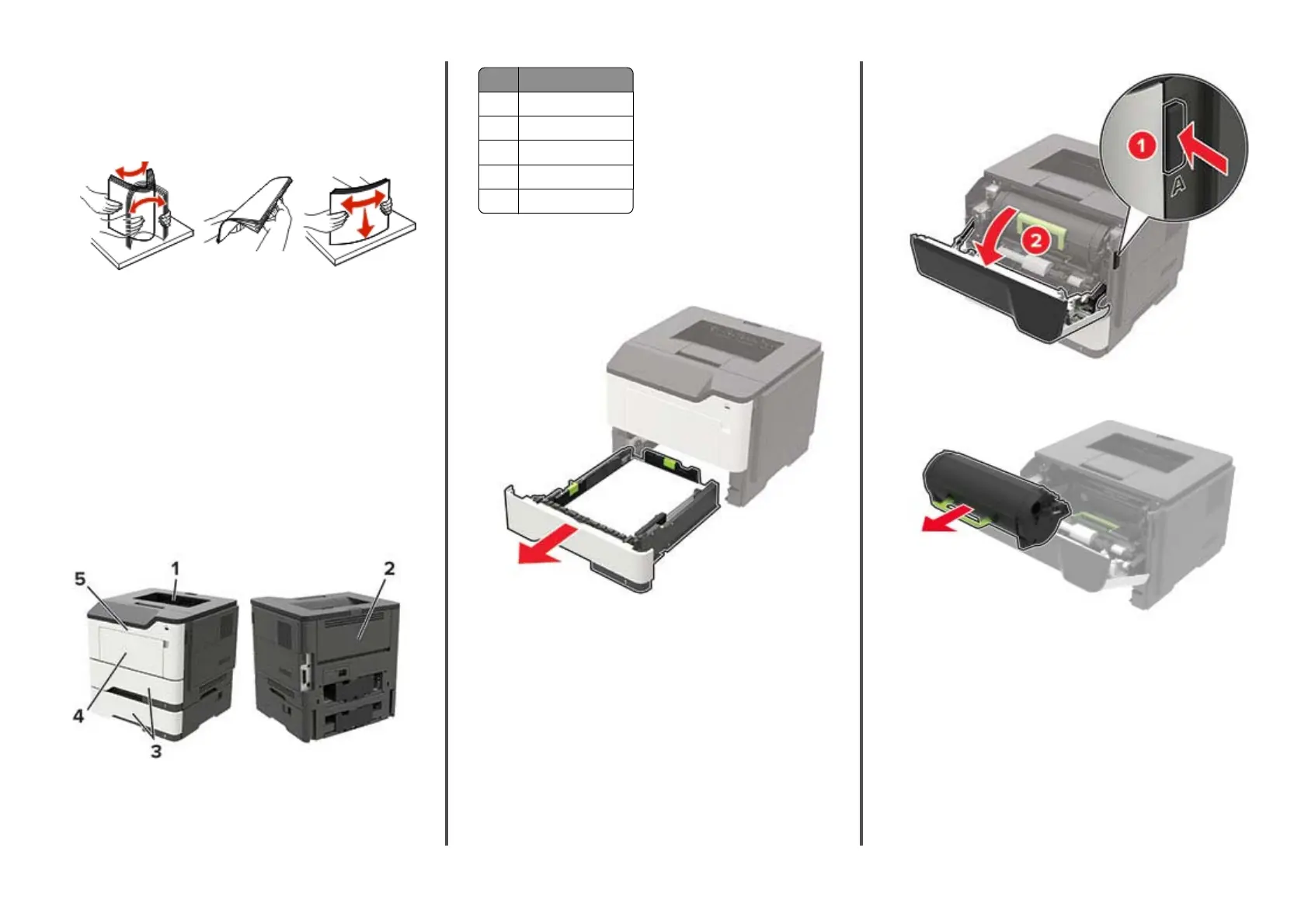
Flex, fan, and align the paper edges before loading.
•
Do not use paper that has been cut or trimmed by hand.
•
Do not mix paper sizes, weights, or types in the same tray.
•
Make sure that the paper size and type are set correctly on the
computer or printer control panel.
•
Store paper according to manufacturer recommendations.
Identifying jam locations
Notes:
•
When Jam Assist is set to On, the printer automatically
flushes blank pages or partially printed pages after a
jammed page has been cleared. Check your printed output
for blank pages.
•
When Jam Recovery is set to On or Auto, the printer reprints
jammed pages.
Jam location
1 Standard bin
2 Rear door
3 Tray [x ]
4 Multipurpose feeder
5 Door A
Paper jam in door A
1
Remove the tray.
2
Open door A.
Warning—Potential Damage: To prevent damage from
electrostatic discharge, touch any exposed metal frame of
the printer before accessing or touching interior areas of the
printer.
3
Remove the toner cartridge.
5
11401A Granite Street | Charlotte, NC | 800.922.8501 | Sourcetech.com



 To Next Page