Need help?
Do you have a question about the Source Technologies ST9820 and is the answer not in the manual?
Instructions for loading paper into the printer trays.
Instructions for loading paper into the multipurpose feeder.
Configuring paper settings via the control panel.
Steps to replace the toner cartridge in the printer.
Procedure for replacing the printer's imaging unit.
Tips and procedures to prevent paper jams.
Locating common jam points within the printer.
Steps to clear paper jams from various printer locations.
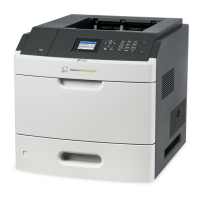
This document provides a quick reference guide for the ST9817, ST9820, and ST9821 devices, focusing on paper loading, maintenance, and jam clearing procedures.
The primary function of these devices is printing, with various options for loading paper and specialty media to accommodate different printing needs. Users can load paper into standard trays or a multipurpose feeder.
For standard trays, the process begins by removing the tray from the device. Users must then adjust the paper guides to match the size of the paper being loaded. Before loading, it is crucial to flex, fan, and align the paper edges to prevent jams. The paper stack should be loaded with the printable side facedown, ensuring the side guides fit snugly against the paper. For one-sided printing of letterhead, the top edge of the sheet should face the front of the tray. For two-sided letterhead printing, the top edge should face the front of the tray, but the printable side should be faceup. It is important not to slide paper into the tray and to ensure the stack height is below the maximum paper fill indicator to avoid jams. Once loaded, the tray is reinserted. The device's control panel can then be used to set the paper size and type to match the loaded paper. A caution regarding tipping hazard is noted: to maintain stability, each tray should be loaded separately, and other trays should remain closed until needed. Users are also advised not to remove trays while the printer is busy to prevent paper jams.
The multipurpose feeder offers additional flexibility for loading various media. To load paper into the multipurpose feeder, the feeder must first be opened. The paper guides are then adjusted to match the size of the paper. Similar to standard trays, paper edges should be flexed, fanned, and aligned before loading. Paper is loaded with the printable side faceup. For letterhead, the top edge should face the front of the tray for one-sided printing, and the bottom edge should face the front of the tray for two-sided printing. Envelopes should be loaded with the flap facedown on the left side, with European envelopes entering the printer first. A warning is given against using envelopes with stamps, clasps, snaps, windows, coated linings, or self-stick adhesives, as these can cause potential damage. After loading, the paper size and paper type must be set from the control panel to match the loaded media.
When printing from a computer, the user initiates the process by opening the Print dialog from the document they wish to print. Settings can be adjusted as needed, and then the document is printed. For labels, card stock, and envelopes, it is essential to set the paper size and paper type in the printer before sending the document to print.
Maintenance procedures include replacing the toner cartridge and the imaging unit.
To replace the toner cartridge, door A of the device must be opened. A warning about potential damage from electrostatic discharge advises touching any exposed metal frame of the printer before accessing or touching interior areas. The used toner cartridge is then removed. The new toner cartridge is unpacked and shaken three times to redistribute the toner before being inserted into the device, guided by arrows inside the printer. Finally, door A is closed.
Replacing the imaging unit also starts by opening door A. The same electrostatic discharge warning applies. The toner cartridge is removed first, followed by the used imaging unit. The new imaging unit is unpacked and shaken three times to redistribute the toner. A warning advises against exposing the imaging unit to direct light for more than 10 minutes, as extended exposure can cause print quality problems. Another warning cautions against touching the photoconductor drum, as this can affect the quality of future print jobs. The new imaging unit is then inserted, guided by arrows inside the printer. Finally, the toner cartridge is reinserted, door A is closed, and the tray is inserted.
The document provides detailed instructions for clearing paper jams in various locations within the device. General advice for avoiding jams includes loading paper properly by ensuring it lies flat in the tray, positioning paper guides correctly without pressing too tightly against the paper or envelopes, and pushing the tray firmly into the printer after loading. Users are also advised not to load or remove a tray while the printer is printing, not to load too much paper (ensuring stack height is below the maximum paper fill indicator), and not to slide paper into the tray.
Jam locations are categorized: Standard bin, Rear door, Tray [x], Multipurpose feeder, and Door A. The device may have "Jam Assist" and "Jam Recovery" features. If Jam Assist is on, the printer automatically flushes blank or partially printed pages after a jam is cleared. If Jam Recovery is on or auto, the printer reprints jammed pages.
To clear a jam in door A, the tray is removed, and then door A is opened. The electrostatic discharge warning is reiterated. The toner cartridge is removed, followed by the imaging unit. A caution about hot surfaces advises allowing the inside of the printer to cool before touching hot components. All paper fragments must be removed. The imaging unit is then inserted, followed by the toner cartridge. Finally, the door is closed, and the tray is inserted.
To clear a jam in the rear door, the rear door is opened. The hot surface caution is repeated. All paper fragments must be removed. The rear door is then closed.
For a jam in the duplex unit, the tray is removed. The electrostatic discharge warning is repeated. The jammed paper is removed, ensuring all fragments are cleared. The tray is then inserted.
To clear a jam in the standard bin, the jammed paper is simply removed.
For a jam in the trays, the tray is removed. The electrostatic discharge warning is repeated. The jammed paper is removed, ensuring all fragments are cleared.
To clear a jam in the multipurpose feeder, paper is first removed from the feeder. Then, the jammed paper is removed, ensuring all fragments are cleared. The paper is reloaded, and the paper guide is adjusted.
To minimize jams and ensure optimal performance, users should only use recommended paper or specialty media. Paper that is wrinkled, creased, damp, bent, or curled should not be loaded. Paper edges should be flexed, fanned, and aligned before loading. Hand-cut or trimmed paper should not be used. Mixing paper sizes, weights, or types in the same tray is also not recommended. It is crucial to ensure that the paper size and type are correctly set on the computer or printer control panel. Finally, paper should be stored according to manufacturer recommendations.
 General
| Connectivity | USB |
|---|---|
| Media Types | Labels |
| Media Sizes Supported | Letter, Legal, Executive, Statement, A4, A5, A6, B5, Envelopes |
| Media Handling | Roll |
| Memory (Maximum) | 256 MB |


 To Next Page