4
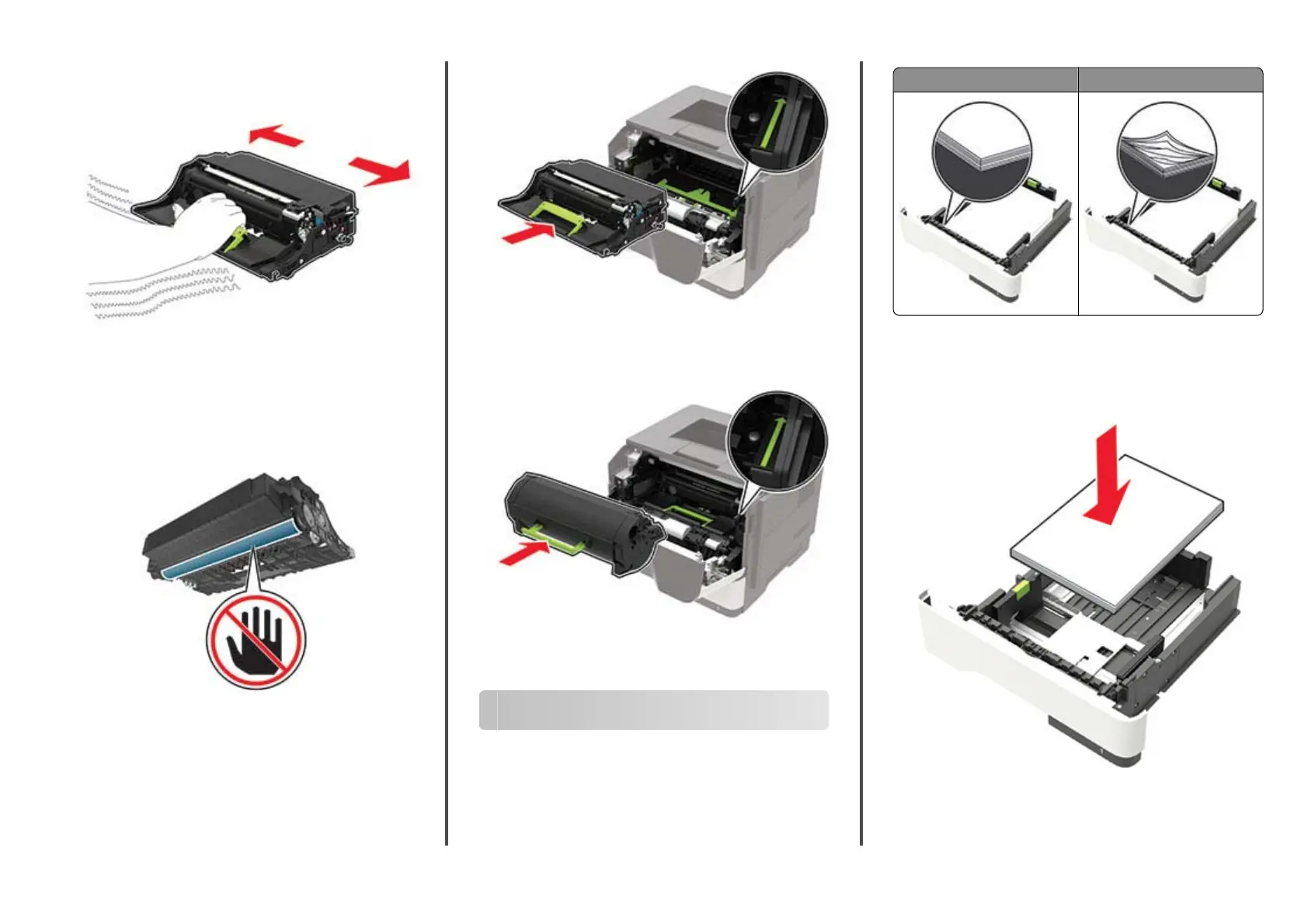
Unpack the new imaging unit, and then shake it three times to
redistribute the toner.
Warning—Potential Damage: Do not expose the imaging
unit to direct light for more than 10 minutes. Extended
exposure to light may cause print quality problems.
Warning—Potential Damage: Do not touch the
photoconductor drum. Doing so may aect the quality of
future print jobs.
5
Insert the new imaging unit.
Note: Use the arrows inside the printer as guides.
6
Insert the toner cartridge.
Note: Use the arrows inside the printer as guides.
7
Close door A.
Clearing jams
Avoiding jams
Load paper properly
•
Make sure that the paper lies flat in the tray.
Correct loading of paper Incorrect loading of paper
•
Do not load or remove a tray while the printer is printing.
•
Do not load too much paper. Make sure that the stack height
is below the maximum paper fill indicator.
•
Do not slide paper into the tray. Load paper as shown in the
illustration.
•
Make sure that the paper guides are positioned correctly and
are not pressing tightly against the paper or envelopes.
•
Push the tray firmly into the printer after loading paper.
4
11401A Granite Street | Charlotte, NC | 800.922.8501 | Sourcetech.com



 To Next Page