09
Connections
Wi-Fi,Bluetooth,Flight mode
Status bar,do not disturb
Wi-Fi
Bluetooth
Pair new devices
Previously connected devices
+
1 2 3
Spedal- *****
Pair new devices
Available devices
Pairing...
>
Spedal- ******
******
******
Pair with Spedal - ***** ?
Allow access to your contacts
and call history
Cancel
Pair
Different models of Android phones may display differently,
please refer to the actual situation.
The first connection takes a longer time, please be patient.
4 5
Note
If you want to switch to CarPlay/AirPlay/Mirroring, you need to turn
off Bluetooth and Wi-Fi on your phone and disconnect from Android
Auto connection mode.
3.3.2 Andorid Auto Audio Out
In CarPlay/Android Auto mode, the phone is directly connected
to the car's Bluetooth (if the phone has been paired with the
car's Bluetooth before, there is no need to repeat the connection
operation).
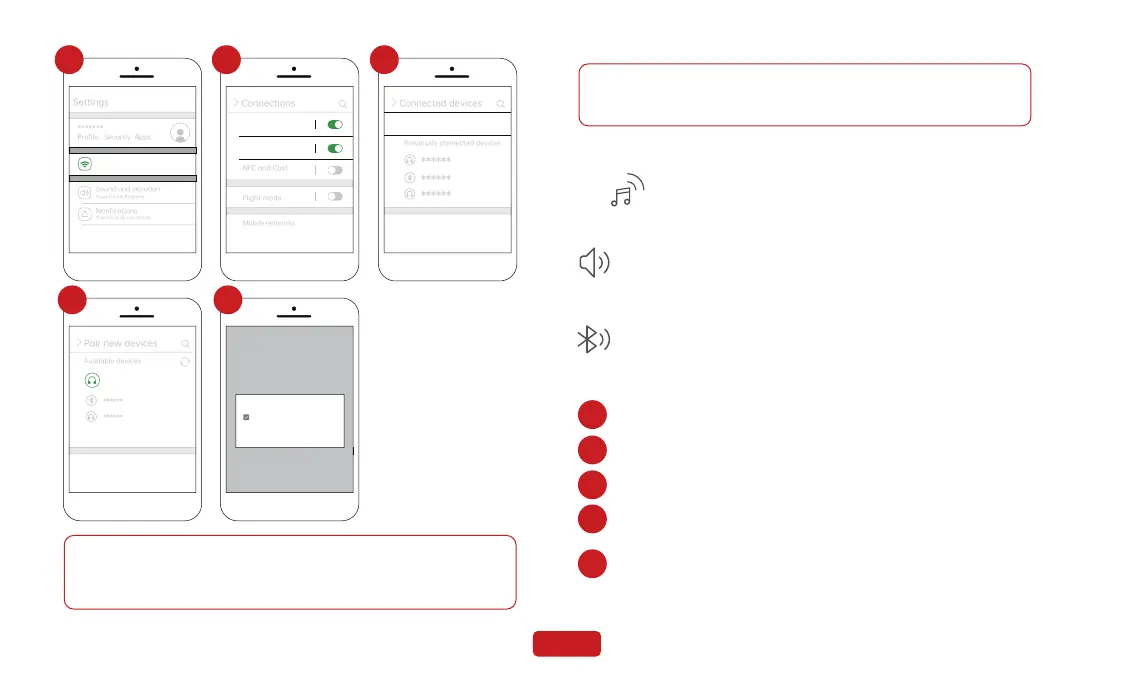
2. Bluetooth
1. Native Audio
Click“ ”on the home screen to enter the Audio Out.
The sound is played from the speaker of the device.
2.1 Go to Settings on your phone > Bluetooth,turn on the “Bluetooth”.
2.2 Enter Bluetooth search page.
2.3 Click“Pair new devices”to search new Bluetooth device.
2.4 Select your car's Bluetooth name pairing from the list of
searched Bluetooth.
2.5 Wait for about 20 seconds, the phone pops up the box "Pair with
"Car-******"", click "Pair", wait for the Bluetooth pairing to
finish. The audio will be played from the car.
1
2
3
4
5


 To Next Page