10 11
English
English
SOUND RECORDING
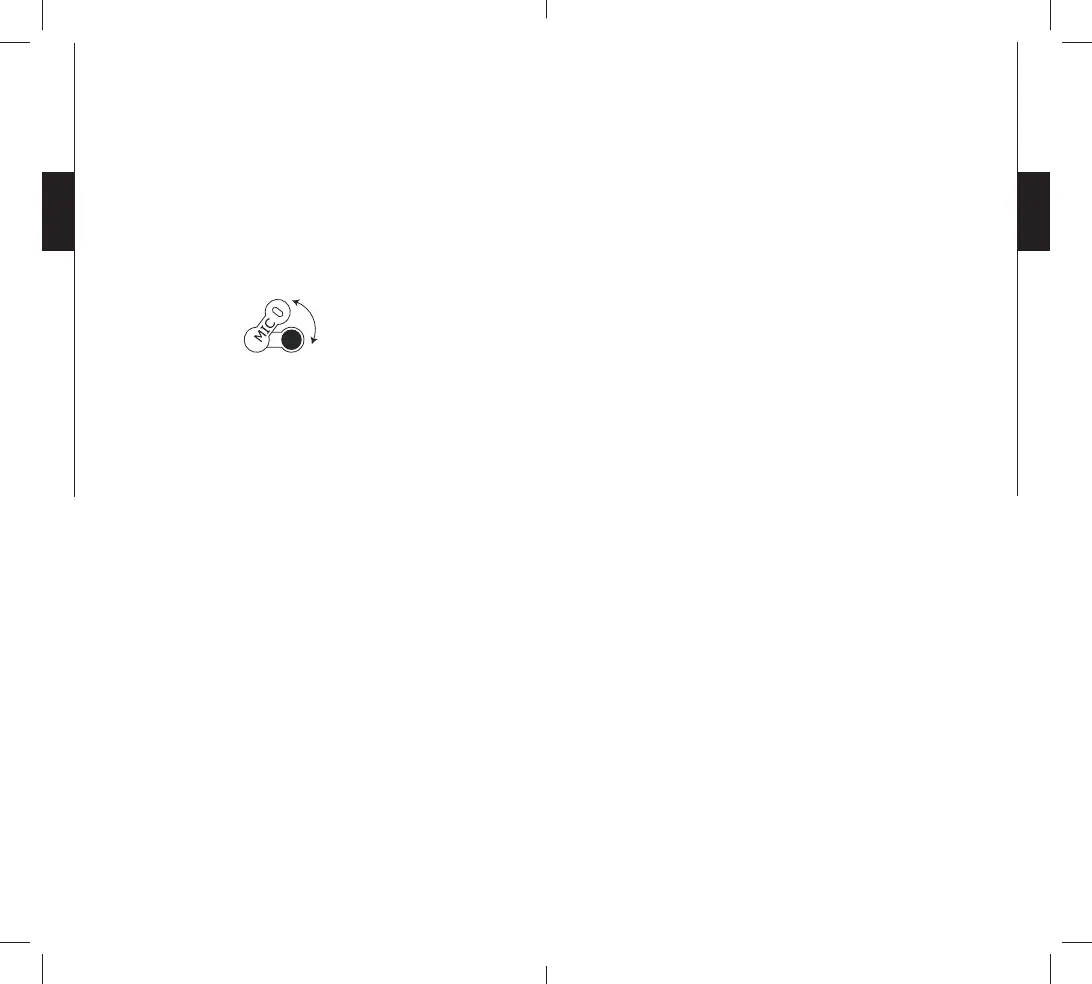
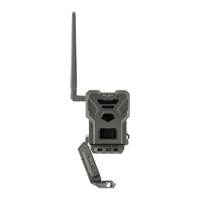
The SPYPOINT G4 offers the possibility to record the sound
in « VIDEO » mode. When the « VIDEO » mode is selected,
the camera automatically records the sound. Under the camera,
you can find a rubber cap with the inscription MIC. If the user
does not want to record the sound, the rubber cap needs to stay
in place. If the sound recording is required, the user must lift the
rubber cap and turned it slightly so that the microphone receiver
is completely cleared (See figure below).
DOWNLOAD TO A COMPUTER
To transfer or view photos and videos on a PC, you must first
turn the camera « OFF » and connect the USB cable (supplied)
from the camera and to your computer. The computer will
recognize the camera and install the software itself. Click on
« My Computer » and select « Removable Disk ». Then click
« DCIM » and « 100DSCIM » to find all your photos
and videos.
Taking the SD card out of the camera and inserting it into the
computer port will achieve same results. If no SD slot is built
into the computer, a multi-card reader RD25-1 (sold separately)
must be used.
TELEVISION
To see photos and videos directly on a TV screen, turn
«
OFF » your camera and select « VIEW ». Connect the yellow
end of the cable (supplied) into the « VIDEO IN » of the TV and
the other end into the « TV OUT » of the camera. Turn « ON »
the camera. You will see the last picture or video recorded by
your system. To change the picture or the video, use the key
« UP » or « DOWN ». If you press « MENU/OK », the
following options will appear:
View Date/
Time:
To increase the view of the date and time
imprinted on the picture.
Erase one:
To erase the photo or the video on the screen.
Erase All:
To erase all stored photos and videos,
with the exception of protected photos and
videos.
Format:
To format memory card and to erase all
protected photos and videos.
Protect:
To protect the photo or video on the screen.
Language:
To select language.
Exit:
To return to viewing screen.
TROUBLESHOOTING
No person / animal on photos
1. Rising sun or sunset can trigger sensor. Camera must
be reoriented.
2. At night, motion detector may detect beyond range
of the IR illumination. Reduce distance setting.
3. Small animal may be triggering unit. Reduce
distance setting and/or raise height of camera.
4. Motion detector may sense animals through foliage.
5. If person/animal moves quickly, it may move out
of the camera’s field of view before photo is taken.
Move camera further back or redirect camera.
Camera must be set on a stable and immovable
object i.e. large tree.
6. Make sure the mounting post or tree is stable and
does not move.
Red light in front of camera winks
1. « MODE » switch is in « SET/TEST ».
2. « MODE » switch is in « PHOTO » or
« VIDEO ». Red light on the front of the camera
flashes for 60 seconds to allow the user to leave
without being photographed or filmed.
Mob: +91 9962534747, E-Mail: info@upbeattech.com, Web: www.upbeattech.com


 To Next Page