-6-
IP Camera
More FAQs:
1. How to restore the camera to factory settings
2. How can I add the camera to my 2nd phone
3. Camera ID, Camera Password, App Account ID and Password
4. Watch live videos from SricamPC App on Windows 7/8/10 PC
5. How to watch live streams with ONVIF clients
FAQ1: MicroSD card record and playback setting
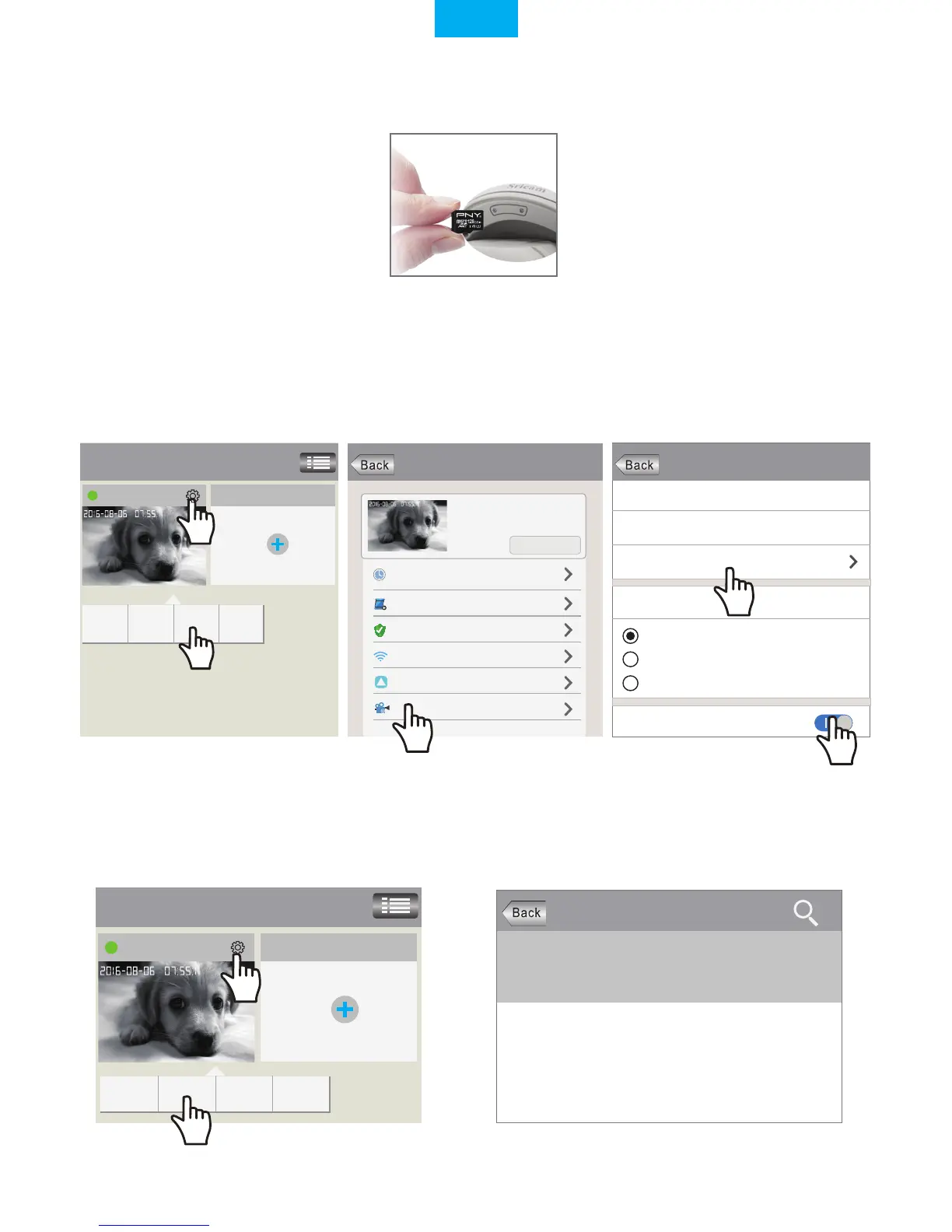
1) Insert the microSD card to the camera
2) MicroSD card format and record setting
Log in “Sricam” App and follow the steps:Setting -> Record Setting -> SD card Formatting-> Record Switch
Touch " Playback" for playback the record on MicroSD card,as picture below (Note: each record is 30 minutes)
FAQ1-1 FAQ1-2 FAQ1-3
3) Record Playback(on App)
(Note: If you use 64G or 128G SD card can't recording, you need to format the SD card to FAT32 format on
your PC. If the SD card recording is full,it will automatically loop coverage, you do not need to manually delete
the video file.)
Record Setting
SD Card Free Space:827M
SD Card Formatting
Record Type
Record Switch
SD Card Total Space:3784M
Manual Record
Alarm Record
Timing Record
Devices List
IPCam
Add new device
Modify Settings
DeletePlayback
Settings
IPCam
Device information
Time Setting
Media Setting
Security Setting
Network Setting
Alarm Setting
Record Setting
!
1
2
Playback-63
Devices List
SD card videos
Latest 1 day Latest 3 days
Latest 1
month months
Lastest 3
Phone local videos
disc1/2017-02-02_14:00:00_S.av (1123S)
disc1/2017-02-02_13:30:00_S.av (1800S)
disc1/2017-02-02_13:00:00_S.av (1800S)
IPCam Add new device
Modify Settings DeletePlayback
1
2
FAQ1-4 FAQ1-5
Log in “Sricam” App and follow the steps: Setting_>Playback
.
English


 To Next Page