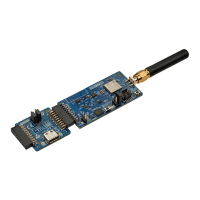
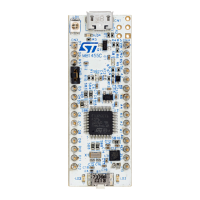
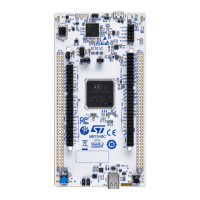
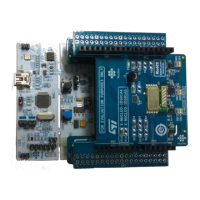
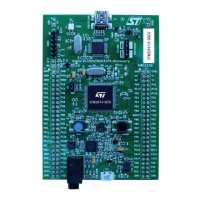
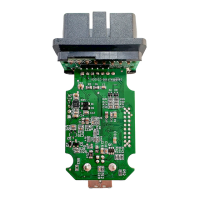
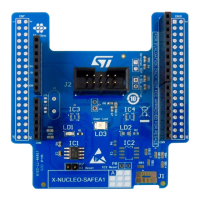
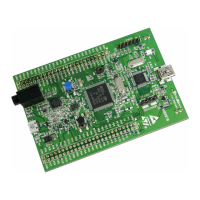
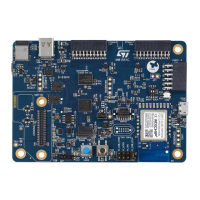
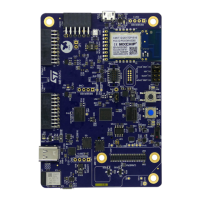
This document outlines the procedure for measuring Packet Error Rate (PER) and Received Signal Strength Indicator (RSSI) between two boards using the STM32CubeMonitor-RF tool. The demonstration specifically utilizes the Nucleo Board MB1355C and the USB Dongle MB1293C, both of which are included in the STM32WB55 Nucleo Pack. On both boards, the BLE (Bluetooth Low Energy) stack is programmed into the M0+ core, while the Transparent Mode is programmed into the M4 core.
Function Description:
The STM32CubeMonitor-RF is a software tool designed to facilitate the testing and analysis of RF performance for STM32WBxx microcontrollers. Its primary function, as detailed in this manual, is to measure the Packet Error Rate (PER) and Received Signal Strength Indicator (RSSI) between two connected STM32WBxx-based boards. This allows users to assess the reliability and signal quality of their wireless communication links. The tool provides a graphical user interface (GUI) for configuring test parameters, initiating measurements, and visualizing the results.
Usage Features:
-
Software Setup:
- The first step involves opening the STM32CubeMonitor-RF application.
- Upon launching, the user is prompted to select the desired wireless technology; for this application, "BLE" (Bluetooth Low Energy) is chosen.
-
Board Connection (MB1355C - DUT):
- The Nucleo Board MB1355C, which acts as the Device Under Test (DUT), is connected to the PC via a USB cable.
- Within the STM32CubeMonitor-RF interface, the appropriate COM port corresponding to the MB1355C is selected. The manual notes that this might not always be "COM60" and advises users to identify the correct port.
- After selecting the COM port, the "CONNECT" button is clicked to establish communication with the board.
- Successful connection is indicated by the display of the ACI (Application Controller Interface) commands list and associated messages within the ACI log window. This log provides real-time feedback on the communication status and executed commands, including device information such as the STM32WB5x device type, CM4 version (e.g., 0.0.1), and CMO version (e.g., 1.0.0.3/e).
-
Test Mode Selection:
- Once the MB1355C is connected, the user navigates to the "RF Tests" panel within the STM32CubeMonitor-RF interface.
- From the available test modes, "Packet error test (PER)" is selected.
- Following this selection, the "SELECT TEST MODE" button is clicked to confirm and proceed.
-
Board Connection (MB1293C - Tester):
- The USB Dongle MB1293C, which functions as the tester, is then connected to the PC.
- Similar to the MB1355C, the correct COM port for the MB1293C (e.g., "COM11") is selected within the "Connect tester" section of the interface.
- The "CONNECT" button is clicked to establish communication with the tester dongle.
-
TX Configuration (MB1293C - Tester):
- The USB Dongle MB1293C, acting as the transmitter (TX), is configured first. This is always the second device selected in the setup.
- Key parameters for the TX board are set, including:
- PA Level: For example, "31 (+6dBm)".
- TX Frequency: For example, "2402 MHz (Channel 37)".
- Length of Data: For example, "0x25".
- Packet Payload: For example, "0x00 - Pseudo-Random bit sequence 9".
- PHY (Physical Layer): For example, "0x01 - Transmitter set to use the LE 1M PHY".
- After setting these parameters, the "CONFIGURE DUT" button is clicked to apply the configurations to the transmitting device.
-
RX Configuration (MB1355C - DUT):
- The Nucleo Board MB1355C, acting as the receiver (RX), is configured next. It is crucial to set the same parameters for the RX board as were configured for the TX board to ensure proper communication and accurate measurements.
- The parameters to be matched include:
- RX Frequency: For example, "2402 MHz (Channel 37)".
- PHY: For example, "0x01 - Receiver set to use the LE 1M PHY".
- Index modulation: For example, "0x00 - Assume transmitter will have a standard modulation index".
- Once the parameters are matched, the "CONFIGURE PARAM" button is clicked.
-
Additional Test Settings:
- Before starting the test, additional settings can be configured:
- PER tests on multiple channels: This option allows testing across a range of channels (e.g., "0-39").
- Get RSSI: This checkbox enables the measurement of RSSI during the test.
- Save test verdict in file: This option allows saving the test results to a file for later post-analysis. The user can select a file path using "SELECT FILE".
- Measurement period (sec): The duration for each measurement can be specified (e.g., "3 seconds").
- After configuring these additional settings, the "START TEST" button is clicked to begin the PER/RSSI measurement.
-
Viewing Test Results:
- Upon completion of the test, the results are displayed within the STM32CubeMonitor-RF interface.
- The displayed results include:
- "Transmitted packets count"
- "Received packets count"
- "Packet Error Rate (PER)" (e.g., "0.91%")
- "RSSI" (e.g., "-52.00 dBm")
- An icon is available to visualize the test results in a graphical format, providing a clear representation of PER and RSSI across different channels or over time. The graph typically shows RSSI in dBm and PER in percentage, plotted against the channel number.
Important Technical Specifications (as inferred from the manual):
- Supported Microcontroller: STM32WBxx series.
- Supported Boards: Nucleo Board MB1355C, USB Dongle MB1293C (part of STM32WB55 Nucleo Pack).
- Wireless Technology: Bluetooth Low Energy (BLE).
- Core Utilization: BLE stack on M0+, Transparent Mode on M4.
- Measurement Capabilities: Packet Error Rate (PER), Received Signal Strength Indicator (RSSI).
- Frequency Range: Configurable, example shows 2402 MHz (Channel 37).
- PHY Support: LE 1M PHY (0x01).
- Packet Payload: Configurable, example shows Pseudo-Random bit sequence 9 (0x00).
- PA Level: Configurable, example shows +6dBm (31).
- Data Output: Numerical display of transmitted/received packets, PER, RSSI. Graphical representation of results. Option to save results to file.
- Software Tool: STM32CubeMonitor-RF.
- Connectivity: USB for board connection to PC.
Maintenance Features:
- ACI Log: The ACI log window provides detailed command execution history and status messages, which can be invaluable for debugging connection issues or understanding the flow of operations. It shows timestamps and types of commands, such as
HCI_READ_LOCAL_VERSION_INFORMA, Command Complete, and VS_HCI_C1_DEVICE_INFORMATION.
- Reset Functionality: The "RESET" button is available to reset the connected device, which can help in recovering from unexpected states or preparing for a new test.
- Disconnect Functionality: "DISCONNECT" buttons are provided for both the DUT and the tester, allowing users to safely disconnect boards and change configurations or devices.
- Scripting: The presence of a "Scripts" panel suggests the capability to automate test sequences, which can be useful for repetitive testing or complex scenarios. This includes options like "Add pause in script" and "Start script recording".
- Update and Autoscroll: The ACI log includes "Update" and "Autoscroll" options, allowing users to control how log messages are displayed and ensure they are viewing the latest information.
- File Saving: The ability to "Save test verdict in file" is a crucial maintenance feature, as it allows for long-term storage of test data, post-analysis, and comparison of results over time or across different hardware revisions.

 Need help?
 General

 To Next Page