13
Save Settings to a Preset
Once you have configured the SRP64 to your preferences, you should save the settings to
a memory slot for instant recall. In the following example, we will save the settings to
memory slot 2.
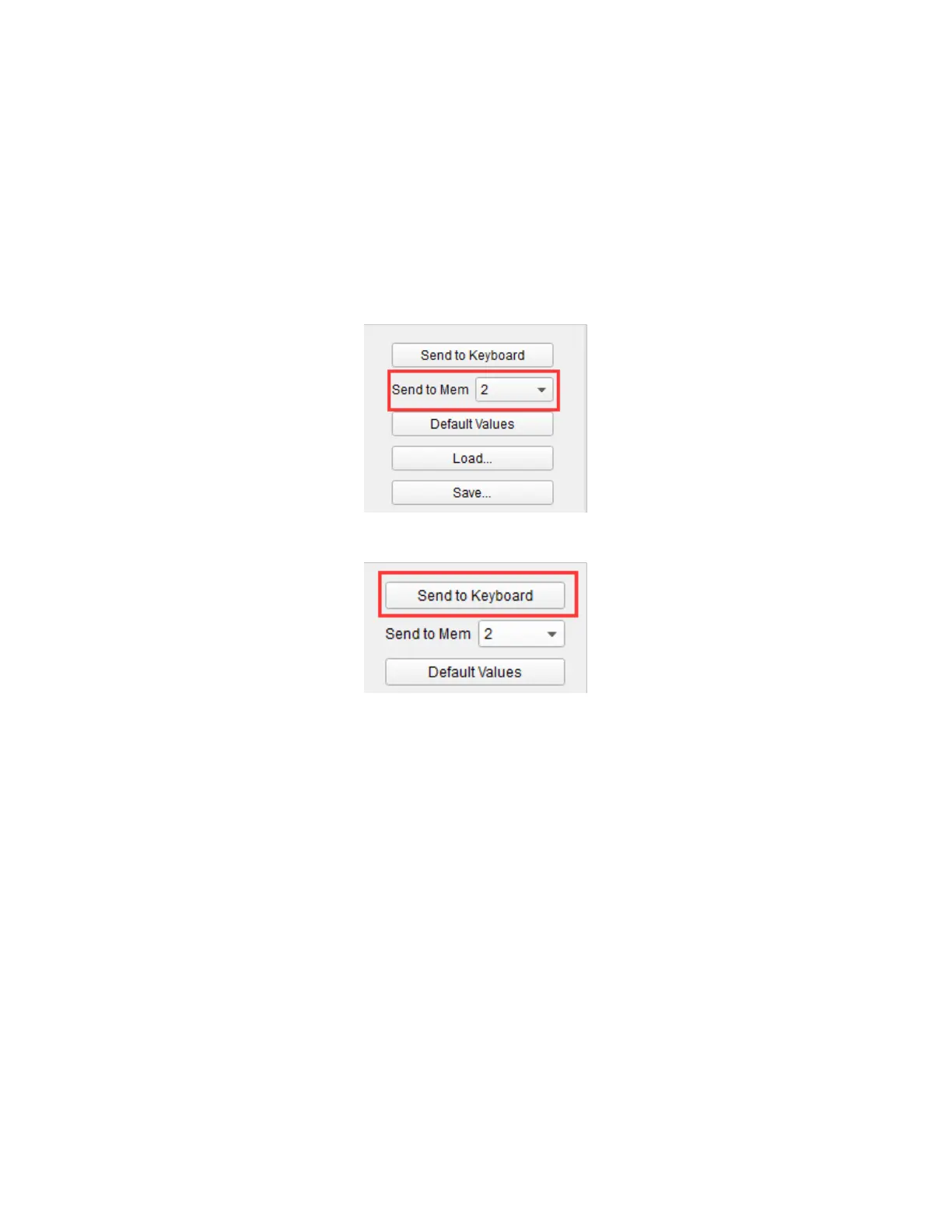
1. Locate the Send to Keyboard button on the right side of the software interface. Use
the Send to Mem pull down list box to set it to 2.
2. Click the Send to Keyboard button to save preset to memory slot 2.
Setting Pad RGB Backlighting
Each Pad can be set to any color by controlling the brightness of the red, green, and blue
elements. Perform the following steps to set the backlighting color for a Pad.
1. Click any Pad to select it.
2. Use the CR, CG, and CB pull down list boxes in the top right corner of the interface
to set the brightness for the red, green, and blue elements to a value between 0
and 127. 0 is minimum brightness (color element is off) and 127 is the maximum
brightness.
3. Once you have set the value for all three color elements, click the Send to Keyboard
button to send the selected color to the Pad.



 To Next Page