MIDEX-8
English – 26
• You can also directly change your Studio setup from Cubase VST. Open the Stu-
dio setup window by selecting Option–MIDI Setup–OMS–OMS Studio Setup
and make the necessary changes. You can immediately activate the changes by
selecting “Save and make current”.
Using OMS and Cubase VST or Nuendo
❐
If you have previously used OMS and Cubase or if you already are a
Nuendo user, you can skip this section.
1. If OMS was not installed before, start Cubase VST and set “OMS compatibil-
ity” in Cubase VST’s “MIDI Setup/System” dialog from “No OMS” to “IN &
OUT”. Wait until the program has finished loading and quit it when you have
changed the setting, as the MIDEX-8 can only recognize the change when
you start the program next time.
This is not necessarry if you work with Nuendo, as here OMS is always active if it
has been installed.
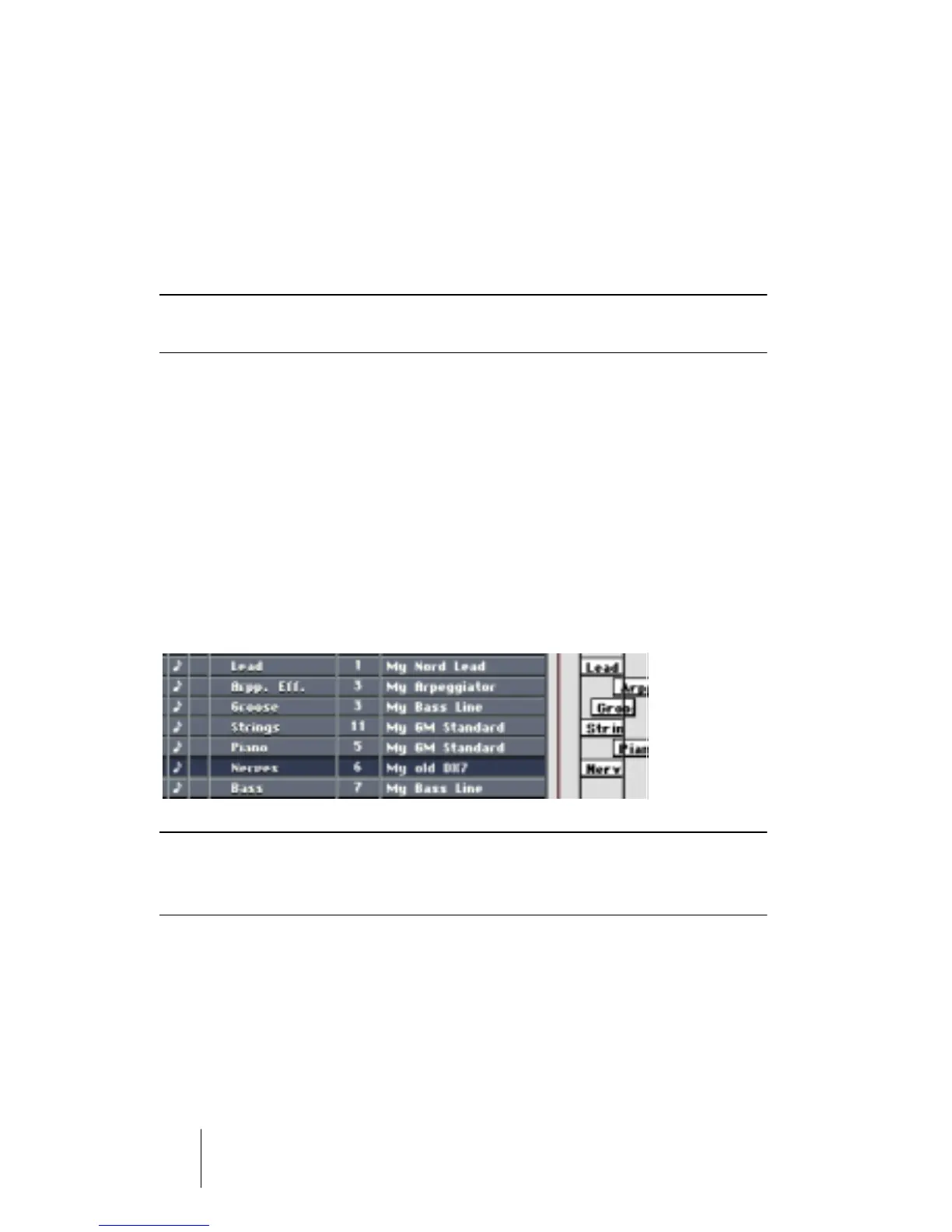
2. If you now (re)start Cubase VST or Nuendo, the MIDEX-8 interface is avail-
able as a MIDI input and output device. From now on, you can select your
MIDEX-8 outputs directly in the output column of your program.
❐
If you use another sequencer program, you will probably have to configu-
rate its OMS support. Please read the documentation provided by the
manufacturer.
3. You should now check whether the program receives MIDI data from the
connected Recording Keyboard or MIDI Controller. To do this, simply press a
few keys on the MIDI keyboard or move a few controls. While you do this,
the corresponding Input LED on your MIDEX-8 should light up. The same
goes for the MIDI Input indicator in your program on the screen.


 To Next Page