MIDEX-8
English – 25
ENGLISH
• To prevent unnecessarily wasting processing power, it is a good idea to only
use those MIDI devices as inputs (arrow pointing to the left – towards the
MIDEX-8 port) that you really intend to use for MIDI input (e.g. the MIDI key-
board that is used to play notes into the sequencer).
By simply clicking on an arrow, you can activate or deactivate the correspond-
ing MIDI transfer direction.
• If you intend to use the physi-
cal Thru function on some de-
vices to connect several
devices to the same MIDEX-8
MIDI port, the corresponding
MIDI channels must be as-
signed to each device in the
“MIDI Device Info” dialog’s
“Receive Channels” section.
This is done by clicking on the
corresponding channel. The
“MIDI Device Info” dialog can
be opened by double clicking
the keyboard symbol with the
question mark in the OMS
Setup window.
• By cleverly limiting the MIDI
input channels of your MIDI in-
struments, you can connect
many more than just 8 sound
devices to the MIDEX-8.
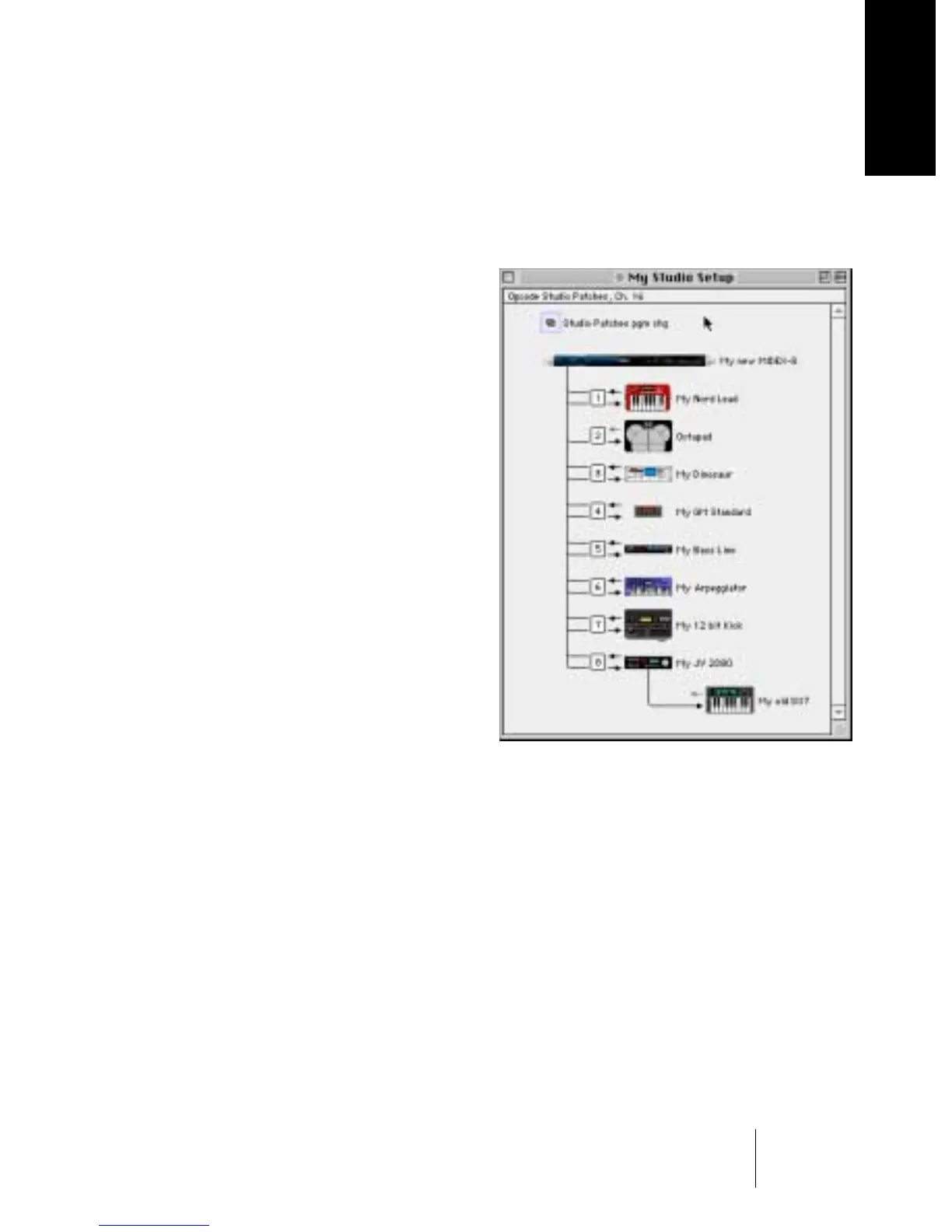
• It would e.g. be possible to connect an old DX7 exclusively to – say – MIDI channel
9 while MIDI channels 1 to 8 of the same MIDi output port are used for a multi-
timbral instrument like the ROLAND JV2080. To do this, you would have to deac-
tivate the option “Is multitimbral” in the “MIDI Device Info” dialog and select the
corresponding channels (do not forget to activate the receiving channel in each
synthesizer!).
• You can improve overall appearance by double clicking the Keyboard icon next
to the corresponding entry in the “OMS Setup” window and by clicking the
same symbol once in the “MIDI Device Info” dialog that appears. A dialog opens
where you can select an icon which represents the actually connected device.
Your Studio Setup will become very clear this way.


 To Next Page