5.5 Firmware
Firmware update will optimize the performance of firmware or device drivers, as well as the performance of
processors or other device hardware. Firmware upgrade can also fix the problems found in the old version.
Automatic firmware upgrade reminder
Every time you open the application to log in, the application will automatically detect the latest firmware version
and the local current firmware version. If the latest firmware file is not downloaded locally, you will be reminded
to download the latest firmware in the pop-up window on the home page, so that you can directly update the
firmware after connecting the device.
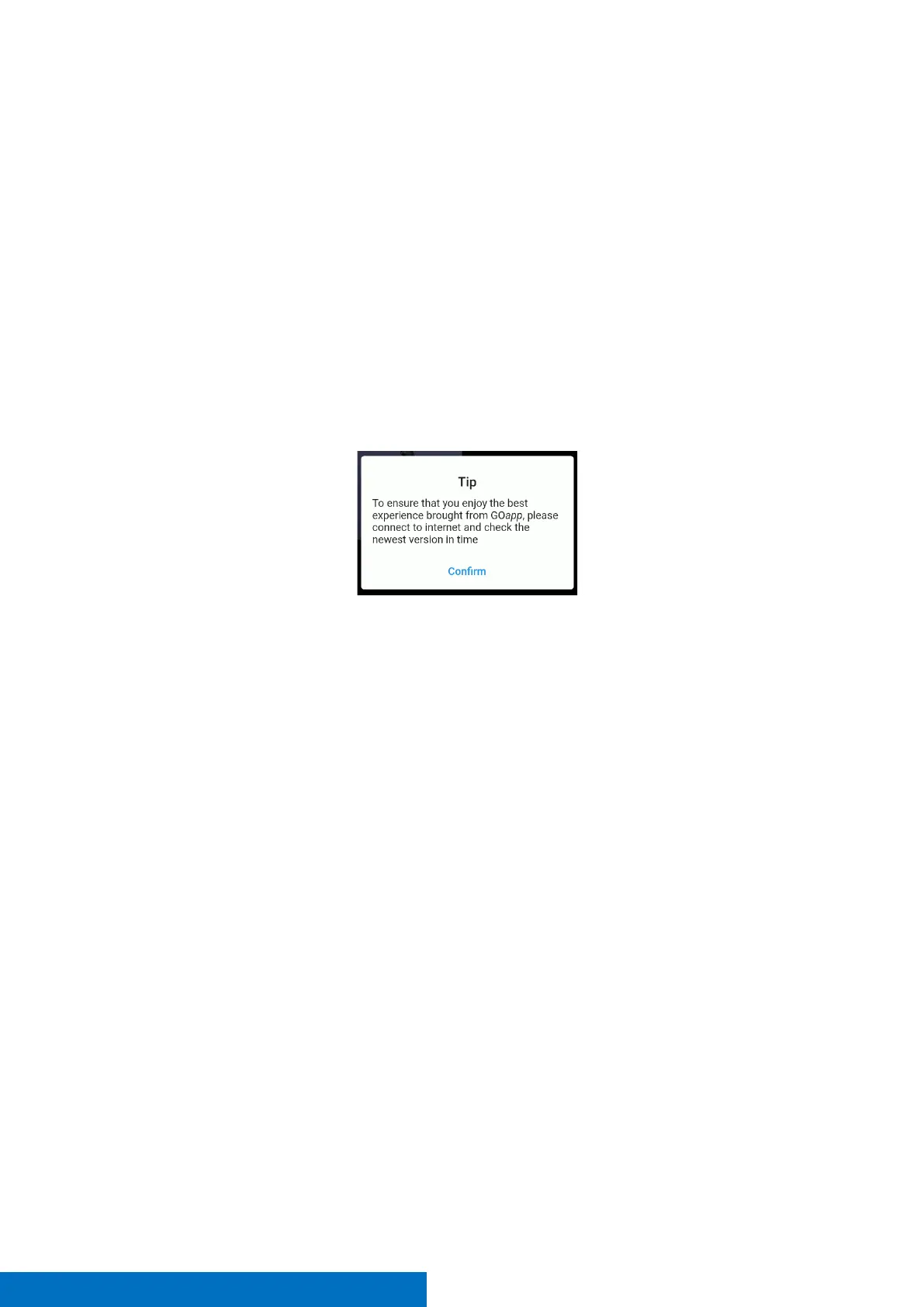
To make sure you have the latest Firmware version, open the application, before connecting to the scanner's wi-
fi. Otherwise, the following message will appear.
Latest firmware download
After the firmware of the homepage pop-up window is upgraded, click OK, which will jump to the firmware
download window. Click Download to start downloading. At this time, don't operate your mobile phone, wait for
the download to complete, and then click OK to exit the firmware upgrade window.
Firmware upgrade process
When the pop-up window on the home page prompts to download firmware, the firmware package has been
downloaded locally.
1. When opening the app, log in to the account, click Download the latest firmware in the pop-up window
to upgrade the firmware, and close the download page after the download is completed.
2. Turn on the X120
GO
device, connect the device WiFi, click "Home" to enter the device details, click the
"Settings" button in the upper right corner of the page, and click "Firmware Upgrade".
3. Click "Firmware Upgrade" in the firmware upgrade interface, and then click "Update". Please wait
patiently for the firmware upgrade package to be transmitted to the X120
GO
device. Do not operate the
mobile phone or X120
GO
device at this time.
4. After the transmission is completed, click OK. At this time, please wait for 35s before manually restarting
the equipment. After restarting the equipment, wait for the white light of the equipment indicator to
blink and turn green. At this time, the firmware update is successful, and the equipment can be used
normally.
In case the latest firmware package is not downloaded on the home page.
1. Turn on the X120
GO
device, connect the device Wi-Fi, and click the "Home page" to enter the device
details, and click the "Settings" button in the upper right corner of the page.


 To Next Page