2. When checking the firmware upgrade, you need to disconnect the Wi-Fi connection of X120
GO
device (if
the device has not acquired the latest firmware version, you will be prompted to disconnect the Wi-Fi of
the device and re-enter the firmware upgrade page), keep your mobile phone connected to the Internet,
and click "Firmware Upgrade".
3. After the download is completed, reconnect the Wi-Fi of X120
GO
device, exit the firmware upgrade page,
and click the device on the home page again to enter the device standby page.
4. Click "Settings" in the upper right corner of the standby page, enter the firmware upgrade page, click
"Firmware Upgrade" and then click "Update". Please wait patiently for the firmware upgrade package to
be transmitted to X120
GO
equipment. Please do not operate your mobile phone or X120
GO
equipment at
this time.
5. After the transmission is completed, click OK. At this time, please wait for 35s before manually restarting
the equipment. After restarting the equipment, wait for the white light of the equipment indicator to
blink and turn green. At this time, the firmware update is successful, and the equipment can be used
normally.
5.6 Data download
The results of the scanning sessions are stored in the SD Card.
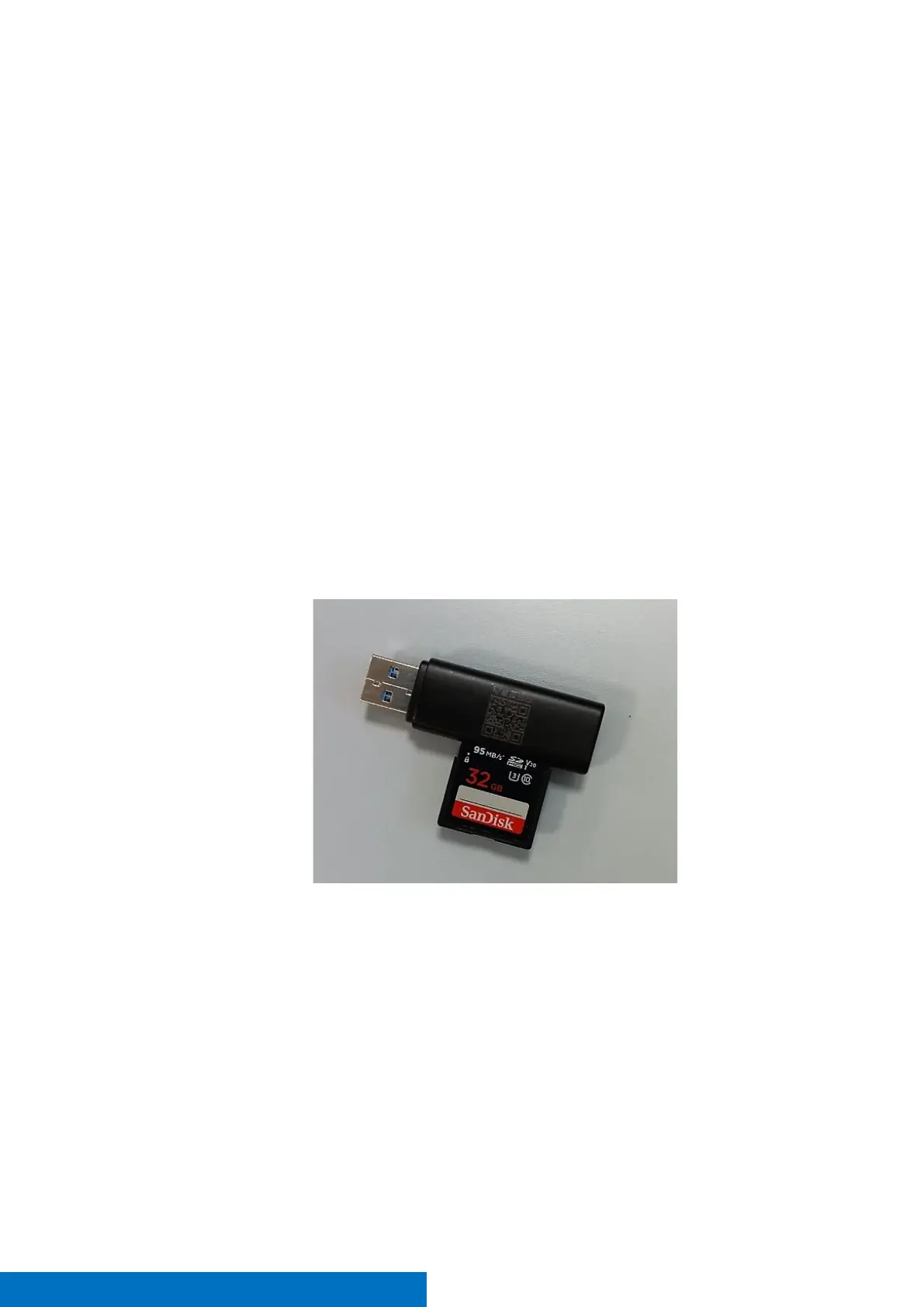
1. Remove the card from the SD card slot
2. Insert it in a SD reader, provided in the scanner case
3. Select the folders of the scans you want to download. Folders are named "SN_XXXXX” and are
automatically generated by the system after each data acquisition, and the sequence of data acquisition
can be identified according to the size of the tail number of the folder name. The raw data includes Image
data, IMU, raster data, laser data, and device calibration files.
4. Copy and paste the folders on your device.


 To Next Page