EasyManua.ls Logo

Straumann 3Shape TRIOS 4 - User Manual

Straumann 3Shape TRIOS 4
19 pages
Print Icon
To Next Page IconTo Next Page
Loading...
3Shape TRIOS Info Pack
TRIOS 4
Let’s change dentistry together
Question and Answer IconNeed help?

Do you have a question about the Straumann 3Shape TRIOS 4 and is the answer not in the manual?

Summary

General Information

Introduction

Overview of the document's purpose and scope.

New Benefits of TRIOS 4 Scanner

Highlights key improvements and new features of the TRIOS 4 scanner.

TRIOS 4 Wireless Setup Quick Facts

Concise information on battery life, recharge time, and connection speed.

Order Details and Software Versions

Directs to product catalog and specifies required software versions.

Getting Started

Preparing Scanner for First Use

Outlines initial setup steps for both wired and wireless configurations.

Wired Setup and Connections

Details connecting the scanner using the smart cord and powering it on/off.

Initial Scanner Setup (POD & PC)

Pod Connection and Power Supply

Guides on connecting Ethernet and power supply cables to the pod.

Smart Cord Connection to Scanner and Pod

Details connecting the smart cord to the scanner and the pod.

Completing Wired Setup to PC

Ethernet to PC and Serial Number Entry

Instructs on connecting Ethernet to PC and entering the serial number.

Scanner Ready Indicator

Explains the green indicator light for scanner readiness.

Using Scanner with Multiple PCs (Wired)

Connecting to a Second PC (First Time)

Steps for using the wired setup on a new PC for the first time.

Reconnecting to a Previously Used PC (Wired)

Steps for reconnecting the wired setup to a previously used PC.

License Dongle Requirement for Multiple PCs

Notes the need for a license dongle copy on each PC.

Wireless Setup: Batteries

Charging the TRIOS 4 Batteries

Instructions on connecting the charger and charging batteries.

Inserting and Removing Batteries

Guides on correctly inserting and removing batteries from the scanner.

Scanner Operation and Wi-Fi Adapter

Turning Scanner On;Off and Auto-Shutdown

Details powering the scanner on/off and its automatic shutdown feature.

Inserting the Wi-Fi Adapter into PC

Guides on inserting the Wi-Fi adapter directly into a PC USB port.

Wireless Setup and Recommendations

Stable Wireless Connection Recommendations

Advises on scanner/PC placement and distance for optimal signal.

Addressing Wireless Interference

Discusses potential interference sources and solutions for the wireless setup.

Pairing Wireless Scanner to PC

Wi-Fi Adapter Insertion and PC Restart

Instructs on inserting the Wi-Fi adapter and restarting the PC.

Enabling Wireless Scanning and Adding Scanner

Details software steps to enable scanning and add the scanner via serial number.

Scanner Ready State Confirmation

Explains the green icon indicating the scanner is ready.

Scanner Status Light Signals

Light Signal Meanings

Explains the scanner status light colors (Blue, Yellow, Green, No light).

Connection Status Icons

Illustrates icons for ready, no connection, and not paired states.

The TRIOS 4 Battery Charger

Charger Operation and Indicator Lights

Describes the charger's ports, checking process, and indicator light meanings.

Charging Conditions, Time, and Battery Care

Details temperature requirements, charging duration, and battery insertion.

Battery Usage and Replacement

Battery Life and Recharge Information

Informs about continuous scanning time and battery management.

Changing a Discharged Battery

Steps for replacing a depleted battery with a charged one.

Battery Level Warning Indicators

Explains yellow icon and warning messages for low battery states.

Battery Maintenance and Smart Tips

Keeping Batteries Charged in Charger

Recommends keeping batteries in the charger for readiness.

Battery Cycle Lifespan and Replacement

Estimates battery capacity retention after charge cycles and suggests replacement.

TRIOS 4 Smart Tips Usage and Features

Describes the twist-to-lock mounting and features of smart tips.

Scanner Calibration and Symbols

Importance and Process of Scanner Calibration

Explains why and when to calibrate the scanner and tips.

Understanding Scanner Status Symbols

Provides visual guides for scanner status and connection symbols.

Troubleshooting and Technical Info

Scanner Status Alerts and Warnings

Explains alerts for connection, adapter, and low battery states.

Technical Specifications and Cleaning

Directs to product catalog for specs and guide for cleaning.

About 3 Shape

Company Background and Mission

Provides background on 3Shape's founding, growth, and mission.

Innovations in Dental Technology

Highlights 3Shape's contribution to dental technology and patient care.

Overview

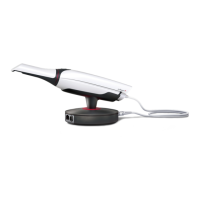
The 3Shape TRIOS 4 is an intraoral scanner designed to provide superior dental care through advanced 3D scanning and CAD/CAM software solutions. It is part of the Straumann Group's portfolio of dental innovations, aiming to change dentistry by enabling dental professionals to treat patients more effectively.

Function Description:

The TRIOS 4 intraoral scanner captures 3D color scans of the oral cavity, facilitating various dental procedures. It can be used in both wired and wireless configurations, offering flexibility in clinical settings. The scanner integrates instant-heat technology for immediate scanning, reducing waiting times for dental professionals. It is designed to connect with a PC or a 3Shape MOVE+ system, allowing for real-time visualization and processing of scan data using TRIOS software. The device supports multiple PC setups within a single clinic, requiring a copy of the license dongle for each additional PC.

Important Technical Specifications:

  • Battery Life: Approximately 45 minutes of continuous scanning with instant-heating.
  • Battery Recharge Time: 3-6 hours, depending on the initial charge level.
  • Battery Lifetime: Approximately 80% capacity after 300 cycles and 70% after 500 cycles. 3Shape recommends replacing the battery pack after 500 cycles. A battery cycle is defined as discharging from fully charged down to 10% capacity.
  • Wireless Connection Time: Approximately 10 seconds to connect a wireless scanner to the PC/MOVE+.
  • Software Compatibility: Requires TRIOS Software 19.2 (Dental Desktop® 1.6.9.1 + TRIOS Module 1.18.3.7) or later versions. It is not compatible with earlier software versions.
  • Wireless Frequency Band: Operates on the 5 GHz frequency band, which helps reduce interference from common 2.4 GHz wireless devices like smartphones.
  • Wi-Fi Adapter Placement: The Wi-Fi USB adapter should be connected directly to a free USB slot on the PC, ideally furthest away from the scanner to avoid signal interference if too close (less than 30cm/12 inches).
  • Scanner Status Lights:
    • Blue: Scanner is on and attempting to connect.
    • Yellow: Battery is 5% or lower; change battery now. Scanning can continue until the battery is completely exhausted.
    • Green: Scanner is on, connected to the PC, and ready to scan.
    • No Light: Scanner is off.
  • Battery Charger: Features 3 independent charging ports.
    • Yellow (Charger): Port is identifying the battery. Charging will begin shortly, turning green. If yellow persists for more than 15 minutes, contact support.
    • Pulsing Green (Charger): Battery is charging.
    • Steady Green (Charger): Battery is fully charged.
    • Charging Temperature Range: Automatic charging begins when battery temperature is between 0 and 45 degrees Celsius. Battery temperature can reach up to 52 degrees Celsius during charging.
  • Smart Tips: Reusable and autoclavable up to 150 times. Feature instant-heat technology and an intelligent usage counter.

Usage Features:

  • Wired Setup:
    1. Connect the smart cord to the scanner and POD/MOVE+.
    2. Connect the POD to the PC.
    3. Connect the POD to the power supply.
    4. Turn on the scanner by pressing its button; the indicator light will turn blue, then green when connected.
    5. To turn off, disconnect the smart cord from the scanner.
  • Wireless Setup:
    1. Charge batteries fully before first use.
    2. Insert a battery into the scanner, ensuring correct orientation.
    3. Turn on the scanner by pressing its button; the indicator light will turn blue, then green when connected.
    4. Pair the scanner to the PC/MOVE+.
    5. The scanner automatically shuts down after approximately 10 minutes if not connected to a 3Shape TRIOS system. It can be turned back on by pressing the button and will reconnect within 10-20 seconds.
  • Multi-PC Use: The TRIOS 4 can be used with multiple PCs in the same clinic. For wired setups, a copy of the license dongle is required for each PC. For wireless setups, a copy of the license dongle and a Wi-Fi adapter are required for each PC.
  • Battery Management: The scanner's power management system learns the battery's true capacity over several charge/discharge cycles. It is recommended to allow the battery to run until it stops by itself for faster learning.
  • Smart Tips: Utilize a "twist-to-lock" mounting principle for easy attachment and removal.
  • Calibration: The scanner and smart tips require calibration before first use and every 8 days during normal use, or to compensate for thermal variations and aging effects. The TRIOS software will prompt the user when calibration is due.

Maintenance Features:

  • Battery Charging: Always keep batteries in the charger when not in use to ensure they are fully powered. The batteries will not deteriorate when left in the charger.
  • Battery Insertion: Ensure correct battery insertion into both the scanner and charger to avoid damage. No excessive force should be required.
  • Wi-Fi Adapter: Avoid applying mechanical stress (bending) to the Wi-Fi adapter, especially when moving a laptop, to maintain a stable connection.
  • Cleaning: Refer to the Safety & Setup Guide provided with the equipment for detailed cleaning instructions.
  • Smart Tip Replacement: Smart tips can be high-level-disinfected/autoclaved up to 150 times, after which they must be disposed of.
  • Troubleshooting: The system provides on-screen messages and status light signals to guide users through setup, connection issues, and battery warnings. If a connection is lost, the software will automatically attempt to reconnect.

Straumann 3Shape TRIOS 4 Specifications

General IconGeneral
BrandStraumann
Model3Shape TRIOS 4
CategoryMedical Equipment
LanguageEnglish