49
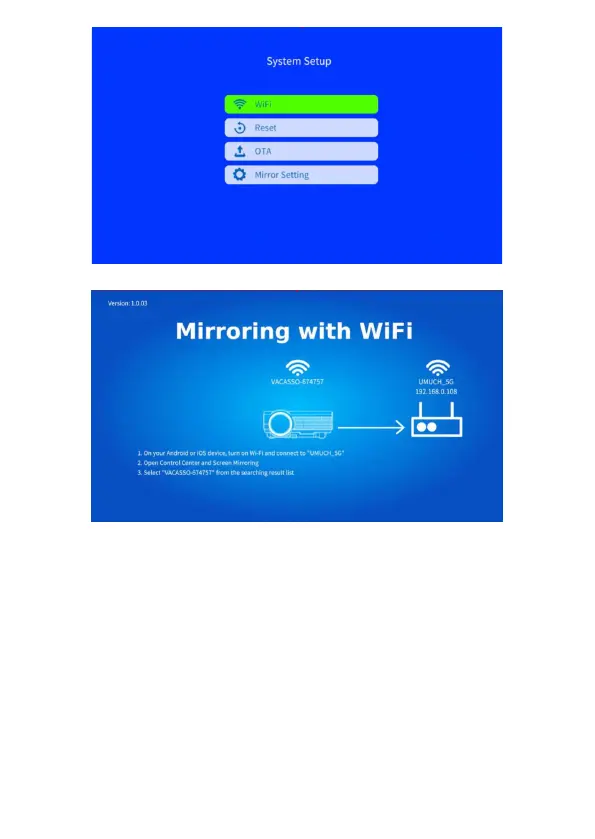
2. Follow the steps on the projection screen to share the screen OR
For Android devices: Make sure you are connected to the same WiFi
network as the projector. Now open your screen mirroring/smart view
overview and connect to the projector. The name of the projector can
be found on the projection. You are now connected.
For iOS devices: Make sure you are connected to the same WiFi network
as the projector. Now open your Airplay overview or select Airplay on
the APP that you wish to mirrow and connect to the projector. The
name of the projector can be found on the projection. You are now
connected.
The above method does not use 3G/4G/5G. The projector is connected to
your (home) network and your phone is connected to your WiFi. So
no data is used.
Always check this before prolonged use!
Then select "WiFi Cast" to connect to WiFi.


 To Next Page