Download and install the latest new video app from the Store first. Then switch the main power Off
and insert the USB webcam connector into one of the free USB slots. Switch the main power back On.
The webcam will be automatically recognised and you can start using it.
* Not included in the packaging.
If you like to change the login name, camera model or if you don’t get the webcam running, enter
“Settings – Apps – Skype -- Clear data” first and then login to Skype
TM
to test a video call and if the
new login works.
4.0 FIRST INSTALLATION
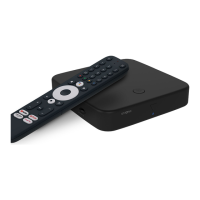
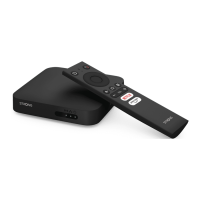
This procedure will enable you to enjoy and setup your Android IP Box just with a few steps. It
is recommended to follow the First Installation step by step. It will guide you through the basic
installation.
Step 1: Language Select your preferred language for the on-screen menu. Use t u to change
language and press OK to confirm your selection.
Step 2: Resolution Select the screen resolution you prefer. Default selection is Automatic, which
already shows the best setting of the connected screen. Press OK to confirm
your selection and the IP Box will follow.A banner appears to confirm the
new setting by selecting OK.Confirm again with OK. If you do not see this
banner immediately, wait a couple of seconds and the screen will return to its
previous state. Then try another resolution.
Step 3: Screen Size Use pq to adjust the size of the screen so it exactly fits the screen you are
using. Press OK to confirm.
Step 4: Network If you have already connected the Ethernet cable to your router, the unit in
most cases finds the correct settings automatically and jumps directly to Step
5. If you haven’t connected an Ethernet cable but prefer using Wi-Fi select Wi-
Fi and press OK to open the menu with the available wireless networks. Use
pq to select your network and enter the key or password. The 0 ~ 9 buttons
on the remote control can also be used for entering.
Step 5: Date&Time: If you have successfully connected to the Internet in Step 4, this screen will
automatically show the date and your local time. If necessary, you can select
an item to modify it manually.
Step 6: Final step: Select Login to Google Play Store to set up a Google account. Select Home
page to skip this step, go directly to the Android main page and set up your
Google account later.
After the above steps have been made the IP Box will go into operating mode and show the home
screen. Now you can use and enjoy it!
5.0 HOW TO USE THE ANDROID PLATFORM
This chapter describes how to use the Android platform. After turning on your IP Box, Home opens.
The app icons you keep in the tray remain visible on every Home screen. All app icons in the centre
are permanent. Press to see all your apps and widgets. The middle of your Home screen can hold
app and widget icons as well as folders. To open an app, folder or widget, click on its icon.
8



 To Next Page