23
To adjust recording duration press [REC] again. Here you can select 3 minutes
to 24 hours using the numeric keys.
3. Alternatively you can set the recording to end once current program or next
program are finished.
4. Press [STOP] to stop recording instantly, recorded programs can be viewed from
the DVR menu.
Manual Timer Recording/Reminder
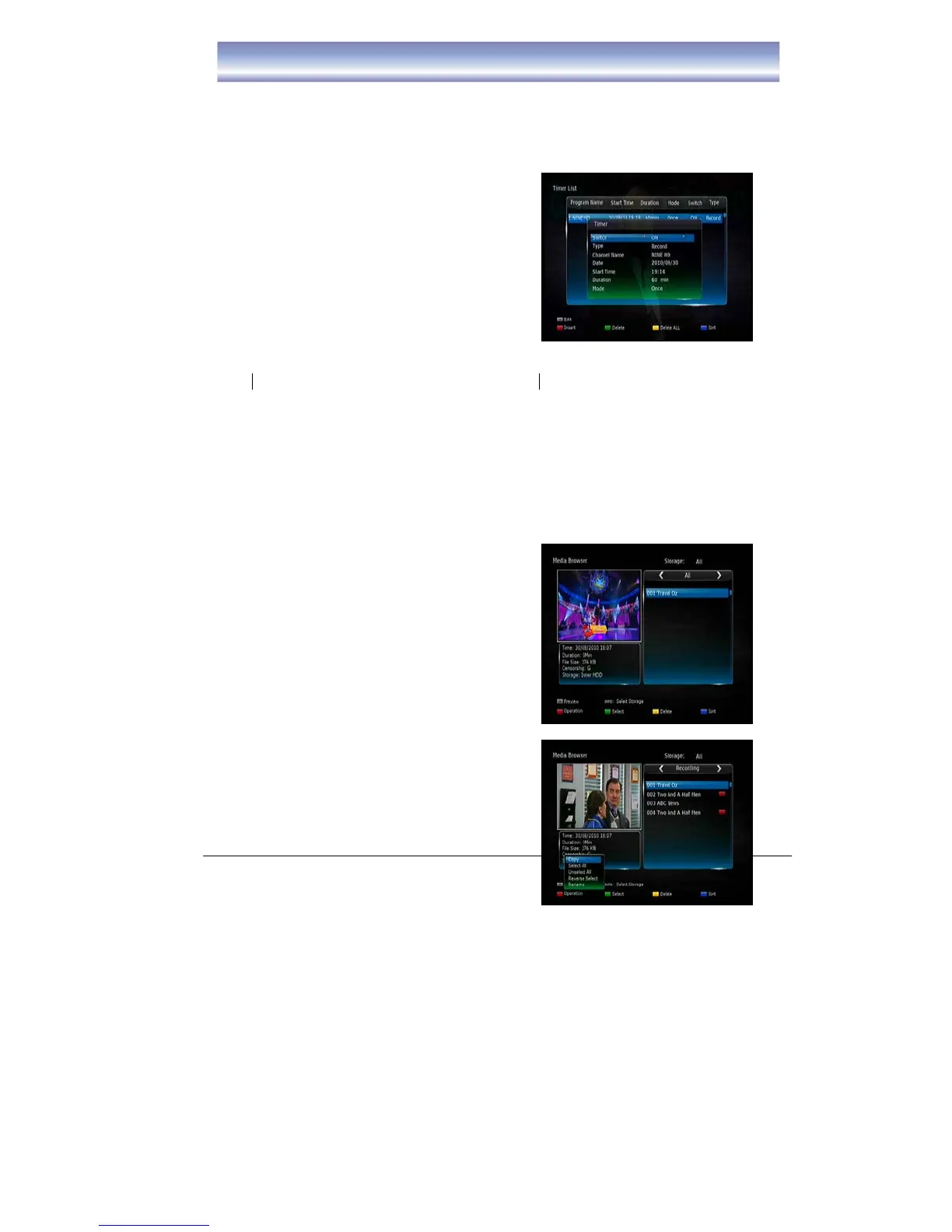
1. Press [Timer] key in Live TV mode.
2. Press Red button to insert a new Timer.
z Select Timer ON/OFF (default is ON)
z Select Record or Remind function
z Select the desired channel for timer
recording by pressing [LEFT] or
[RIGHT].
z Select the date for recording
z Select the start time for recording
z Select the length of recording time
z Select the mode of recording (Once/Daily/Weekly/Weekday/Weekend)
3. Press [OK] to save this Timer
4. Press [OK] to edit the information of the Timer
5. Press Green button to delete the set timer.
6. Press Yellow button to delete all the set timers.
7. Press the Blue button to re-arrange the sequence of the timer list by:
a) Start time for the timer
b) Created time of the timer
8. Press [EXIT] to exit the screen.
Recording Function
Playback of recorded programs
1. Open DVR Menu by pressing [DVR] in Live
TV Mode.
2. The media file currently recording will have a
Red square next to the title.
3. Press [OK] to preview the media file in the
preview screen, press [OK] again to view
the file in full screen.
4. Press Red button to copy the desire media
file on the USB devices.
5. Press Green button to select the media file
which want to delete, a tick icon will show in
the front of the name of selected media file.
6. Press Yellow button to delete the selected
media file (except the file which is currently
playing or recording).
7. Press Blue button to re-organize the
sequence of the media file. (By



 To Next Page