EasyManua.ls Logo

Sun Microsystems GDM-5510 - User Manual

Sun Microsystems GDM-5510
186 pages
Print Icon
To Next Page IconTo Next Page
Loading...
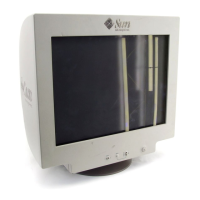
21-Inch FD Premium (19.8-inch Viewable)
Color Monitor GuideMonitor Guide
Operating Instructions
Before operating the unit, please read this manual thoroughly and retain it for
future reference.
Mode d'emploi
Avant la mise en service de cet appareil, veuillez lire attentivement ce mode
d'emploi que vous conserverez pour toute référence ultérieure.
Bedienungsanleitung
Lesen Sie vor der Inbetriebnahme diese Anleitung sorgfältig durch, und
bewahren Sie sie zum späteren Nachschlagen gut auf.
Istruzioni per l'uso
Prima di usare l'apparecchio, leggere con attenzione questo manuale e conser-
varlo per riferimenti futuri.
Manual de instrucciones
Antes de utilizar la unidad, lea este manual detenidamente y
consérvelo para futuras referencias.
Bruksanvisning
Innan du använder monitorn bör du läsa igenom denna
bruksanvisning och sedan spara den för framtida behov.
1-796-285-11

Table of Contents

Other manuals for Sun Microsystems GDM-5510

Questions and Answers

  • J
    Joshua HallAug 19, 2025
    What to do if the 'NO SIGNAL' message appears on my Sun Microsystems Monitor?
    • S
      Shelley WilliamsAug 19, 2025
      If you see a 'NO SIGNAL' message or the power indicator is amber on your Sun Microsystems Monitor, ensure the video signal cable is properly connected and all plugs are firmly seated. Also, verify that the INPUT switch setting is correct and that the video input connector’s pins are not bent or pushed in.
  • K
    khughesAug 21, 2025
    Why is the power indicator not lit on my Sun Microsystems GDM-5510?
    • A
      Anthony JohnsonAug 22, 2025
      If the power indicator on your Sun Microsystems Monitor is not lit, check that the power cord is properly connected and that the power switch is in the 'on' position.
  • G
    gibsondanielleAug 25, 2025
    How to fix a Sun Microsystems GDM-5510 Monitor if the picture flickers or is scrambled?
    • S
      Shawn JonesAug 25, 2025
      If your Sun Microsystems Monitor's picture flickers, bounces, oscillates, or is scrambled, try these solutions: * Isolate and eliminate any potential sources of electric or magnetic fields such as other monitors, laser printers, fluorescent lighting, televisions, or electric fans. * Move the monitor away from power lines or place a magnetic shield near the monitor. * Try plugging the monitor into a different AC outlet, preferably on a different circuit. * Try turning the monitor 90° to the left or right.
  • E
    Elizabeth StewartAug 26, 2025
    What to do if the picture on my Sun Microsystems Monitor is fuzzy?
    • M
      mmooreAug 26, 2025
      If the picture on your Sun Microsystems Monitor is fuzzy, try the following: * Adjust the contrast and brightness. * Degauss the monitor. * Adjust the degree of moire cancellation until the moire is minimal, or set CANCEL MOIRE to OFF. If a second degauss cycle is needed, allow a minimum interval of 20 minutes for the best result.
  • J
    justin15Aug 28, 2025
    How to fix the 'OUT OF SCAN RANGE' message on my Sun Microsystems Monitor?
    • J
      Jesse WebbAug 28, 2025
      If the 'OUT OF SCAN RANGE' message appears on your Sun Microsystems Monitor, check that the video frequency range is within that specified for the monitor. If you replaced an old monitor with this one, reconnect the old monitor and adjust the frequency range to the following: * Horizontal: 30 – 130 kHz * Vertical: 48 – 170 Hz
  • J
    Julia LaraAug 30, 2025
    Why is the color not uniform on my Sun Microsystems Monitor?
    • J
      Jeffrey CummingsAug 30, 2025
      If the color on your Sun Microsystems Monitor is not uniform, try to degauss the monitor. If you place equipment that generates a magnetic field, such as a speaker, near the monitor, or if you change the direction the monitor faces, color may lose uniformity. You can also adjust the landing.
  • G
    Gina CervantesSep 1, 2025
    How to resolve picture ghosting on my Sun Microsystems GDM-5510 Monitor?
    • J
      joshuafoleySep 1, 2025
      If your Sun Microsystems Monitor's picture is ghosting, eliminate the use of video cable extensions and/or video switch boxes. Also, check that all plugs are firmly seated in their sockets.
  • J
    John HarrisSep 3, 2025
    Why does my Sun Microsystems GDM-5510 hum when I turn it on?
    • B
      Bryan NunezSep 3, 2025
      If you hear a hum right after turning on your Sun Microsystems Monitor, this is the sound of the auto-degauss cycle. When the power is turned on, the monitor is automatically degaussed for a few seconds. If a second degauss cycle is needed, allow a minimum interval of 20 minutes for the best result.
  • E
    Eric MorenoSep 5, 2025
    How to fix a wavy pattern (moire) on my Sun Microsystems GDM-5510 Monitor?
    • R
      Robin DiazSep 5, 2025
      If a wavy or elliptical pattern (moire) is visible on your Sun Microsystems Monitor, adjust the degree of moire cancellation until the moire is minimal.
  • M
    Michael WalkerSep 8, 2025
    How to correct red or blue shadows on letters on my Sun Microsystems GDM-5510 Monitor?
    • R
      rogersangelaSep 8, 2025
      If letters and lines show red or blue shadows at the edges on your Sun Microsystems Monitor, adjust the convergence.

Summary

Operating Instructions

Precautions and Safety

Power Connections and Installation Safety

Guidelines for power cord usage, installation locations, and general safety.

Maintenance, Transportation, and Handling

Procedures for cleaning, moving, and safely transporting the monitor.

Tilt-Swivel Stand Adjustment

Instructions for adjusting the monitor's viewing angle.

Identifying Monitor Components

Front Panel Controls and Indicators

Description of buttons, switches, and lights on the front.

Rear Panel Connectors and Pinouts

Identification of video input ports and their signal assignments.

Monitor Setup Procedure

Connecting the Monitor to a Computer

Step-by-step guide for video cable connections.

Connecting the Power Source

Procedure for plugging in the monitor's power cord.

Initial Power-Up and Troubleshooting

Turning on the system and resolving 'no picture' issues.

On-Screen Menu and Input Selection

Customizing Monitor Display Settings

Navigating the On-Screen Menu System

Guide to accessing and operating the monitor's menu.

Picture Adjustment Menus Overview

Introduction to menus for contrast, size, geometry, convergence, screen, and color.

Advanced Settings and Reset Options

Accessing OPTION settings and resetting configurations.

Current Input Signal Information

Displaying signal frequency and resolution via the menu.

Using Menu Controls for Adjustments

Adjusting Brightness and Contrast

Procedure for modifying CONTRAST and BRIGHT settings.

sRGB Mode Interaction

Notes on CONTRAST/BRIGHT adjustments when sRGB is active.

Picture Size and Centering Adjustments

Picture Shape and Color Alignment

Screen Quality Enhancements

Color Temperature and Mode Settings

Selecting and Adjusting Color Modes

Guide to EASY, PRESET, EXPERT, and sRGB color settings.

Advanced Color Control and Restoration

Additional Configuration Options

Control Lock and Menu Customization

Securing settings, changing OSD language, and repositioning the menu.

Resetting Monitor Settings

Resetting Specific or All Input Settings

Options to reset adjustments for current or all input signals.

Technical Specifications and Features

Preset Timing Modes and Power Saving

Supported resolutions, frequencies, and power efficiency features.

Troubleshooting Common Issues

Screen Appearance Issues

Diagnosing thin lines and interpreting on-screen messages.

Handling Out of Scan Range Errors

Signal Information and Remedies

Displaying signal details and steps for 'CHANGE SIGNAL TIMING'.

Accessing Monitor Identification Information

Troubleshooting Guide

No Picture or Power Indicator Problems

Diagnosing and resolving issues related to the display not turning on or showing 'NO SIGNAL'.

Computer and External Device Issues

Troubleshooting problems originating from connected computers or peripherals.

Picture Quality and Stability Problems

Resolving flickering, fuzzy images, and interference.

Resolving Specific Image Anomalies

Troubleshooting Control and Feature Malfunctions

Power-On Sound Explanation

Monitor Self-Diagnosis

Self-Diagnosis Procedures

Step-by-step guides based on the power indicator status.

Monitor Technical Specifications

Sun Microsystems GDM-5510 Specifications

General IconGeneral
Screen Size21 inches
Vertical Refresh Rate50 - 160 Hz
Aspect Ratio4:3
Panel TypeCRT
Input Video SignalAnalog RGB
Dot Pitch0.26 mm
Viewable Size19.8 inches
Horizontal Refresh Rate30 - 95 kHz
Weight25 kg
Input Connectors15-pin D-sub

Related product manuals