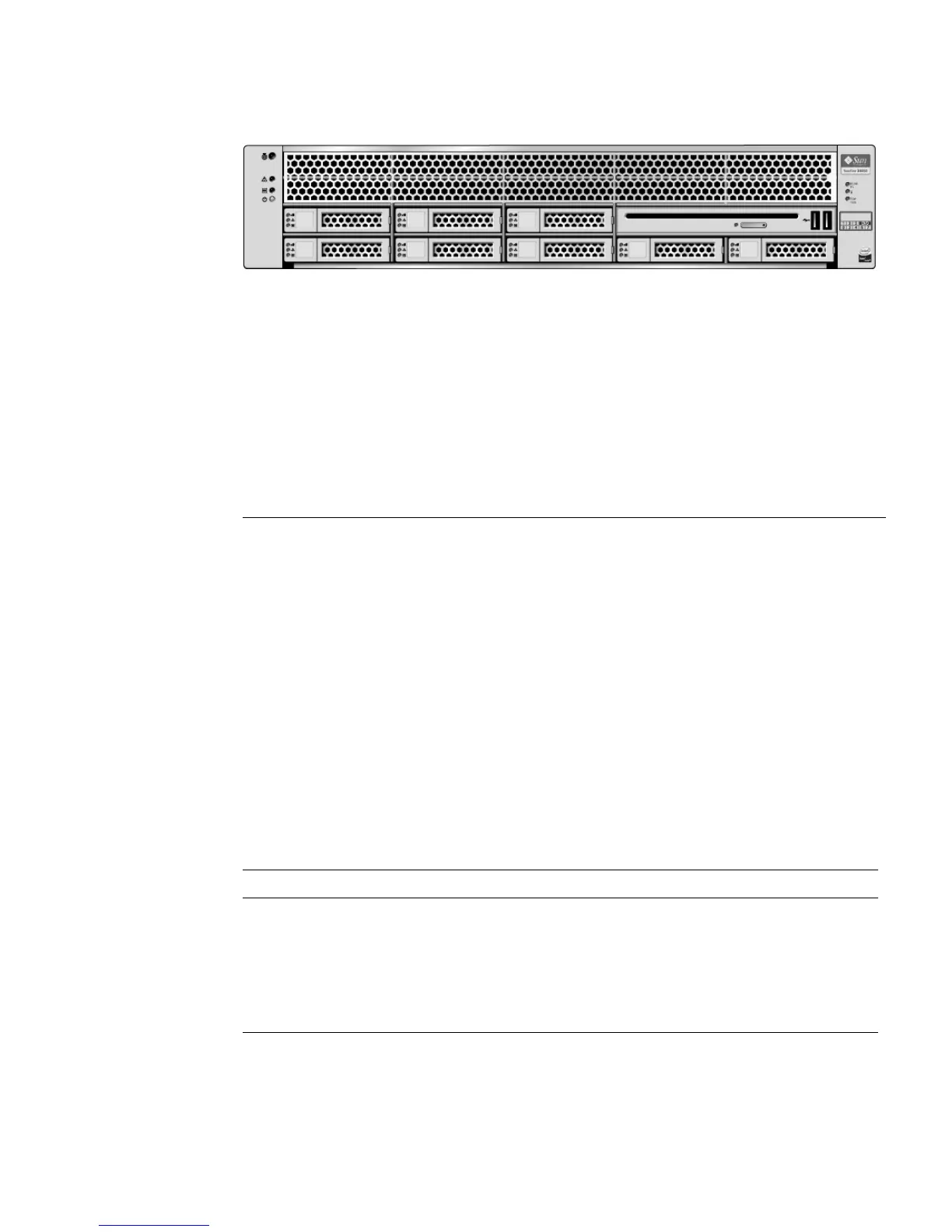
How to Add Components to Your Limited Configuration Server 7
Verify Hard Drives
Use the PCIe HBA’s BIOS utility to verify that the card sees the hard drives.
■ When using the Sun StorageTek (Adaptec) HBA card, you must first initialize the
hard drives using the card’s BIOS (even for single-disk configurations) so the OS
can see the drives (use the Adaptec-based procedure below). The LSI card
automatically manages this step and does not require manual initialization of
drives (use the LSI-based procedure below).
■ After installation, if you see inconsistent or non-illuminated HD LEDs, you might
need to update the backplane and the controller firmware using the server’s Tools
and Drivers DVD.
2 Remove protective covers from the connectors on the card and install the HBA
(PCIe SAS 8-port internal disk controller)
*
.
* Supported HBAs: Sun StorageTek PCIe SAS 8-Port Internal HBA, SGXPCIE8SAS-I-Z, LSI SAS 1068E and Sun
StorageTek SAS RAID 8-Port Internal HBA, SG-XPCIESAS-R-INT-Z, Adaptec/Intel-based
3 Take the free end of the cable that is attached to the disk backplane on the left-
hand side (disks 0-3) and connect it to the Mini-SAS x4 connector on the card
labeled Port 0, 0-3.
4 Take the free end of the cable that is attached to the disk backplane on the right-
hand side (disks 4-7) and connect it to the Mini-SAS x4 connector on the card
labeled Port 1, 4-7.
Verifying Hard Drives Using the LSI-Based Sun StorageTek PCIe SAS 8-port Internal HBA
1 Power on the server and watch the output for the prompt to press Ctrl-C.
2 When the prompt appears, press Ctrl-C.
3 From the main menu, select SAS Topology.
4 Verify that all installed drives are seen by the HBA, and replace any drives that
are not seen.














 To Next Page