English version
17
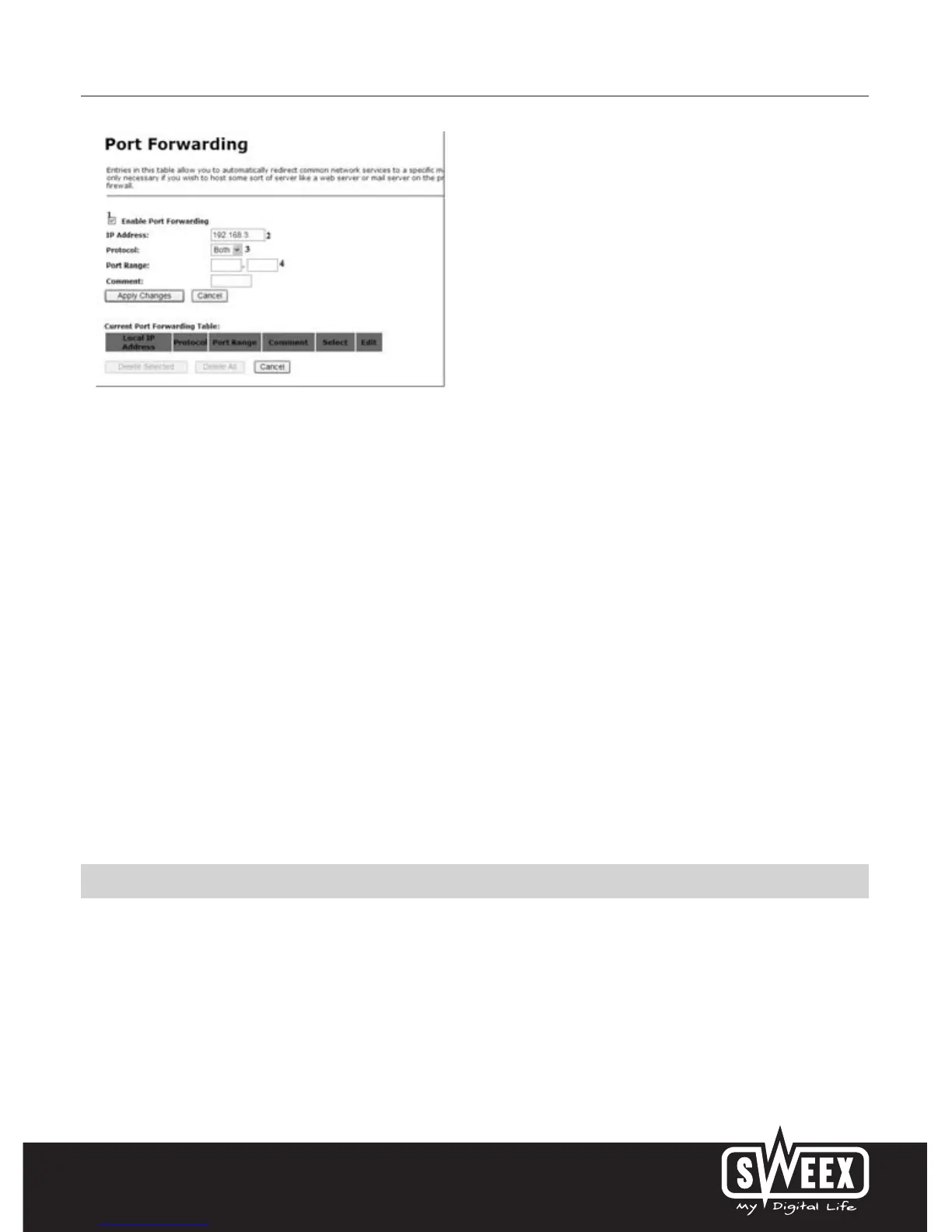
By clicking “Port Forwarding” left in the column the port settings can be changed.
1. Tick 1 in order to activate Port Forwarding.
2. Under 2, enter the IP address of the computer, server or game console for which you want to open the ports. In most cases, the IP address will
start with 192.168.3…
3. Select the protocol or leave it set to “Both”.
4. The port range indicates the range of ports you want to open. So if you wish to open ports 500 - 600, you enter 500 in the box on the left and
600 in the box on the right. If you only wish to open port 500, i.e. only 1 port, you enter the same port number in both boxes. In this
example, you enter 500 in the box on the left and the box on the right.
5. You can enter your own comments under “Comment”, but you do not have to do this.
6. Click on “Apply Changes”. The line you have entered now appears.
You can enter a maximum of 51 lines. It is not possible to open multiple ports on a single line.
DMZ
In some instances, or when a game console is used, you may opt to place a computer or game console entirely outside the firewall. This can be
done in the so-called “demilitarized zone” (“DMZ”). This option can be found in the main screen of the port settings (“Port Forwarding”) under
(“Advanced”.) Note however, you no longer take advantage of the protection offered by the firewall of the router. All ports to the computer placed
in the DMZ are open. Only a single computer can be placed in the DMZ.


 To Next Page