English version
18
If the programme or game is not listed, ports can also be opened manually. To this end, go to “Custom Port Forwarding”.
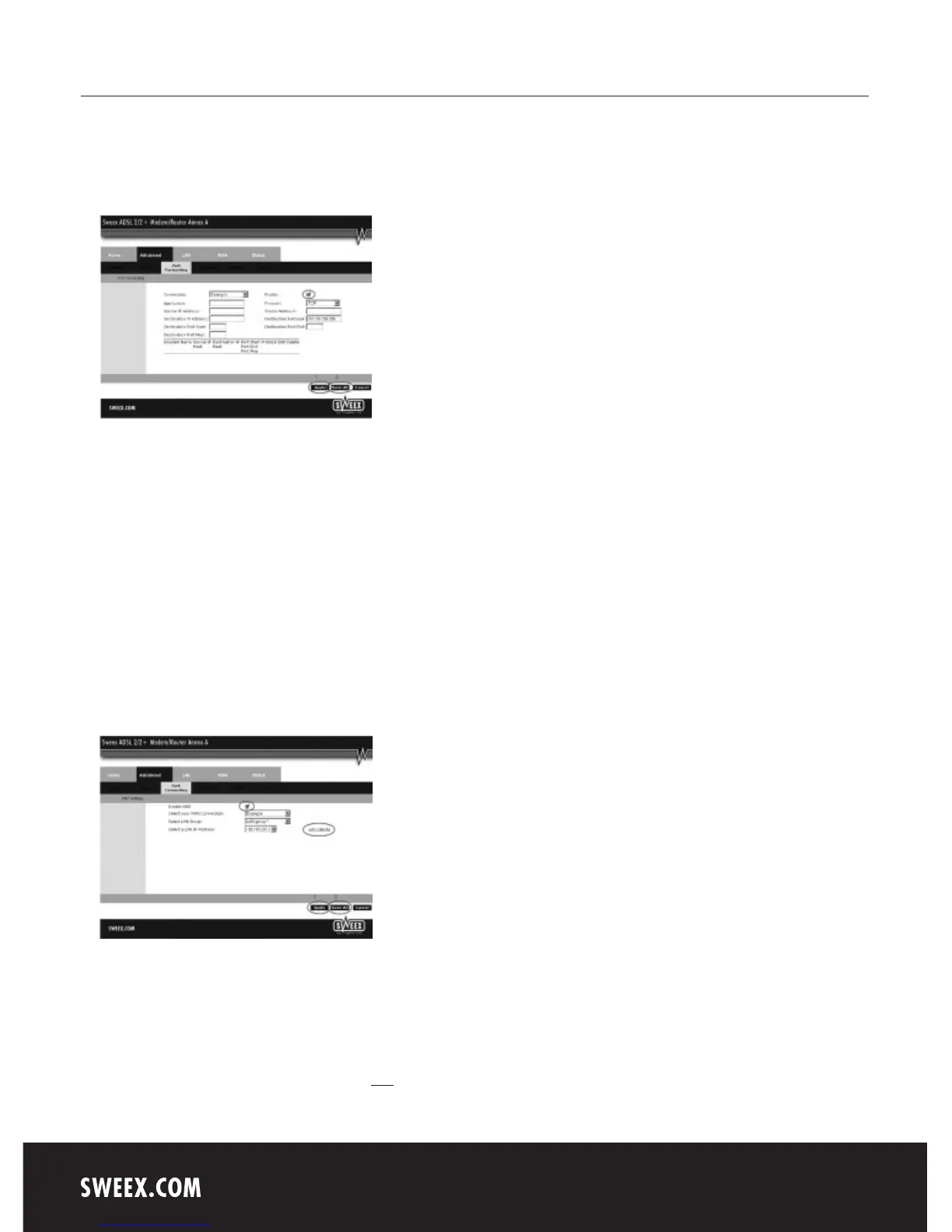
The following screen appears:
Here enter the details which the programme or game requires. For “Source IP Address” and “Source Netmask” enter 0.0.0.0.
At “Destination IP Address”, enter the IP address of the computer for which you want to open the ports.
At “Destination Port Start” and “Destination Port End”, enter the range of ports which you want to open. At “Destination Port Map”, enter the first
port of your range. If you want to open a single port only, you enter this for all three boxes.
In order to store the settings click “Apply” and then “Save All”. Subsequently, in the next window, click “Apply” once more.
In some instances, or when a game console is used, you may opt to place a computer or game console entirely outside the firewall. This can be
done in the so-called “demilitarized zone” (“DMZ”). This option can be found in the main screen of the port settings (“Port Forwarding” under
“Advanced”.) Note however, you no longer take advantage of the protection offered by the firewall of the router. All ports to the computer placed in
the DMZ are open. Only a single computer can be placed in the DMZ.
Here tick the option “Enable DMZ”. Subsequently, under “Select your WAN Connection” select your Internet connection. By clicking “LAN Clients” a
window will be opened, listing the computers for which the modem has assigned IP addresses.
In order to store the settings click “Apply” and then “Save All”. Subsequently, in the next window, click “Apply” once more.
Where to find the IP address of the computer? Click here for an explanation.



 To Next Page