English version
6
Software Installation
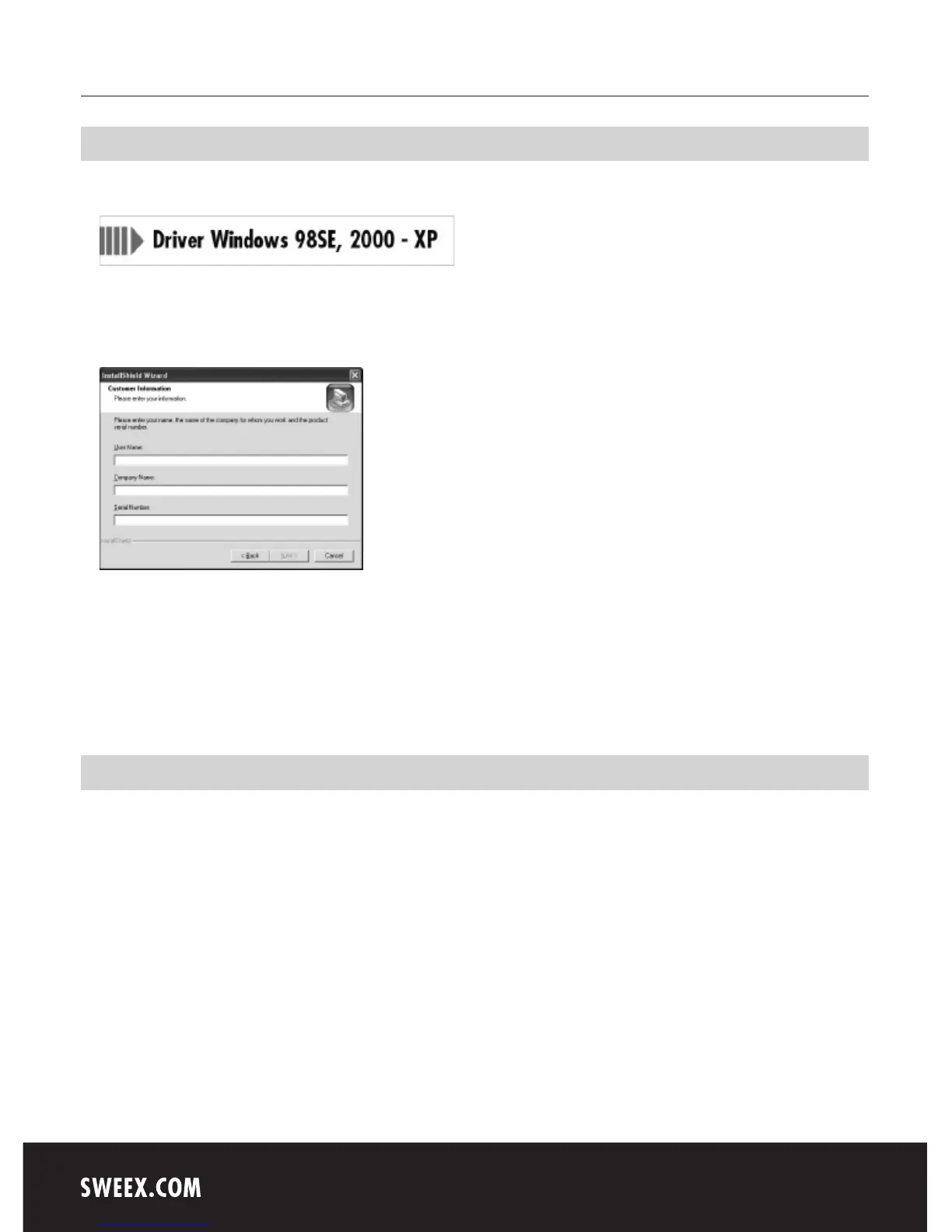
Insert the Sweex CD-ROM in the CD-ROM player. A menu appears automatically. Click the button to install the drivers.
The installation procedure is started.
In the first window, click “Next”.
Enter your details:
Enter your name or computer name. Under “Company Name”, enter a random name. Do not leave it blank. Under “Serial Number” enter the code
starting with “PL-...” which you can find on the protective cover of the Sweex CD-ROM. Please use capitals.
Click on “Next” and follow the subsequent steps to complete the installation.
Connect the USB cable between the computer and the Sweex Manageable UPS 1000 VA.
Windows will install the UPS automatically. Click “OK” to confirm a restart of the computer.
Front view
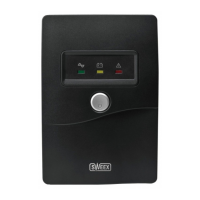
The front of the Sweex Manageable UPS 1000 VA features 3 LEDs and a button.
• The blue LED indicates that the mains power supply is ok.
• The orange LED indicates that the UPS is charging.
• The red LED is lit in the event of a power failure. The UPS now supplies power to all devices connected to it.
• The button underneath the LEDs is the power switch.



 To Next Page