24 ©2021 SwellPro Technology Co., Limited
Lock mode locks the gimbal position so the is not going to follow the direction of the
drone when the drone is turning.
Press the GIMBAL MODE button once to restore the central position.
Press the GIMBAL MODE for 3 seconds to switch gimbal modes.
Gimbal mode only works for GC3-S and GC3-T.
You can add an extension bar or gimbal overhead kit to take full advantage of gimbal
Follow mode and Lock mode.
Payload Button
There are two PAYLOAD buttons on the remote controller, the PAYLOAD(Left) and
PAYLOAD(Right). But for the SplashDrone 4, only the PAYLOAD(Left) is used for
payload release control. The PAYLOAD(Right) is used to configure the drone to heavy
load mode.
Press the PAYLOAD(Left) button once to open the payload release rod.
Press the PAYLOAD(Left) button again to close the payload release rod.
Press the right PAYLOAD button 3 times to enter low-speed mode. There is a low-speed
mode embedded in all flight modes for a safer flight purpose. (For example, when the
drone is equipped with SwellPro Gimbal Extension Bar (GEB), switching to low-speed
mode allows the drone to fly more stable and safely.)
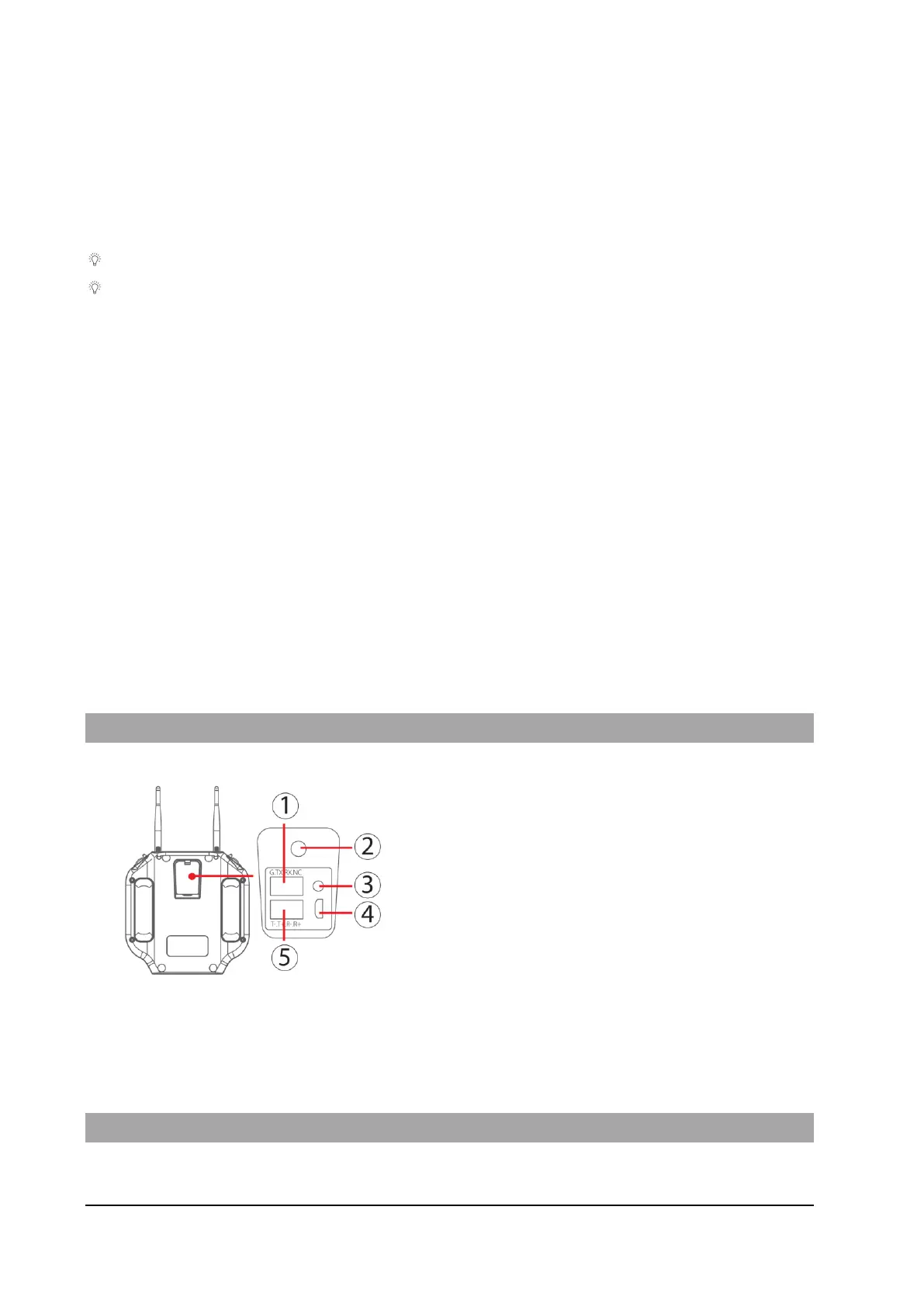
Remote Controller Rear Ports
① SDK Serial Port: access to flight control
data and transparent transmission.
② Charging Port: remote controller charging
port
③ Pairing Button: used for aircraft and remote
controller pairing
④ Micro USB: use for remote controller
firmware upgrade
⑤ Ethernet Port: This supports the
development of computer ground station
software to control the aircraft and its
airborne equipment.


 To Next Page