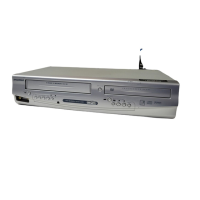
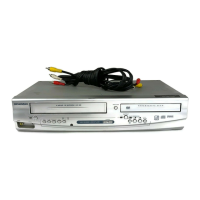
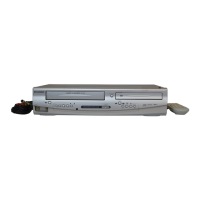
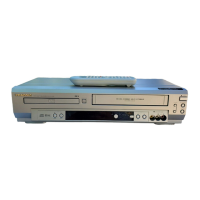
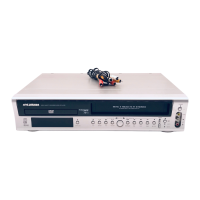
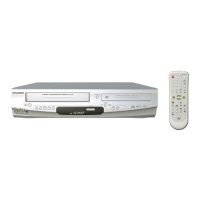
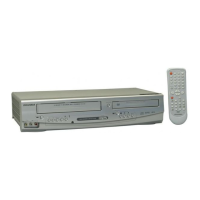
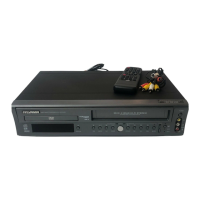
• Remote control
(NB177UD)
with two AA batteries
• RF cable
(WPZ0901TM002)
• Audio/Video cables
(WPZ0102TM015 or
WPZ0102LTE01)
• Owner’s Manual
(1VMN20370)
Owner’s Manual
Please read before using this unit.
DVD/CD Player with Video Cassette Recorder
DVC840F
INSTRUCCIONES EN ESPAÑOL INCLUIDAS.
Precautions
DVD Functions
Setup
VCR Functions
Information
Español
Supplied Accessory
AC
outlets
Plug in
4
5
From TV
From DVD/VCR
Please refer to “Connections” on page 6.
Cable TV
signal
(Back of TV)
or
Disconnect
Antenna
ANT-OUT
ANT-IN
RF cable (supplied)
(Back of DVD/VCR)
(Back of TV)
or
Antenna
2
Connect
3
Connect
Cable TV
signal
Basic TV Connection
If you need additional operating assistance after
reading this owner’s manual, please call
TOLL FREE : 1-800-968-3429
or visit our web site at http://www.funai-corp.com
Table of Contents
Precautions
Laser Safety. . . . . . . . . . . . . . . . . . . . . . . . . . . . . . . . . . . . . . . . 2
■ IMPORTANT SAFEGUARDS . . . . . . . . . . . . . . . . . . . . . . . . . . . 3
Installation Location . . . . . . . . . . . . . . . . . . . . . . . . . . . . . . . . . . 4
Avoid the Hazards of Electrical Shock and Fire. . . . . . . . . . . . . . 4
Moisture Condensation Warning . . . . . . . . . . . . . . . . . . . . . . . . . 4
About Copyright . . . . . . . . . . . . . . . . . . . . . . . . . . . . . . . . . . . . . 4
Notice for Progressive Scan Outputs . . . . . . . . . . . . . . . . . . . . . 4
Symbols Used in This Manual . . . . . . . . . . . . . . . . . . . . . . . . . . 4
Maintenance . . . . . . . . . . . . . . . . . . . . . . . . . . . . . . . . . . . . . . . 4
■ About the Video Cassettes and Discs . . . . . . . . . . . . . . . . . . . 5
Playable Video Cassettes . . . . . . . . . . . . . . . . . . . . . . . . . . . . . . 5
Playable Discs . . . . . . . . . . . . . . . . . . . . . . . . . . . . . . . . . . . . . . 5
Unplayable Discs . . . . . . . . . . . . . . . . . . . . . . . . . . . . . . . . . . . . 5
Setup
■ Connections . . . . . . . . . . . . . . . . . . . . . . . . . . . . . . . . . . . . . . . 6
RF Output Channel . . . . . . . . . . . . . . . . . . . . . . . . . . . . . . . . . . 6
Hint for Cable Box or Satellite Box . . . . . . . . . . . . . . . . . . . . . . . 6
Connection to an Audio System . . . . . . . . . . . . . . . . . . . . . . . . . 6
Connection to a TV . . . . . . . . . . . . . . . . . . . . . . . . . . . . . . . . . . 7
Front & Rear Terminals. . . . . . . . . . . . . . . . . . . . . . . . . . . . . . . . 7
■ Preparation for Use. . . . . . . . . . . . . . . . . . . . . . . . . . . . . . . . . . 8
Turn On the Unit for the First Time . . . . . . . . . . . . . . . . . . . . . . . 8
To Add/Delete Channels. . . . . . . . . . . . . . . . . . . . . . . . . . . . . . . 8
Clock Setup . . . . . . . . . . . . . . . . . . . . . . . . . . . . . . . . . . . . . . . . 8
■ Function Overview . . . . . . . . . . . . . . . . . . . . . . . . . . . . . . . . . . 9
Front Panel Display . . . . . . . . . . . . . . . . . . . . . . . . . . . . . . . . . . 9
VCR/DVD Switching . . . . . . . . . . . . . . . . . . . . . . . . . . . . . . . . . . 9
Remote Control . . . . . . . . . . . . . . . . . . . . . . . . . . . . . . . . . . . . 10
Installing the Batteries for the Remote Control . . . . . . . . . . . . . 10
VCR Functions
■ Playback . . . . . . . . . . . . . . . . . . . . . . . . . . . . . . . . . . . . . . . . . 11
■ Other Operations . . . . . . . . . . . . . . . . . . . . . . . . . . . . . . . . . . 11
Index Search . . . . . . . . . . . . . . . . . . . . . . . . . . . . . . . . . . . . . . 11
Time Search. . . . . . . . . . . . . . . . . . . . . . . . . . . . . . . . . . . . . . . 11
Auto Repeat. . . . . . . . . . . . . . . . . . . . . . . . . . . . . . . . . . . . . . . 12
■ Recording . . . . . . . . . . . . . . . . . . . . . . . . . . . . . . . . . . . . . . . . 12
OTR (One Touch Recording) . . . . . . . . . . . . . . . . . . . . . . . . . . 12
Timer Recording. . . . . . . . . . . . . . . . . . . . . . . . . . . . . . . . . . . . 12
Hints for OTR and Timer Recording . . . . . . . . . . . . . . . . . . . . . 13
Copying a Video Tape. . . . . . . . . . . . . . . . . . . . . . . . . . . . . . . . 14
DVD Functions
■ Playback . . . . . . . . . . . . . . . . . . . . . . . . . . . . . . . . . . . . . . . . . 15
■ MP3 Playback . . . . . . . . . . . . . . . . . . . . . . . . . . . . . . . . . . . . . 16
■ On-Screen Display . . . . . . . . . . . . . . . . . . . . . . . . . . . . . . . . . 16
■ Search Function . . . . . . . . . . . . . . . . . . . . . . . . . . . . . . . . . . . 17
Track Search / Title/Chapter Search / Time Search . . . . . . . . . 17
■ Marker Setup. . . . . . . . . . . . . . . . . . . . . . . . . . . . . . . . . . . . . . 17
■ Repeat / Random / Programmed Playback . . . . . . . . . . . . . . 18
Repeat Playback / Repeat A-B Playback /
Random Playback / Programmed Playback. . . . . . . . . . . . . . . . 18
■ Special Settings . . . . . . . . . . . . . . . . . . . . . . . . . . . . . . . . . . . 19
Subtitle Language / Audio Language / Camera Angle /
Black Level Setting / Stereo Sound Mode / Virtual Surround
. . . . . . . 19
■ DVD Setup. . . . . . . . . . . . . . . . . . . . . . . . . . . . . . . . . . . . . . . . 20
LANGUAGE Setting . . . . . . . . . . . . . . . . . . . . . . . . . . . . . . . . . 20
DISPLAY Setting . . . . . . . . . . . . . . . . . . . . . . . . . . . . . . . . . . . 21
AUDIO Setting . . . . . . . . . . . . . . . . . . . . . . . . . . . . . . . . . . . . . 21
PARENTAL Setting . . . . . . . . . . . . . . . . . . . . . . . . . . . . . . . . . . 22
OTHERS Setting . . . . . . . . . . . . . . . . . . . . . . . . . . . . . . . . . . . 22
Reset to the Default Setting (Except for PARENTAL Setting) . . . 23
Information
■ Troubleshooting Guide . . . . . . . . . . . . . . . . . . . . . . . . . . . . . . 23
■ Specifications . . . . . . . . . . . . . . . . . . . . . . . . . . . . . . . . . . . . . 24
■ Language List . . . . . . . . . . . . . . . . . . . . . . . . . . . . . . . . . . . . . 24
■ Limited Warranty. . . . . . . . . . . . . . . . . . . . . . . . . . . . . . . . . . . 24
Español . . . . . . . . . . . . . . . . . . . . . . . . . . . . . . . . . . . . . . . . . . 25
Quick Use Guide . . . . . . . . . . . . . . . . . . . . . . . . . . . . . . . . . . . 27
H9801UD_EN/SP.qx3 04.12.8 19:33 Page 1


 To Next Page
 General