
 Need help?
Do you have a question about the Sylvania SDVD9960-C and is the answer not in the manual?
Warns about dangerous high voltages inside the unit and the risk of electric shock.
Advises against direct exposure to the laser beam and not to open the player.
Guidelines for safe operation and handling of the power supply unit.
Instructions for safe placement and operation of the DVD player.
Guidance on safe servicing and maintenance procedures for the player.
Instructions on how to properly handle discs to prevent damage or scratches.
Steps for cleaning discs using a dry, soft cloth, avoiding chemicals.
Precautions to take before connecting any external device to the player.
Guide on connecting the player to an external TV or monitor for display.
Steps to connect the main unit to an external monitor using AV and DC cables.
Instructions on how to attach and use the headrest mount for the player.
Guide on deploying the built-in stand for the main unit to stand on a surface.
Instructions for connecting headphones for private listening and adjusting volume.
Procedure for operating the player using the AC adapter and safety warnings.
Procedure for operating the player using the car adapter and usage restrictions.
Diagram and explanation of the main unit's buttons and ports.
Guidance on how to point and operate the remote control effectively.
Important notes regarding battery handling, storage, and disposal for the remote.
Illustrates and labels each button on the remote control.
Explains common error messages and their potential causes.
Lists the types of discs supported by the player.
Instructions for powering the main unit and monitor on and off.
How to switch between DVD, USB, and CARD playback modes.
Steps for inserting a disc and starting playback.
Guide to navigating and using the disc's menu for playback options.
How to navigate back to the main menu or title menu during playback.
Instructions on pausing and resuming playback of media.
How to adjust the volume level using the player or remote control.
How to skip to the previous or next track, chapter, or title.
How to fast search through tracks at different speeds.
How to set and play a specific section of a track on repeat.
How to play tracks, chapters, or the entire disc on repeat.
How to program discs to play chapters/titles in a specific order.
How to zoom in/out on video or photos during playback.
How to choose different subtitle languages on a DVD.
How to select different audio soundtrack languages on a DVD.
How to select different audio channels for CD, MP3, or VCD discs.
How to display playback information like format, time, and chapter.
Using numeric buttons to input DVD chapters or CD tracks.
How to search for specific titles, chapters, or times during playback.
Guide to playing MP3, WMA, and MPEG4 files from discs.
How to view photos and pictures from a CD.
How to rotate images during picture playback.
Instructions for connecting and playing files from a USB device.
Instructions for connecting and playing files from an SD/MMC memory card.
Important notes on protecting USB/SD/MMC devices from damage and data loss.
Setup options for general settings like TV display, language, and screen saver.
How to adjust audio settings like downmix options for stereo output.
Adjusting display properties like sharpness, brightness, and contrast.
Setting default preferences like TV type, audio, and subtitle languages.
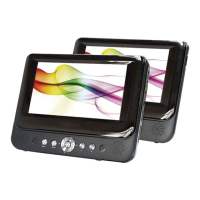
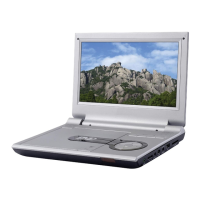
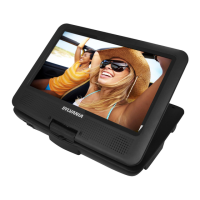
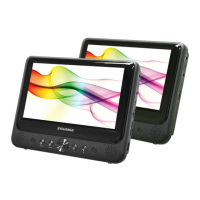
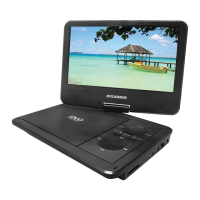
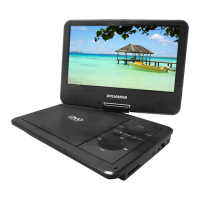
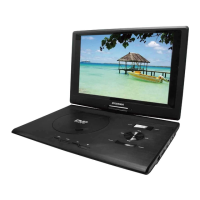
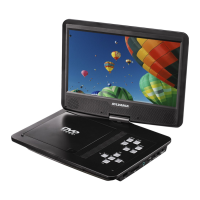
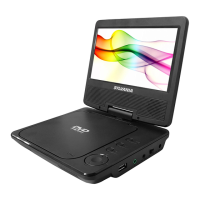
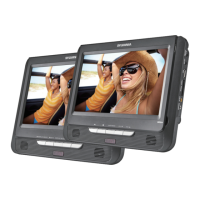
This document describes the SYLVANIA 9" Dual Screen Portable DVD Player, Model No.: SDVD9960-C. It is designed for household use and offers a range of features for portable entertainment.
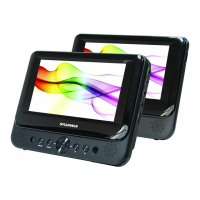
The SYLVANIA portable DVD player allows you to enjoy movies, music, and photos on the go. It features a dual-screen setup, enabling two viewers to watch simultaneously, making it ideal for car travel or shared viewing experiences. The main unit includes a DVD player, USB port, and SD/MMC card slot, providing multiple options for media playback. The device supports various disc formats including DVD, VCD, CD, MP3, CD-R/RW, DVD±R/RW, and MPEG4. It also supports playback of MP3, WMA, MPEG4, and JPEG files from USB devices and SD/MMC memory cards.
The player can be powered by an AC adapter for home use or a car adapter for in-vehicle use. It comes with a remote control for convenient operation, especially when the unit is mounted or placed at a distance. The main unit has a built-in stand for flat surface placement, while the monitor unit is designed for headrest mounting in a car.
To turn on the main unit, slide the Power switch on the top side to the "ON" position after connecting the power supply. To turn off, slide the Power switch to "OFF." For the monitor unit, slide its Power switch on the right side to "ON" after connecting the DC cable from the main unit, and to "OFF" to power down. If the player will not be in use for a long period, slide the Power switch to "OFF" and unplug the portable DVD player from the power source.
The player can be connected to an external TV or monitor using the AV output jack. Ensure all equipment is switched off before connecting. Use the provided 3.5mm – RCA Cable to connect the AV Output on the unit to the audio/video inputs on the television. For connecting the unit to the monitor, use the AV Cable for AV Output/Input and the DC Cable for DC Output/Input.
The device includes straps and a headrest mount slot. Attach the headrest mount to the main unit and monitor using the straps, then secure the unit to a car headrest with the velcro. The remote control can be used to operate the unit when it's mounted, pointing it towards the remote sensor.
A stereo headphone jack (3.5mm) is provided for private listening. When headphones are connected, the main speakers are automatically muted. Always set the player to a low volume before connecting headphones and gradually increase to a comfortable level to prevent hearing loss.
Slide the Power switch to "ON." Open the disc cover, insert a playable DVD or CD with the label side up, and close the cover. The player will scan the disc and begin playback automatically. If a disc menu appears, navigate using the Direction buttons and press ENTER. If parental control is active, a password may be required. During playback, press STOP to halt the disc.
Press the SOURCE button on the remote control to switch between DVD, USB, and CARD modes, depending on the connected media.
During disc playback, press the MENU button to return to the disc's root or title menu. For MP3/Picture discs, it will go to the file or folder list. Use the Direction buttons (UP/DOWN/LEFT/RIGHT) or Numeric buttons to select options and press ENTER to confirm.
Insert a USB device (up to 32GB flash memory) or an SD/MMC card into the respective slot. Press the USB/CARD button to switch to the correct mode. Navigate through directories and files using the Direction keys and press ENTER to play. Always stop playback or change modes before removing USB devices or memory cards.
Press the SETUP button on the remote control to access system settings, including:
Refer to the troubleshooting guide in the manual for common issues like disc errors, no sound, no video, or remote control malfunction. If problems persist, disconnect the power and contact customer service.
 General
| Screen Size | 9 inches |
|---|---|
| Resolution | 800 x 480 pixels |
| Battery Life | Up to 5 hours |
| Dimensions | 9.5 x 7.5 x 1.5 inches |
| Connectivity | AV output |
| Built-in Speakers | Yes |
| SD Card Slot | Yes |
| Supported Formats | DVD, CD, JPEG |
| Audio Output | Headphone jack |
| Power Source | AC adapter, rechargeable battery |

 To Next Page