1-6-2 H9400IB
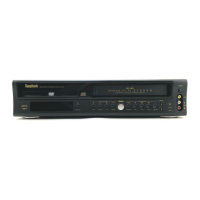
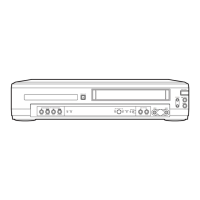
8. OUTPUT Button
Press to select DVD mode or VCR mode.
You can switch the output mode either by pressing
OUTPUT on the front panel, or by pressing DVD or
VCR on the remote control. However, if you press
OUTPUT on the front panel first, you need to re-
select the corresponding mode by pressing DVD or
VCR on the remote control.
9. Display, Remote Sensor Window
0. PLAY Button (DVD)
Press to begin playback.
1. STOP Button (DVD)
Stops operation of the disc.
2. SPEED Button
Press to select the VCR
’
s recording speed (SP or SLP)
3. POWER Button
Press to turn the power on and off.
4. Number Buttons
DVD mode
Press to directly select a Track (Audio CD) for play-
back.
Press to program Tracks (Audio CD) for playback.
+10
Use this button to enter number 10 and above.
VCR mode
Press to select TV channels on the VCR.
To select channels, enter channel numbers as a two-
digit number for the quickest results. For example, to
select channel 6, press 0 then 6.
5. DISPLAY Button
DVD mode
Press to access or remove the display screen during
DVD or Audio CD playback.
VCR mode
Press to access or remove the VCR
’
s on-screen status
display.
6. DVD Button
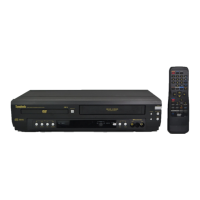
Press to select DVD mode for the remote control.
You can switch the OUTPUT mode either by pressing
OUTPUT on the front panel, or by pressing DVD or
VCR on the remote control. However, if you press
OUTPUT on the front panel first, you need to re-
select the corresponding mode by pressing
DVD or VCR on the remote control.
7. h Button
DVD mode
Press to view the DVD picture in fast reverse motion.
Press PAUSE, then press this button to begin slow
motion playback. Press this button repeatedly to
change the reverse speed of slow motion.
VCR mode
Press to rewind the tape, or to view the picture rapid-
ly in reverse during the playback mode (Rewind
Search).
8. STOP Button
DVD mode
Press to stop the disc motion.
VCR mode
Press to stop the tape motion.
9. RECORD Button
Press once to start a recording.
0. MENU Button
DVD mode
Press to display the menu of the Disc.
VCR mode
Press to access the VCR menu.
31. TITLE Button
32. SETUP Button
Press to enter DVD player setup mode.
33. ZOOM Button
Enlarges part of a DVD-reproduced image.
34. MODE Button
Activates program playback or random playback mod
when playing CDs or MP3. Sets Black level and virtua
surround.
35. SUBTITLE Button
Press to select the desired subtitle language.
35. T-SET Button
Press to put the VCR into standby mode for a time
recording.
36. ANGLE Button
Press to change the camera angle to see the sequenc
being played back from a different angle.
37. REPEAT Button
Repeats playback of the current disc, title, chapter o
track.
38. A-B REPEAT Button
Repeats playback of a selected section.
39. SEARCH MODE Button
DVD mode
Press to access or remove the Search display
which allows you to go directly to a specifi
Title/Chapter/Track/Time.
VCR mode
Press to perform a Time Search or an Index Search.
40. CLEAR/C.RESET Button
DVD mode
Press to reset the setting.
VCR mode
Press to reset the counter. Press to exit from th
MENU screen.
41. RETURN Button
DVD mode
Returns to the previous operation.
42. Arrow Buttons
Use when making settings while watching the displa
on a TV screen.
VCR mode
p/o Buttons
Press to enter digits when setting program (For exam
ple: setting clock or timer program). Press to selec
the setting modes from the on screen menu.
B Button
When setting program (For example: setting clock o
timer program), press to determine your selection an
proceed to the next step you want to input. Press t
determine the setting modes from the on scree
menu. Press to add or delete channel numbers durin
channel preset.
s Button
Press to cancel a setting of timer program. Press t
correct digits when setting program (For example
setting clock or timer program). Press to add or delet
channel numbers during channel preset.
43. ENTER Button
DVD mode
Press to accept a setting.


 To Next Page