1-6-3 H9400IB
4. g Button
● DVD mode
Press to fast forward the Disc. Press PAUSE, then
press this button to begin slow motion playback.
Press this button repeatedly to change the forward
speed of slow motion.
● VCR mode
Press to rapidly advance the tape, or view the picture
rapidly in forward during playback (Forward Search).
5. PLAY Button
● DVD mode
Press to begin playback.
● VCR mode
Press to begin playback.
6. VCR Button
Press to select VCR mode for the remote control.
● You can switch the OUTPUT mode either by pressing
OUTPUT on the front panel, or by pressing DVD or
VCR on the remote control. However, if you press
OUTPUT on the front panel first, you need to re-
select the corresponding mode by pressing DVD or
VCR on the remote control.
7. PAUSE Button
● DVD mode
Press to pause Disc playback. Press repeatedly to
advance the DVD picture step by step (or one frame
at a time).
● VCR mode
While recording, press to temporarily stop the record-
ing (pause). Press a second time to resume normal
recording. You can not pause a One-Touch
Recording. Or, press during tape playback to freeze
the picture. Press to advance the picture one frame at
a time during still mode.
48. SLOW Button
During tape playback, press to view the video tape
slow motion. Press again to resume normal playbac
This button does not affect DVD playback.
49. VCR/TV Button
Use to select VCR or TV position.
●VCR Position
To view playback, to monitor video recordings or
watch TV using the VCR tuner.
● TV Position
To watch TV or to view one program while recordin
another.
50. SKIP/CH. Buttons
● DVD mode
Press to skip Chapters or Tracks.
● VCR mode
Press to change TV channels on the VCR.
51. AUDIO Button
Press to select a desired audio language or sound mod
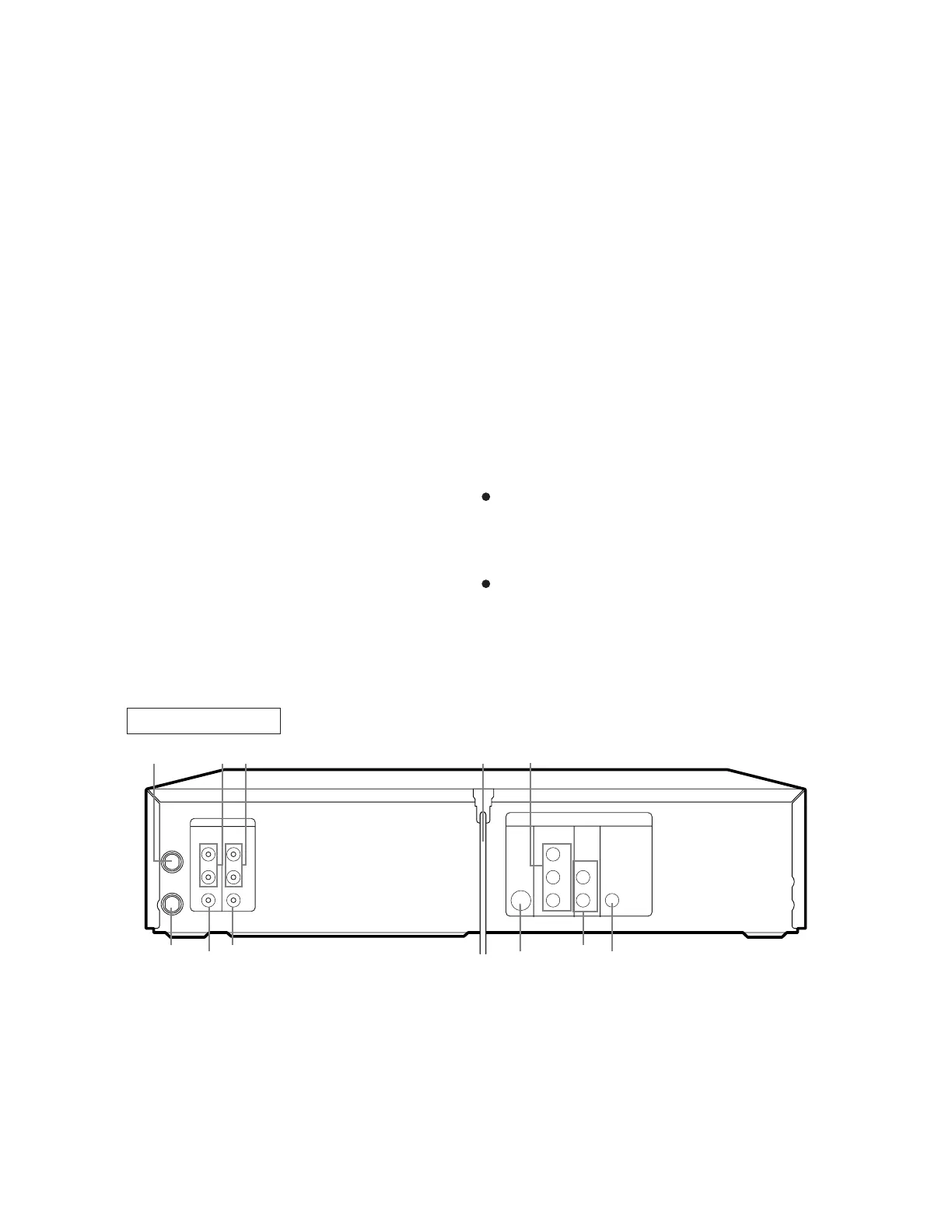
2. ANT-IN (Antenna In) Jack
Connect your antenna, Cable Box, or Direct Broadcast
System.
3. DVD/VCR AUDIO OUT Jacks
Connect the supplied audio cables here and to the Audio
In jacks of a television or other audio equipment.
4. AUDIO IN Jacks
Connect audio cables coming from the audio out jacks
of a camcorder, another VCR, or an audio source here.
55. AC Power Cord
Connect to a standard AC outlet to supply power to th
DVD/VCR COMBINATION UNITS.
56. COMPONENT VIDEO OUT Jacks
Connect optional component video cables here and
the component Video In jacks of a television.
57. COAXIAL Jack
Connect an optional coaxial digital audio cable here an
to the Coaxial Digital Audio In jack of a decoder
audio receiver.
DVD/VCR VCR
AUDIO OUT AUDIO IN
VIDEO OUT VIDEO IN
S-VIDEO
OUT
COMPONENT
VIDEO OUT
AUDIO
OUT
DVD
Y
Cb L
Cr R
L
ANT-IN
ANT-OUT
R
L
R
DIGITAL
AUDIO OUT
COAXIAL
62
61
60
59
58
57
5352 54 55 56
REAR VIEW
Notes
To use the remote control to operate the DVD/VC
COMBINATION UNITS and its features, pre
DVD on the remote control before pressing oth
DVD’s operation buttons. Verify that the gree
DVD OUTPUT Light is on.
To use the remote control to operate the VCR and i
features, press VCR on the remote control befo
pressing other VCR’s operation buttons. Verify th
the green VCR OUTPUT Light is on.


 To Next Page