4
Chapter 1: Before You Start
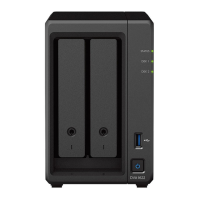
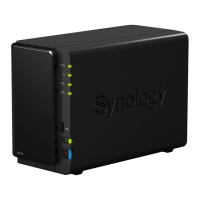
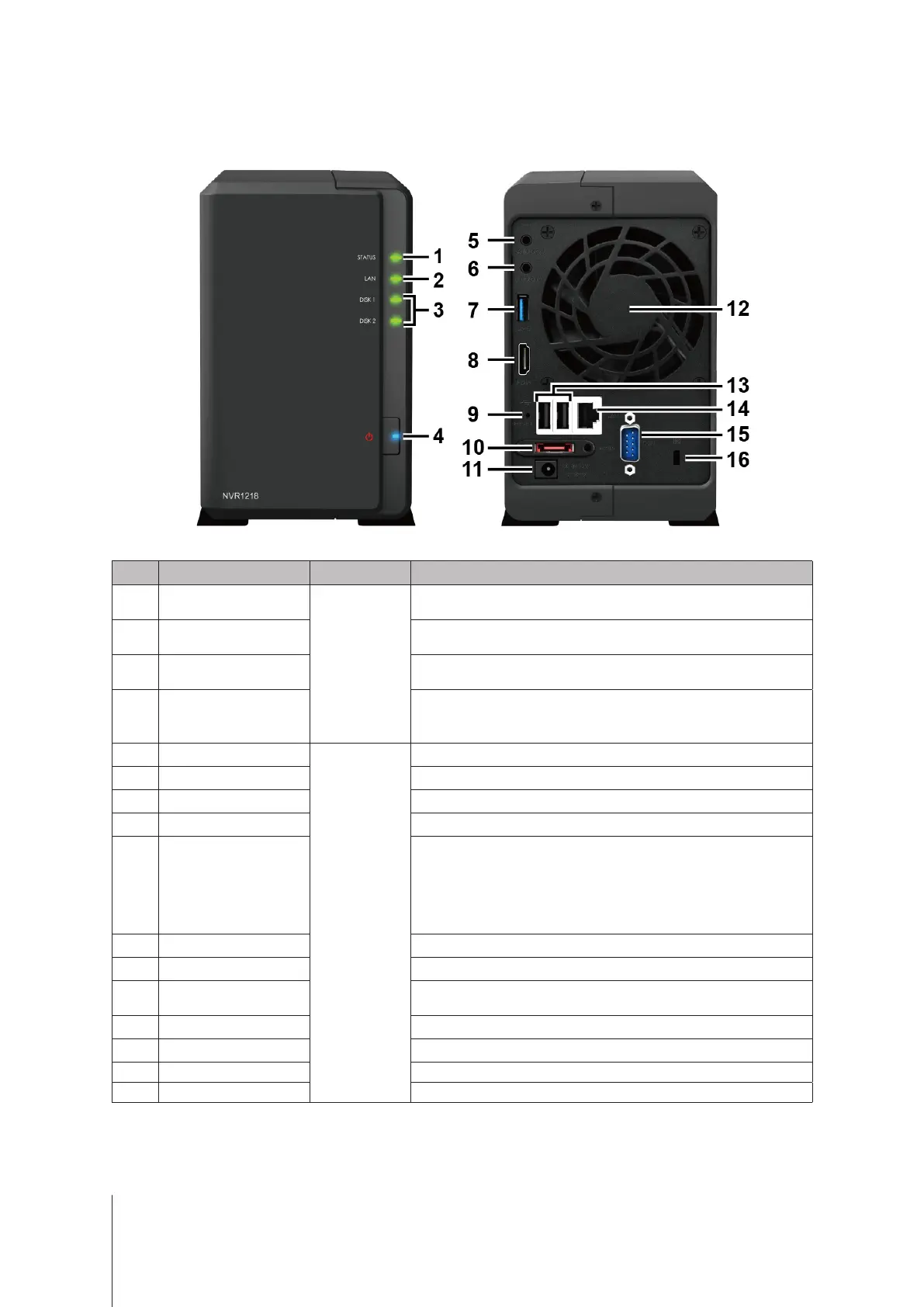
Synology NVR at a Glance
No. Article Name Location Description
1
Status Indicator
Front Panel
Displays the status of the system. For more information, see "Appendix
B: LED Indicator Table".
2
LAN Indicator
Displays the status of the network connection. For more information,
see "Appendix B: LED Indicator Table".
3
Disk Indicator
Displays the status of the installed drive. For more information, see
"Appendix B: LED Indicator Table".
4
Power Button and
Indicator
1. Press to power on the NVR.
2. To power o the NVR, press and hold until you hear a beep sound
and the Power LED starts blinking.
5
Audio Output
Back Panel
Connect an external speaker or earphone here.
6
Audio Input Connect a microphone here.
7
USB 3.0 Port Connect external drives or supported USB devices
1
to the NVR here.
8
HDMI Output Connect an HDMI cable here.
9
RESET Button
1. Press and hold until you hear a beep sound to restore the default IP
address, DNS server, and password for the
admin
account.
2. Press and hold until you hear a beep sound, then press and
hold again until you hear three beep sounds to return the NVR to
“Not Installed” status so that DiskStation Manager (DSM) can be
reinstalled.
10
eSATA Port Connect to Synology Expansion Unit
2
here.
11
Power Port Connect the AC power adapter here.
12
Fan
Disposes of excess heat and cools the system. If the fan malfunctions,
the NVR will emit a beeping sound.
13
USB 2.0 Port Connect external drives or supported USB devices
1
to the NVR here.
14
LAN Port Connect an RJ-45 network cable here.
15
COM Port Connect a POS device here.
16
Kensington Security Slot Attach a Kensington security lock here.
1
Supported USB devices include USB drive, mouse, keyboard, and uninterruptible power supply (UPS). Any other devices are not supported on your NVR.
2
For more information about Synology Expansion Unit supported by your NVR, please visit
www.synology.com


 To Next Page
 Loading...