11
Changing the Bluetooth name
The E50 is shipped with the default Bluetooth name “Systemline E50”. Where more than
one E50 can be seen from the same Bluetooth source device each E50 can be renamed
in order to distinguish one from another.
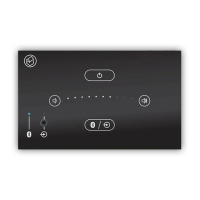
1. Make sure that the E50 is in standby mode. Press and hold the standby and source
keys at the same time until the white and green LEDs are illuminated.
DO NOT PRESS ANY BUTTONS. WAIT 2 SECONDS.
2. Press the source key until the blue LED is illuminated.
3. Set a Bluetooth name between 1 and 10 by using the volume up and down keys to
illuminate the corresponding number of LEDs.
4. Press the standby key once to set the new Bluetooth name.
The E50 will reboot with a new Bluetooth name of the form “Systemline E50 _n”
where n = number of LEDS illuminated in step 3.
To disable gesture control
The E50 is shipped with gesture control enabled. In some installations gesture control
may not be required. In order to enable/disable gesture control:
1. Make sure that the E50 is in standby mode. Press and hold the standby and source
keys at the same time until the white and green LEDs are illuminated.
DO NOT PRESS ANY BUTTONS. WAIT 2 SECONDS.
2. To disable gestures press the volume down key to extinguish all the white LEDs.
3. To enable gestures press the volume up key to light all the white LEDs.
4. Press the standby key to save the current setting.


 To Next Page