Using the S Pen
Effectively express yourself. Write/Draw directly into an email, or the
calendar, annotate Word, Excel, PowerPoint, and PDF documents,
capture your ideas in S Note, write a note on the back of the picture.
S Pen Input: When the S Pen hovers over an input area, selecting
the (Handwriting Input) provides an on-screen Handwriting Area.
Air Button: S Pen provides a fast experience in performance by
showing a menu via the Air Button interaction for different applicable
contents.
Air Command: Once removed from its slot, S Pen shows an
on-screen Air Command button toolbar that allows you to quickly
activate frequently used applications or actions.
Action Memo: Located within the Air Command toolbar, allows
you to quickly link short notes to applications like Phone, Contacts,
Messages and so on.
Smart Clip: Instantly outline and crop
anything on the screen and freely edit
or share with others via several
applications.
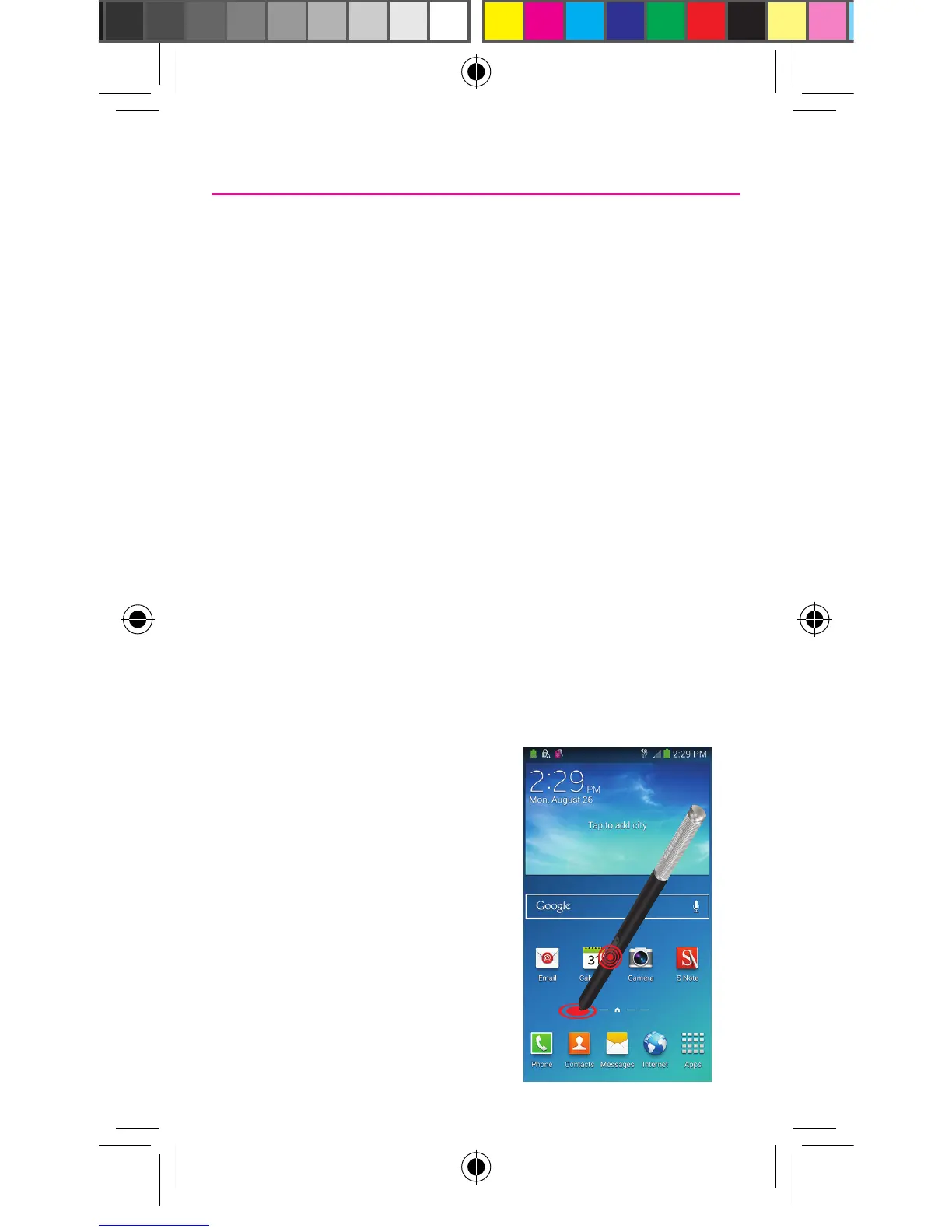
Capturing a Screen
¬ Press the S Pen button then
touch and hold the screen for
2 seconds to take a screen shot.
TMO N900T_QRM_English_Bi-Fold_MI6_PS_091313_F4.indd 9 9/24/2013 2:23:38 PM



 To Next Page
 Loading...