18
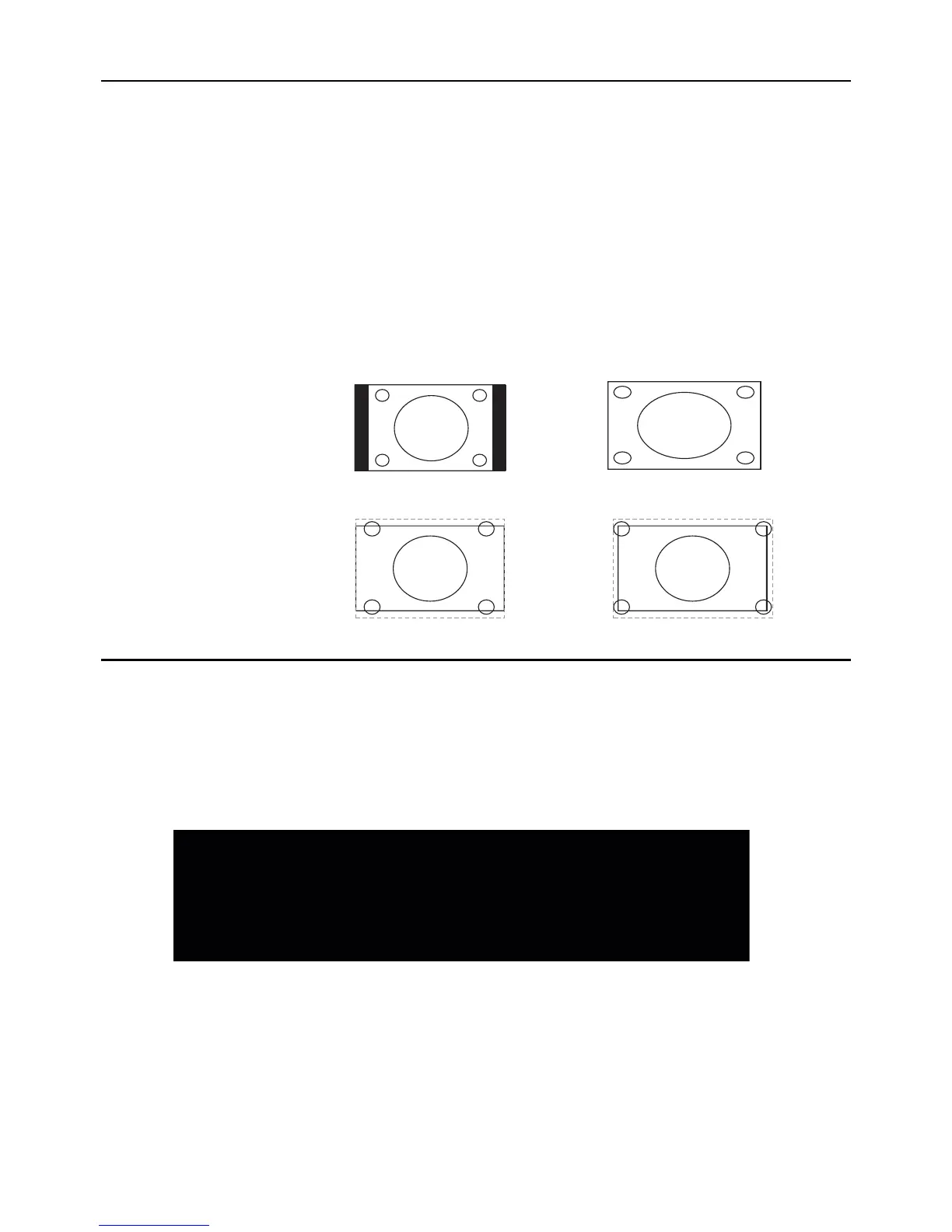
Screen Formats
6FUHHQIRUPDWUHIHUVWRWKHZD\WKHSLFWXUHLVGLVSOD\HGRQ\RXU793UHVVWKHZOOM -/+ button on
your remote to see if a different format is available for the video you are viewing. The format changes
as you press the ZOOM -/+ button, and the format type is displayed at the bottom left of the screen.
$QDORJYLGHRLVVHQWLQDIRUPDWZKLFK\RXU79GLVSOD\VLQDIRUPDW0RVWGLJLWDOYLGHRLVVHQW
LQDIRUPDWZKLFK¿OOV\RXUVFUHHQEXWLWVRPHWLPHVLVVHQWLQZKLFKGRHVQRW¿OO\RXUVFUHHQ
,WGHSHQGVRQKRZWKHVWDWLRQRUFRPSRQHQWFRQQHFWHGWR\RXU79LVIRUPDWWLQJWKHYLGHR,IWKHUHDUH
bars on the screen, press the ZOOM -/+ button to try a different format that may eliminate the bars.
6RPHEDUVFDQ¶WEHUHPRYHGEHFDXVHRIWKHZD\WKHIRUPDWLVVHQWE\WKHEURDGFDVWHU3UHVVZOOM -/+
repeatedly to cycle through the available display formats.
Examples of the different formats appear below. Each format is available for analog video, but it might
not be available for digital video.
Channel Banner
There are several indicators that may appear when you press the INFO button on the remote control,
such as channel number, channel name, rating information, cureent time, effective dcannning lines
and etc., these information vary depending on the different program. This display is called the Channel
Banner. The following is an example describing the items on the Channel Banner screen.
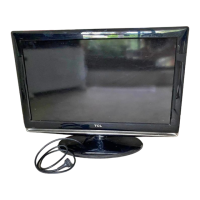
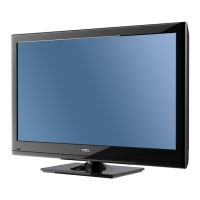
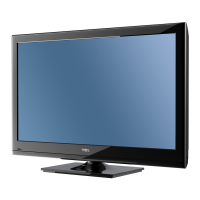
Normal
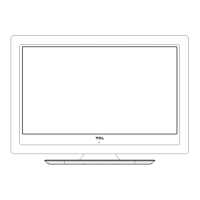
Cinema
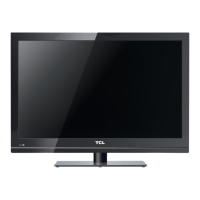
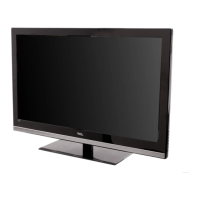
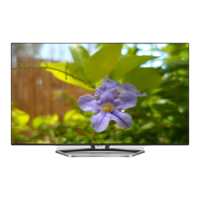
Full
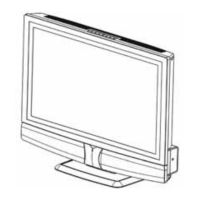
Zoom
Note: For HD Video, press
ZOOM -/+
to choose
from Full, Expand, Normal
and Zoom. For HDMI and
CMPT inputs, there is also
a No Overscan format.
SD channel 1, Event 844
4:00 AM - 7:00 AM
No Rated
No Information
704x480iFAV
English1
06:55 AM
D 42.1
ATLC-DT
Cable/Sat


 To Next Page
 Loading...