This document outlines the features and usage of the TCL OneTouch 4021 mobile phone, a device designed for basic communication and multimedia functions.
Function Description
The TCL OneTouch 4021 is a mobile phone primarily designed for making and receiving calls, sending and receiving SMS messages, and managing contacts. It includes a built-in camera for taking photos and shooting videos, a music player for audio files, and a video player for video files. The device also features an alarm clock, a calendar, a calculator, a call filter for managing unwanted calls, and a torch function. It supports Bluetooth for data exchange and connecting with other Bluetooth-supported devices. The phone is equipped with internal storage for files and supports a microSD card for additional storage. It also includes a recorder for audio files.
Usage Features
Getting Started:
To begin using the phone, first remove the back cover and insert the battery. If you plan to use a SIM card or microSD card, insert them into their respective slots before reattaching the back cover. To power on the phone, press and hold the End key until the screen lights up. To unlock the screen, press the Left soft key followed by the End key.
Basic Navigation:
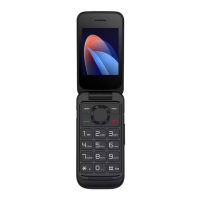
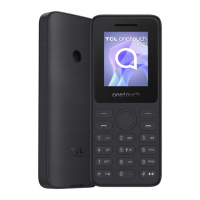
The phone features a 5-way navigation key. To move up, down, left, or right in menus, use the corresponding directions on the navigation key. The OK key (center of the navigation key) is used to confirm an option or access the app list from the Home screen. The Left soft key (OK key) provides access to Contacts, while the Right soft key (Back key) allows you to return to the previous screen or access the app list from the Home screen. The Call key is used to make calls, pick up/send a call, or enter the call log. The End key is used to end a call or power off the phone.
Making and Receiving Calls:
To make a call, dial the desired number and press the Call key. If you make a mistake while dialing, press the Right soft key to delete incorrect digits. To answer an incoming call, press the Left soft key or the Call key. To decline a call, press the Right soft key or the End key. The phone also supports accessing voicemail by pressing and holding the "1" key.
Managing Contacts:
To consult your contacts, press the OK key from the Home screen and select "Contacts." You can also access contacts by pressing the Left soft key from the Home screen. To add new contacts, select "Add new contacts" from the contacts list screen and enter the contact details. Contacts can be edited by selecting the contact, pressing the OK key to access "Details," then selecting "Options" > "Edit." To delete a contact, select the contact, press the Left soft key to access "Options," then select "Delete."
Sending Messages:
To send an SMS message, select "Send a text message" from the messaging menu. You can choose to send the message to a contact from your phonebook or enter a new number. When typing a message, the keypad can be used to input text. For normal text input, press a number key repeatedly until the desired character is displayed. To switch between "abc" and "ABC" modes, press the "#" key. Punctuation marks and special characters can be inserted by pressing the "*" key.
Camera and Gallery:
The phone is equipped with a camera for taking photos and shooting videos. To access the camera, press the Centre soft key from the Home screen and select "Camera." The screen acts as the viewfinder. To take a picture, press the Centre soft key. To save or clear the photo, press the Centre soft key. Videos can be shot by switching to video mode from the camera menu. The Gallery acts as a media player for viewing photos and playing videos. To access the gallery, press the OK key from the Home screen and select "Gallery."
Settings and Personalization:
The "Settings" menu allows you to customize various aspects of your phone. You can manage profiles (General, Silent, Meeting, outdoor, Headset), adjust time and date settings, choose display language, set writing languages, and customize display settings such as wallpaper, power on/off display, auto keypad lock, and backlight. Dedicated keys can be assigned functions. The phone also supports auto update time, flight mode, and font size adjustments.
Security Features:
The phone includes security features such as phone lock and keypad lock by end-key. An unlock code may be requested when the phone is powered on. You can modify the phone's password (the initial one is 1234).
Network and Dual SIM Settings:
Network connection can be switched between Automatic and Manual modes. If your phone supports dual SIM, you can manage the settings in the "Dual SIM settings" menu.
Troubleshooting:
If you encounter issues, refer to the troubleshooting section. Common problems include the phone not charging properly (check battery and charger), battery not inserted properly, battery not completely discharged (allow 20 minutes to display battery charger indicator), or charging not carried out under normal conditions. If the phone doesn't turn on, check if the phone is locked or if the battery charge level is sufficient. For network connection issues, verify network coverage, SIM card validity, and try selecting available networks manually. If you cannot connect to the internet, ensure the internet access service of your SIM card is available and check your phone's internet connection settings.
Maintenance Features
Charging the Battery:
To charge the battery, connect the battery charger to your phone and plug it into the socket. Ensure the mains socket is not forced into the plug. Make sure the battery is correctly inserted before connecting the charger. The mains socket must be near the phone and easily accessible.
Powering On/Off:
To turn your phone on, hold down the End key until the phone powers on. To turn your phone off, hold down the End key.
SIM/Micro SD Card Insertion:
Place the SIM card with the chip facing downwards and slide it into its housing. Make sure that it is correctly inserted. To remove the card, press it and slide it out.
Battery Care:
To reduce power consumption and energy waste, disconnect your charger when the battery is fully charged. Switch off Bluetooth when not in use. In Settings, you can also lower the brightness of the screen and shorten the length of time before the screen goes to sleep to conserve battery life.
Data Transfer:
To transfer data between a memory card/SD card and your PC, connect your phone to the PC via the user data cable and select "SD card" on your phone. You will then be able to transfer data between the two locations.
Water Resistance (if applicable):
If your device has water resistance features, ensure the battery cover waterproof ring is flat and secure within the cover so that it does not easily fall out. The battery cover screws should be tightened to ensure they cannot be tightened any further. The waterproof silicone stopper should be pressed tightly against the device.


 To Next Page
 General
 Weight and Dimensions