26
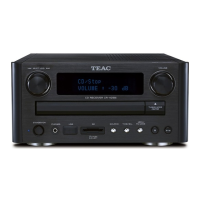
During playback, press the SKIP button (. or
/ ) repeatedly until the desired track is found.
The selected track will be played from the
beginning.
< When the . button is pressed during playback,
the track being played will be played from the
beginning. To return to the beginning of the
previous track, press the . button twice.
Listening to iPod 2
Display mode (Video output from
iPod)
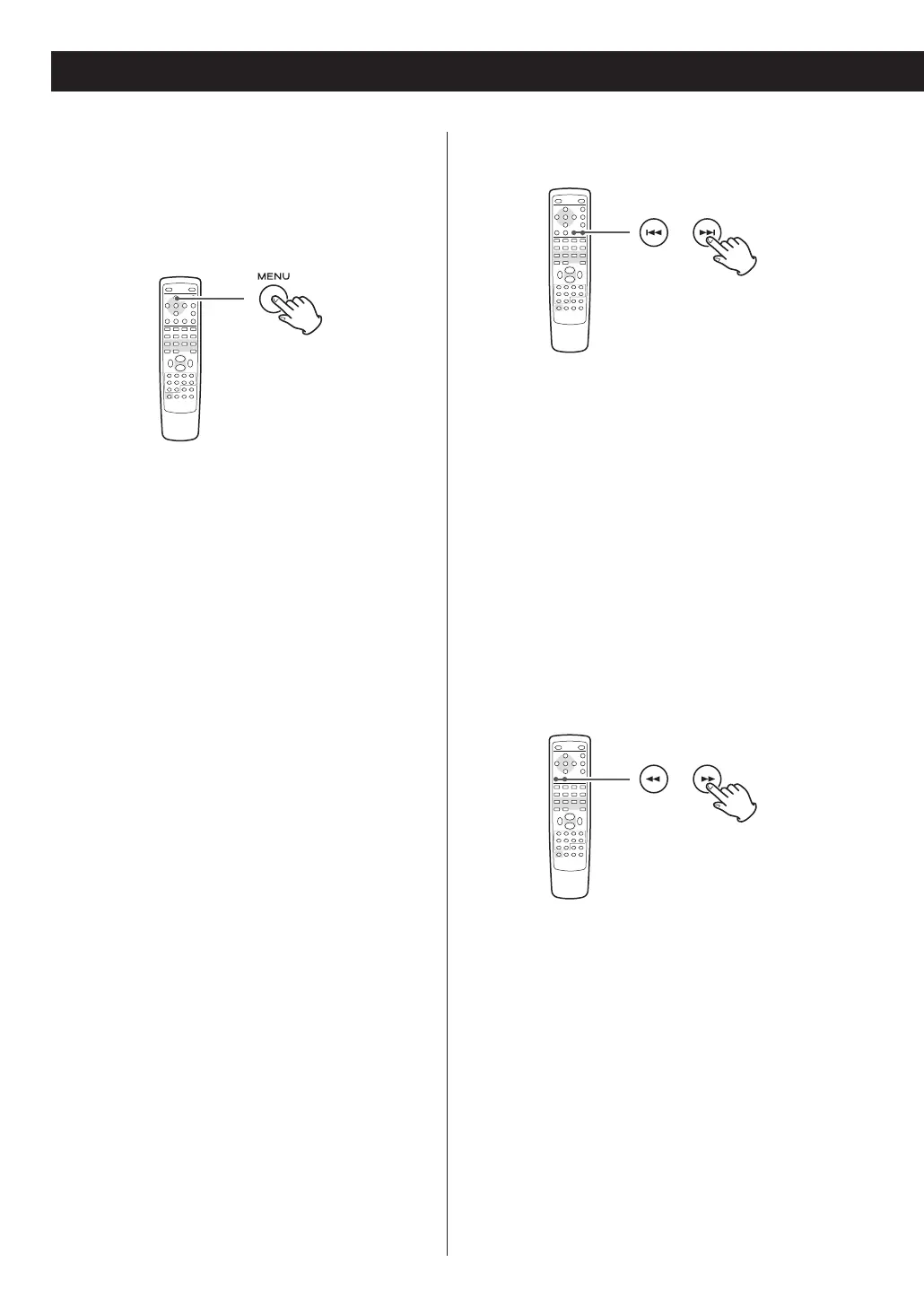
When the iPod is docked, press and hold the MENU
button for more than 3 seconds to select which
display to be used.
Extended mode (default)
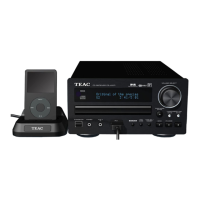
Select this to use the display of the CR-H257i.
Information on the audio files is displayed on the
display of the CR-H257i.
The screen of the iPod shows TEAC logo.
< No signal is output from the S-VIDEO and VIDEO
terminals.
Click Wheel Mode
Select this to use the screen of the iPod.
Menu appears on the screen of the iPod.
The display of the CR-H257i constantly shows
“Clickwheel Mode”.
< When the Dock is connected to a TV or monitor,
select “Click Wheel Mode” to output video signals.
During playback, hold down the SEARCH button
(
m
or
,
) of the remote control unit (or the
SKIP button of the main unit) for more than 2
seconds and release it when the part you want to
listen to is found.
Search for a part of a track
To skip to the next or a previous
track


 To Next Page