NETWORK
Once you have set up the Media folder on your PC, follow the instructions below to connect the
receiver to your PC over your network.
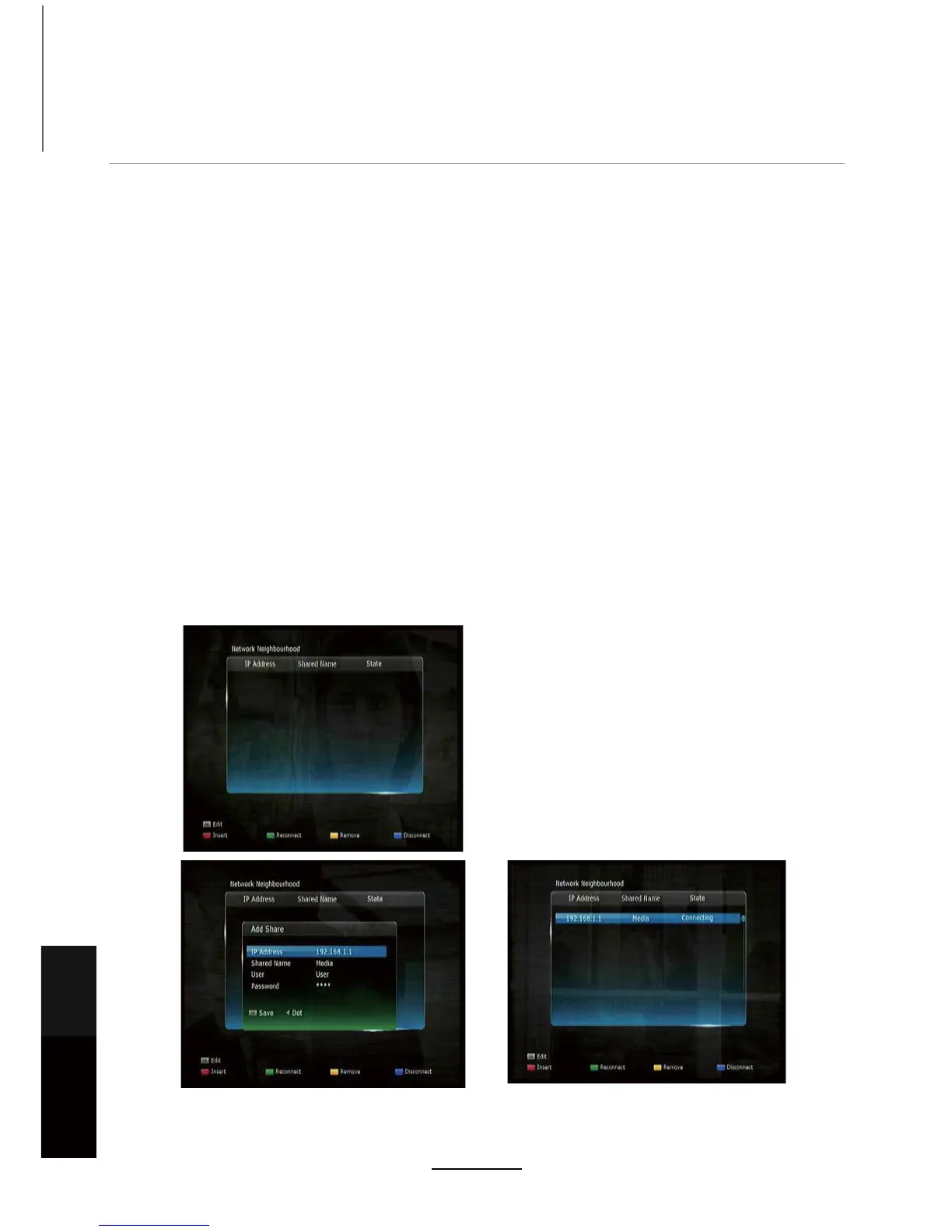
To set up Network Neighbourhood on the receiver:
1. Press [MENU] in DTV source.
6HOHFW'796HWWLQJĺ1HWZRUNĺ1HWZRUN1HLJKERUKRRG
3. Press the [RED] button to key in the necessary PC sharing information IP Address: Enter the
IP address of the PC you wish to share with by using the numeric keys Shared Name: Press
WKHŹEXWWRQWRDFFHVVWKHRQVFUHHQNH\ERDUGDQGHQWHUWKHVKDUHGIROGHUQDPH\RXFUHDWHG
on your PC. The default in this menu is Media.
We recommend that the folder on the PC be named Media as stated in the PC set
up instructions.
8VHU3UHVVWKHŹEXWWRQWRDFFHVVWKHRQVFUHHQNH\ERDUGDQGHQWHUWKHXVHUQDPHRIWKH3&
you are connecting to. Once you have entered the username press the [YELLOW] button to
save.
3DVVZRUG3UHVVWKHŹEXWWRQWRDFFHVVWKHRQVFUHHQNH\ERDUGDQGHQWHUWKHSDVVZRUGWRWKH
PC you are connecting to. Once you have entered the password, press the [BLUE] button to
save and exit.
4. Press [OK] to connect to your PC. Once connected, “Connect OK” will display in the “State”
column. If it displays “Connect Fail”, please follow the steps above again and double-check
your Media folder and network settings.
Maintenance
and Service
NETWORK
40


 To Next Page