DVD Operation
26
Preparation
Menu Play
1. Compatible with DVD, SVCD or VCD2.0.
2. If the disc is a DVD, a ROOT MENU will appear on the screen. If it is SVCD or VCD
2.0, please press the Menu button to see the menu.
3. W hen a DVD disc is loaded, use the toggle buttons to highlight the menu item you
would like to choose. W ith SVCD or VCD 2.0, press the numeric buttons to select a
track to play.
4. Press OK or Play to start when highlighted.
5. Return to Menu when Playing: W hen playing a DVD disc press the Menu button to
return to the "ROOT" menu. W hen playing a SVCD or VCD, and Playback control
(PBC) is "on" press the Menu or Return button to return to the disc menu.
NOTE: - DVD mode must be selected before inserting the disc.
- The contents of each disc may vary, as to how the disc was authored and
what features are included.
-Some discs have an autoplay function. Some offer different modes, such
as Menu Play, Sequence Play and other modes as illustrated below.
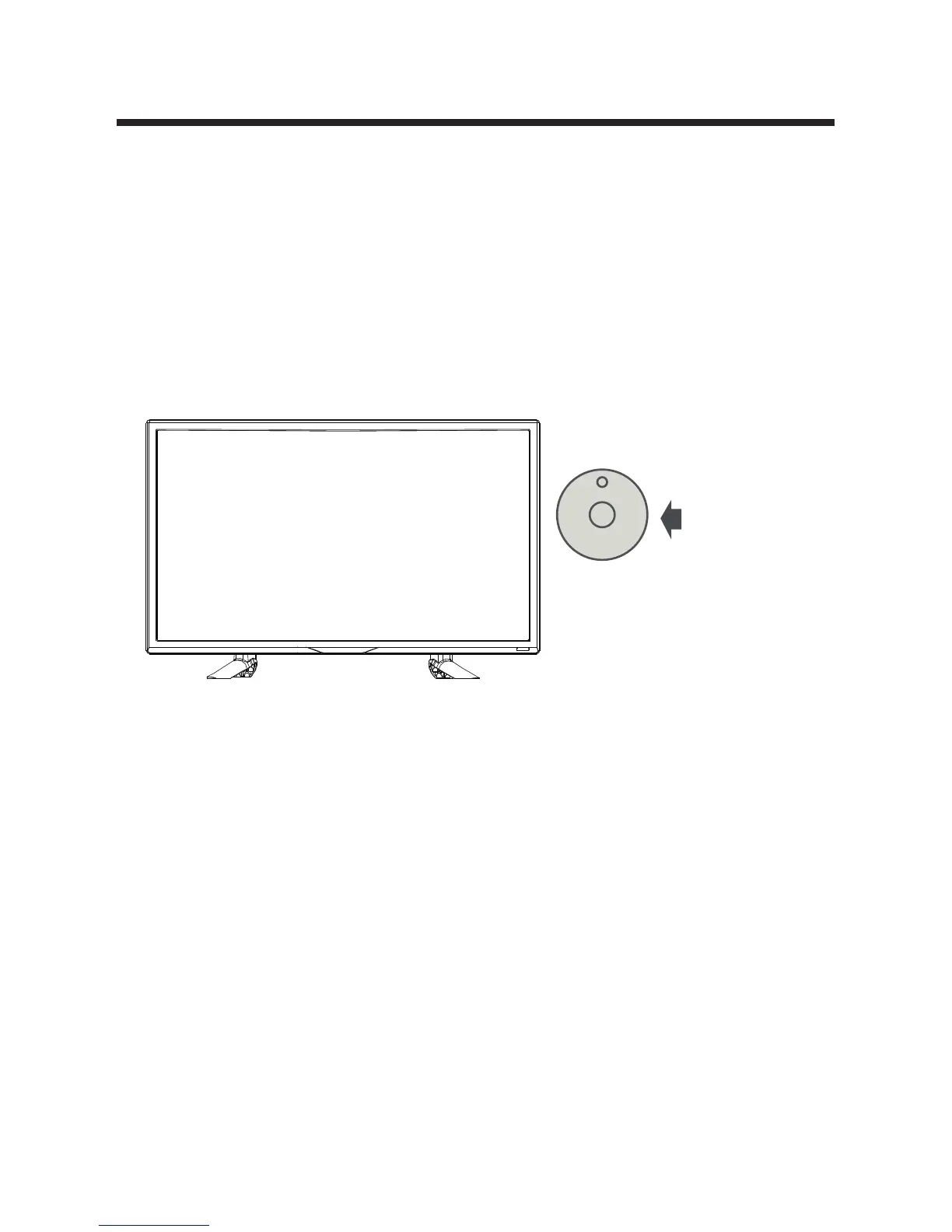
1. Connect the unit to the power supply and press the POW ER button to switch the
unit on.
2. Press the INPUT button on the remote control to select DVD mode and press OK
to select DVD mode.
3. Gently insert the disc, with the label side away from the television, into the disc
tray slot. The disc will be drawn into the disc tray and loaded automatically.
4. Press the EJECT button to eject the disc. The disc cannot be drawn into the disc
tray by pressing the EJECT button again. The disc must be manually pushed into the
tray until it is drawn in automatically.
Refl ective side


 To Next Page