Using Music Streaming (1)
Playing music through music server
You can listen to music files stored on a computer (music server)
connected to this unit via wired/wireless network.
1
Start your computer (music server). Check your network
environment, making sure that the network connection
has been established, and then turn on the unit.
For detailed information, see “Network Setup” on pages 23 to
o
25.
2
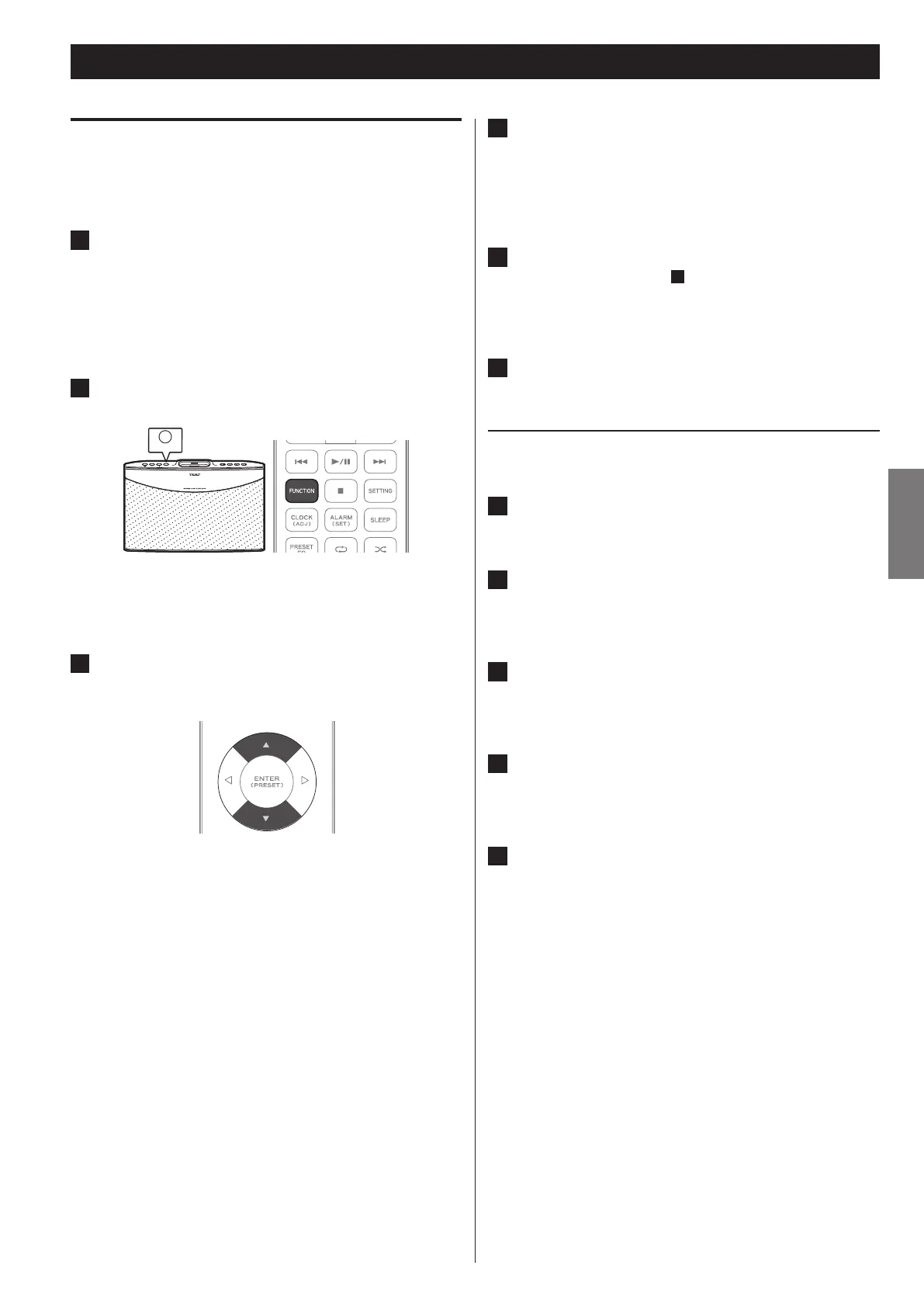
Press the FUNCTION button on the unit or the remote
control to select “MUSIC SERVER” as the input source.
The list of devices connected to the same network is o
displayed.
3
Press the UP and DOWN (5 and b) buttons on the
remote control to select your computer as a music server,
and then press the ENTER button.
4
Press the UP and DOWN (5 and b) buttons on the
remote control to move “>” next to the desired category,
such as Music, for example, and then press the ENTER
button.
5
Go down the folder tree by performing the operations
similar to those in step
4
above until “>” is moved next
to the file you want to play.
6
Press the ENTER button to start playback.
Configuring the Windows Media® Player 11 to play music files
stored on your computer
1
Run the Windows Media Player 11 on your computer.
2
Select the “Library” tab on the menu bar, and then select
“Media Sharing”.
3
In the “Media Sharing” dialog box, select the “Share my
media” check box, and then click “OK”.
4
Select this unit from the list of devices, and then click
“All ow ”.
5
Click “OK” to close the dialog box.
The Windows Media Player 11 configuration is completed.
You can play the music files stored on your computer by using
the Windows Media Player 11 library through this unit.


 To Next Page