12
Tips:
• Enter"0000"forthepasswordifnecessary.
• Ifthereisanexistingconnection,pressthe"BT PAIR" button on the remote control to
re-activate the pairing mode, the connection will be interrupted.
• IfnootherBluetoothdevicepairswiththisplayerwithintwominutes,theplayerwillrecover
its previous connection.
• Theplayerwillalsobedisconnectedwhenyourdeviceismovedbeyondtheoperationalrange.
• Ifyouwanttoreconnectyourdevicetothisplayer,placeitwithintheoperationalrange.
• Ifthedeviceismovedbeyondtheoperationalrange,whenitisbroughtback,pleasecheckif
the device is still connected to the player.
• Iftheconnectionislost,followtheinstructionsabovetopairyourdevicetotheplayeragain.
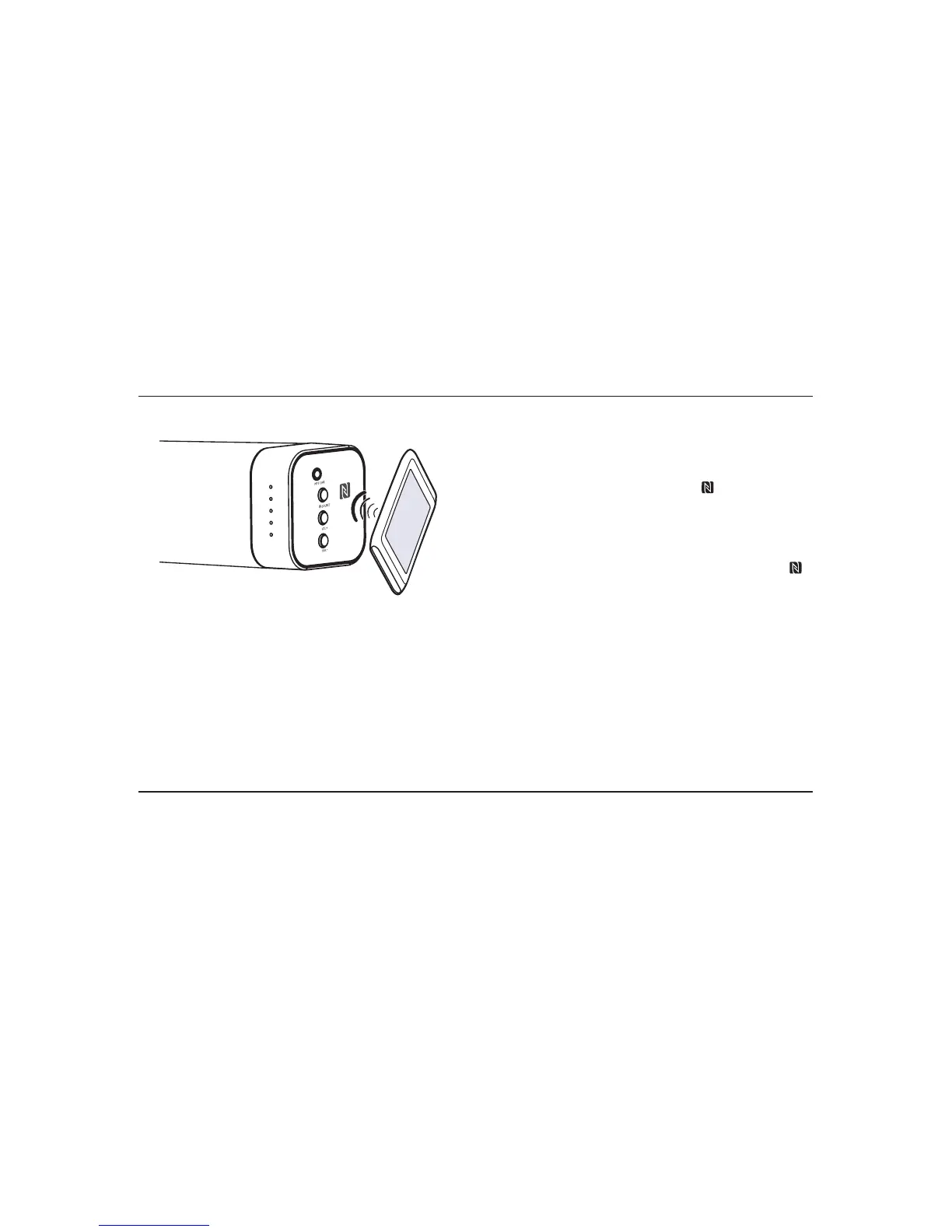
NFC(NearFieldCommunication)Operation
Pair your NFC-enabled mobile device directly
with this unit by just a single tap.
1. Activate NFC on your mobile device.
2. Tap the mobile device on the “ “ icon of the
unit.
3. Operate your mobile device directly for playback
features.
4. To disconnect, tap the mobile device on the “
“ icon of the unit to disconnect or disable NFC
from your mobile device.
Note: This NFC function only works with mobile devices that support NFC technology.
Tips:
Some NFC-enabled mobile devices cannot pair directly with the unit via NFC, please try either one
of the solutions below:
• PleasedownloadtheApp“Tap-and-Pair”fromGooglePlayStore(https://play.Google.com)andinstall.
• Pairwiththeunitmanuallyrst,thentouchagainontheNFCsensingarea.
Listen to Music from Bluetooth Device
- If the connected Bluetooth device supports Advanced Audio Distribution Prole (A2DP), you
can listen to the music stored on the device through the player.
- If the device also supports Audio Video Remote Control Prole (AVRCP), you can use the
player's remote control to play music stored on the device.
1. Pair your device with the player.
2. Play music via your device (if it supports A2DP).
3. Use supplied remote control to control play (if it supports AVRCP).
- To pause/resume play, press the
BF
button.
- To skip to a track, press the
H
,
G
buttons.


 To Next Page