6
support@techage.com
02
View on Smartphone
2.1 Add Device to APP
Step 1: Connect the NVR to the Internet
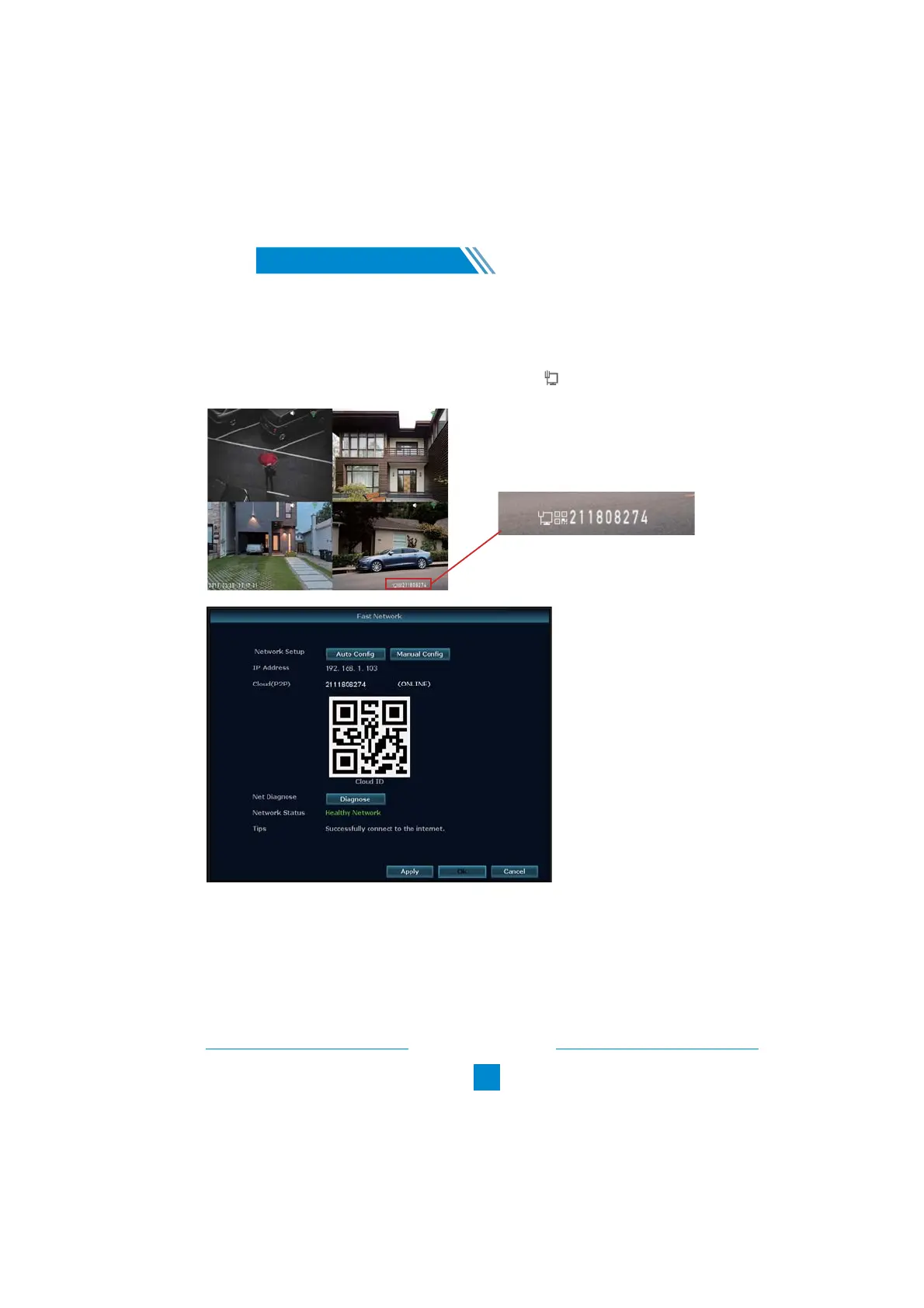
Connect the NVR’s WAN port to LAN port of your router with a network cable. After the NVR is
connected to the Internet, click this icon on the right bottom and then you will see the picture
below. It will show the cloud ID of the NVR and the network status of it.
/
Tips:
If the status does not show “ONLINE”, please go to System Setup > Network Setup> enable the
DHCP or manually allocate IP for the NVR. If the setting still doesn't work, please ask your network
administrator for help. (Ex.: Port 80 needs to be opened on the router.)
Step 2: Download the App
Search "IP PRO" in App store or Google Play. Or Scan the QR Code to download the App for free.



 To Next Page