EasyManua.ls Logo

Technomark Multi 4 - User Manual

Technomark Multi 4
10 pages
Print Icon
To Next Page IconTo Next Page
Loading...
®
1 PRODUCT - 4 CONFIGURATIONS
NEW GENERATION!
®
w
w
w
.
t
e
c
h
n
o
m
a
r
k
-
m
a
r
k
i
n
g
.
c
o
m
w
w
w
.
t
e
c
h
n
o
m
a
r
k
-
m
a
r
k
i
n
g
.
c
o
m
On Site
demonstration!
On Site
demonstration!
®
CREATIVE TRACEABILITY
Question and Answer IconNeed help?

Do you have a question about the Technomark Multi 4 and is the answer not in the manual?

Summary

MULTI4 BENEFITS

TECHNOLOGICAL INTELLIGENCE

IDI Mark

Ensures marking quality on parts of varying height, managed by Multi4 software.

IDI Track

Real-time monitoring for maintenance needs and fault detection using auto-diagnosis.

USERS MANUAL - STEP 1: Read the safety instructions

USERS MANUAL - STEP 2: Unpacking, assembly and starting up

USERS MANUAL - STEP 3: Main functions

USERS MANUAL - STEP 4: Secondary functions

Enter Data

Input text, figures, and other data for marking operations.

Modify Marking Parameters

Adjust settings like character height, width, and force for markings.

Edit Menu

Copy, paste, and manage marking elements and accessories.

File Configuration

Set speed, activation, and communication parameters for marking files.

Manual Positioning

Manually adjust the position of data on the part to be marked.

Setting Marking Force

Adjust the force applied during the marking process.

Adjust Characters

Fine-tune character dimensions, height, and width.

Slope Angle and Radius Adjustment

Adjust the slope angle and radius for specialized marking.

Centering Text

Center text horizontally (X) and vertically (Y) on the marking area.

Select Point Density

Choose the density of marking points from available matrices.

Select Character Font

Choose the font style for the marking text.

Italic Mode

Activate or deactivate italic formatting for text.

Setting Space Between Characters

Adjust the spacing between individual characters in the marking.

Back to Default Values

Reset current settings to their default values.

Save File

Save the current marking configuration or job.

Open Existing File

Load a previously saved marking file.

New File

Create a new marking file from scratch.

Import;Export Data

Transfer marking data using USB or other methods.

Testing Outline of All Lines

Perform a test marking of all defined lines without actual impact.

Test Beginning;End of Line

Test the start and end points of a marking line.

Marking Test of Line Without Impact

Execute a test marking of a line without marking the part.

Marking Test of All Lines Without Impact

Execute a test marking of all lines without marking the part.

Zoom

Adjust the zoom level on the display screen.

Setting Date and Time

Configure the system's date and time settings.

Users, Licences and Password

Manage user accounts, licenses, and passwords.

Interface Parameters

Configure interface settings like language and screen layout.

Machine Parameters

Access machine-specific parameters, maintenance, and windows.

USERS MANUAL - STEP 5: Producing a simple marking

USERS MANUAL - STEP 6: Reminder of the main technical features

TECHNICAL HELP - STEP 1: Safety instructions

TECHNICAL HELP - STEP 2: Maintenance and Daily Service

TECHNICAL HELP - STEP 3: What to do when faced with a malfunction?

TECHNICAL HELP - STEP 4: Trouble shooting

Control Screen Issues

Troubleshoot issues where the control screen does not function.

Marking Quality Issues

Address problems with bad marking quality or ill-formed characters.

Stylus Stuck Issues

Resolve problems with the stylus getting stuck or pointing downwards.

Part Not Marked Issues

Diagnose why the part is not being marked.

Percussion Assembly Issues

Troubleshoot strange noises or movement issues with the percussion assembly.

ADMINISTRATIVE - Your support

Commercial Department

Inquiries regarding machine sales, accessories, and product offers.

Administrative Department

Inquiries concerning invoicing, payment facilities, and contract follow-up.

Logistic Department

Inquiries related to shipping policy, transport, and equipment returns.

After Sales Service

Inquiries for technical service, maintenance, loan equipment, and repairs.

MAIN ACCESSORIES

Overview

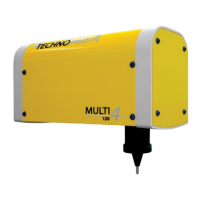
The Technomark Multi4 is a versatile and robust marking machine designed for creative traceability, offering four configurations in one product. It is engineered for ease of use, high performance, and reliability, making it suitable for various industrial marking applications.

Function Description:

The Multi4 is a dot peen marking machine capable of creating permanent marks on various materials. It utilizes a stylus to create indentations, forming text, figures, and other data. The device supports both flat and cylindrical parts, with its IDI Mark technology ensuring consistent marking quality regardless of height differences. The IDI Track feature provides real-time monitoring for maintenance needs, stylus wear, and fault detection through a 5-point auto-diagnosis system. The machine is designed for a new generation of users with a simplified, intuitive interface and icon-based navigation, allowing for quick understanding and operation. It can store up to 20,000 marking files, each containing up to 40 characters on one line, and supports serial communication, USB, Ethernet (optional), and various inputs/outputs.

Important Technical Specifications:

  • Power: 250 VA
  • Frequency: 50 or 60 Hz
  • Electrical Supply: 90 to 240 V
  • Controller Dimensions (L x W x H): 145.67″ x 84.65″ x 54.72″ (370 x 215 x 139 mm)
  • Working Temperature Range: 0°C to +45°C (32°F to 115°F)
  • Memory: 40Mb, capable of storing up to 20,000 marking files (40 characters, 1 line).
  • Marking Speed: Increased by 20% compared to previous generations, with optimized X/Y movement and standard 3-axis management.
  • Marking Head Weight: Reduced by approximately 0.88 lbs (400 grams).
  • Construction: Uses cast aluminum parts for robustness.
  • Stylus Positioning: Optimal distance between stylus and surface to be marked is 0.12″ (3 mm), with a recommended range of 0.039″ to 0.37″ (1 mm to 9.5 mm).

Usage Features:

The Multi4 offers a range of features to enhance usability and marking precision:

  • User Interface: Simplified, intuitive navigation with a high-definition color screen. Includes features like zooming, cutting/pasting, and test functions.
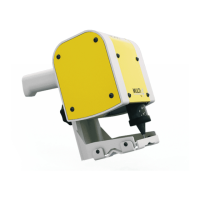
  • Ergonomics: New design with an optional second handle for improved handling. Features a support foot, controller handgrip, and an optional handle on the marking head.
  • Marking Customization:
    • Character Height, Position, and Marking Force: Adjustable.
    • Point Density and Spacing: Customizable.
    • Character Font: Selectable.
    • Italic Mode: Available.
    • Space Between Characters: Adjustable.
    • Character Dimensions: Adjustable height/width.
    • Slope Angle and Radius: Adjustable.
    • Text Centering: X, Y, or XY axis.
  • Data Management:
    • File Operations: Open existing files, create new files, save files, adjust speed, activate D axis.
    • Import/Export: Data can be imported/exported with a USB key.
  • Testing and Simulation:
    • Marking Simulation: Function available without actual marking.
    • Testing Outline: Test outline of all lines (file) or selected lines.
    • Test Beginning/End: Test the beginning and end of a line.
    • Marking Test Without Impact: Perform a marking test without impact for single lines or entire files.
  • System Settings:
    • Parameters Setting: Adjust zoom, time, language, accessory, window size.
    • Users, Licenses, and Password: Management features.
    • Interface Parameters: Language settings.
    • Machine Parameters: Maintenance and window settings.
  • Accessories: A wide range of accessories are available, including heavy-duty and standard rotary D axes, automatic plate feeders, maintenance kits, powered Z column bases for automatic part detection, bar-end tools, plate supports, part supports, transport trolleys, magnetic head supports, software, and reading systems.

Maintenance Features:

The Multi4 is designed for minimal maintenance, primarily focusing on the mechanical part (marking head). Regular maintenance with original manufacturer parts can extend equipment lifetime by 20% and reduce operating costs by 14% over a 5-year period (excluding warranty).

  • Stylus Maintenance:
    • Clean and lubricate the stylus as per user manual instructions (Section 6-C).
    • Check stylus sharpness (Standard 90°); sharpen or replace as necessary.
    • Check spring condition; it should not be shorter than 51 mm.
    • Replace the stylus if needed.
  • Mechanical Parts:
    • Check for dirt in mechanical parts and clean with a compressed air nozzle as necessary.
    • Check alignment and cleanliness of X and Y axis (Section 6-F of the user's manual).
  • Troubleshooting: The manual provides guidance for common issues such as the control screen not working, bad marking quality, stylus stuck, part not marked, or percussion assembly not moving/making strange noises. It advises checking power supply, on/off switch, part fixation, stylus sharpness, character height, impact force, part-to-stylus distance, stylus movement, force/distance compatibility, stylus assembly position/tightening, purple electro-magnet cable damage, and marking head cable connection.
  • Customer Support: Technomark offers comprehensive after-sales service, including technical support via email and telephone. In cases where a problem cannot be solved remotely, the company provides a loan machine during the repair period (subject to guarantee conditions) and commits to providing a repair estimate within 48 hours of receiving the machine.

Technomark Multi 4 Specifications

General IconGeneral
BrandTechnomark
ModelMulti 4
CategoryMeasuring Instruments
LanguageEnglish

Related product manuals