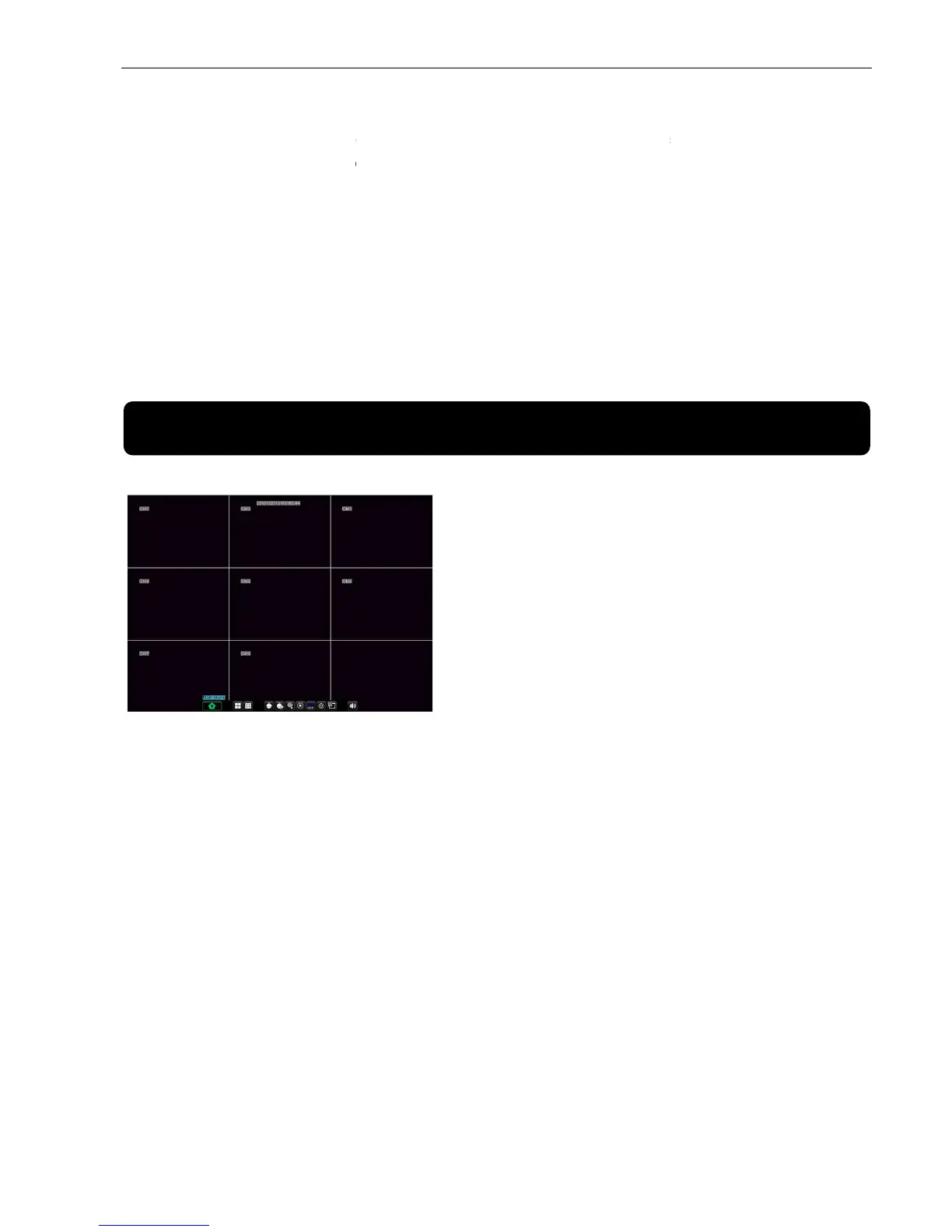
After finishing initialization the system will enter into
Once there are video inputs, the
click the live image of any channel, the image will be maximized to full screen, by
double-clicking again, image w
Menu;clicking the left button of themouse
When internal HDD is not connected or an error occurs, the character “H” will appear on the first
the live screen and accompany buzzer alarm. If you want to close the buzzer alarm, please enter
Alarm] to set HDD loss, HDD space not enough and alarm output to “off”
After finishing initialization the system will enter into
. which is showing no video input status.
will display live images from the cameras.In
click the live image of any channel, the image will be maximized to full screen, by
; clicking the right button of the mouse
Menu;clicking the left button of themouse
When internal HDD is not connected or an error occurs, the character “H” will appear on the first
the live screen and accompany buzzer alarm. If you want to close the buzzer alarm, please enter
Alarm] to set HDD loss, HDD space not enough and alarm output to “off”
After finishing system initialization, click right
key of mouse on main interface mode to enter into
Pop-up Menu. Now you could
Sequence, PIP, and Vo Switch
Clicking [0] key on the remote controller or
holding press [Esc] key on the front panel could
switch system to other output device.
. which is showing no video input status.
will display live images from the cameras.In
Live mode, if you use the
click the live image of any channel, the image will be maximized to full screen, by
; clicking the right button of the mouse
When internal HDD is not connected or an error occurs, the character “H” will appear on the first
the live screen and accompany buzzer alarm. If you want to close the buzzer alarm, please enter
Alarm] to set HDD loss, HDD space not enough and alarm output to “off”
After finishing system initialization, click right
key of mouse on main interface mode to enter into
Clicking [0] key on the remote controller or
holding press [Esc] key on the front panel could
switch system to other output device.


 To Next Page