DVR will always be able to record events as they happen, however, it does means that you’ll need to get
important events off the HDD before they’re
record once the DVR is full. Whilst you won’t lose old footage, you run the risk of missing new events as they
happen. Be sure you want to do this before selecting it.
g the HDD will erase all data (i.e. footage) which is stored on it, and re
FAT (file allocation table).
USB Format -
If you have a USB flash drive connected to the DVR, you can format that, too. To do this,
click the [USB Format] button and clic
Itis an important first step when configuring your DVR to make sure that the hard drive (HDD) options
are correctly set. So, strongly suggest that you do format the HDD before start the first record.
5.2.7 System
5.2.7.1 General
Click [Main MenuSystem
DVR will always be able to record events as they happen, however, it does means that you’ll need to get
important events off the HDD before they’re
overwritten; and if overwrite is set to DISABLE the DVR will stop
record once the DVR is full. Whilst you won’t lose old footage, you run the risk of missing new events as they
happen. Be sure you want to do this before selecting it.
g the HDD will erase all data (i.e. footage) which is stored on it, and re
If you have a USB flash drive connected to the DVR, you can format that, too. To do this,
click the [USB Format] button and clic
Itis an important first step when configuring your DVR to make sure that the hard drive (HDD) options
are correctly set. So, strongly suggest that you do format the HDD before start the first record.
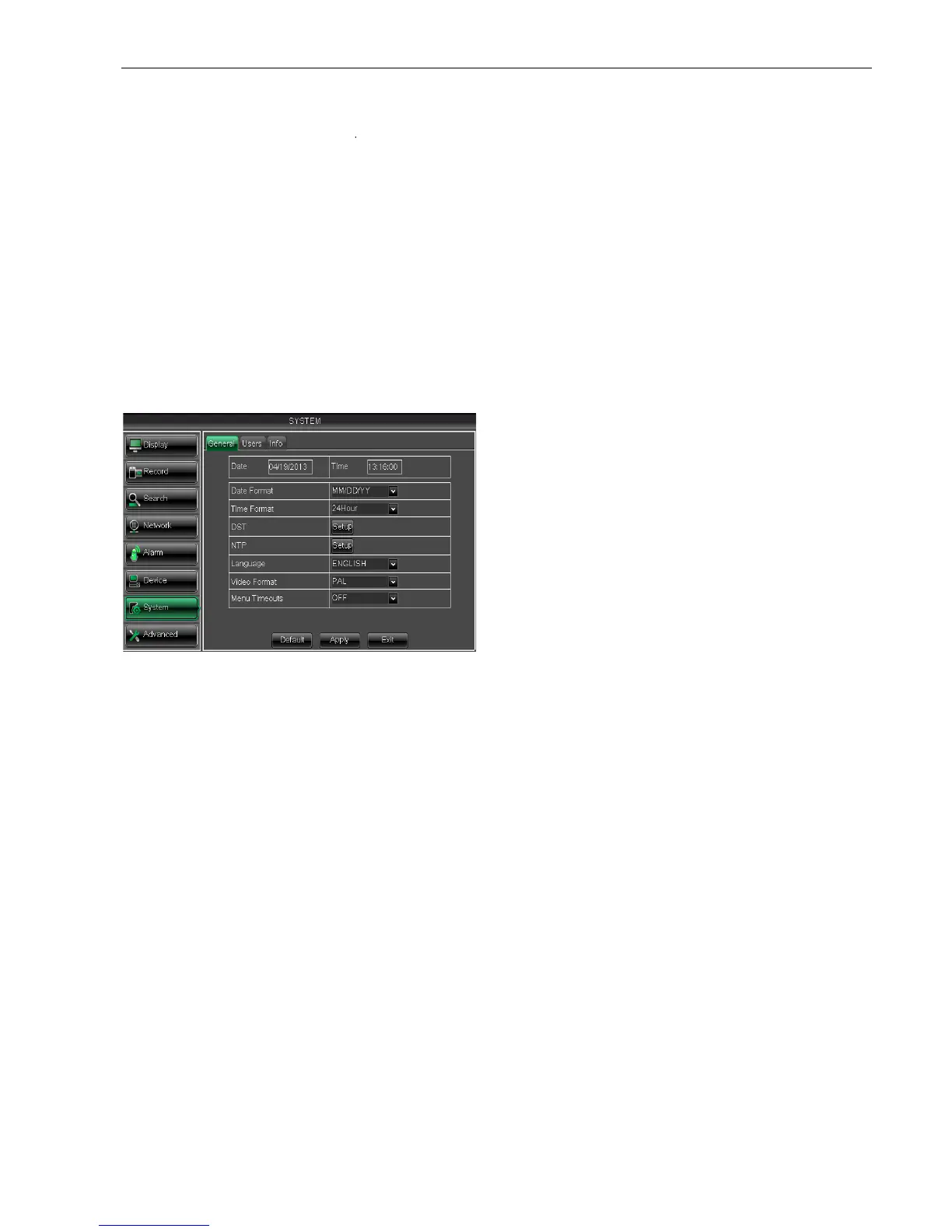
General] to enter into the interface shown as Picture 5
You will be allowed to modify system date/time,
date/time format, time zone, language, video format and
And click [DST Setup] button to enter into the below
configure DST status and mode.
Click [NTP setup] to enter into the interface shown
51 and now allow you enable/disable
DVR will always be able to record events as they happen, however, it does means that you’ll need to get
overwritten; and if overwrite is set to DISABLE the DVR will stop
record once the DVR is full. Whilst you won’t lose old footage, you run the risk of missing new events as they
g the HDD will erase all data (i.e. footage) which is stored on it, and re
If you have a USB flash drive connected to the DVR, you can format that, too. To do this,
Itis an important first step when configuring your DVR to make sure that the hard drive (HDD) options
are correctly set. So, strongly suggest that you do format the HDD before start the first record.
General] to enter into the interface shown as Picture 5
You will be allowed to modify system date/time,
date/time format, time zone, language, video format and
And click [DST Setup] button to enter into the below
-50, and you are allow to
configure DST status and mode.
Click [NTP setup] to enter into the interface shown
51 and now allow you enable/disable


 To Next Page