5.2.3.5
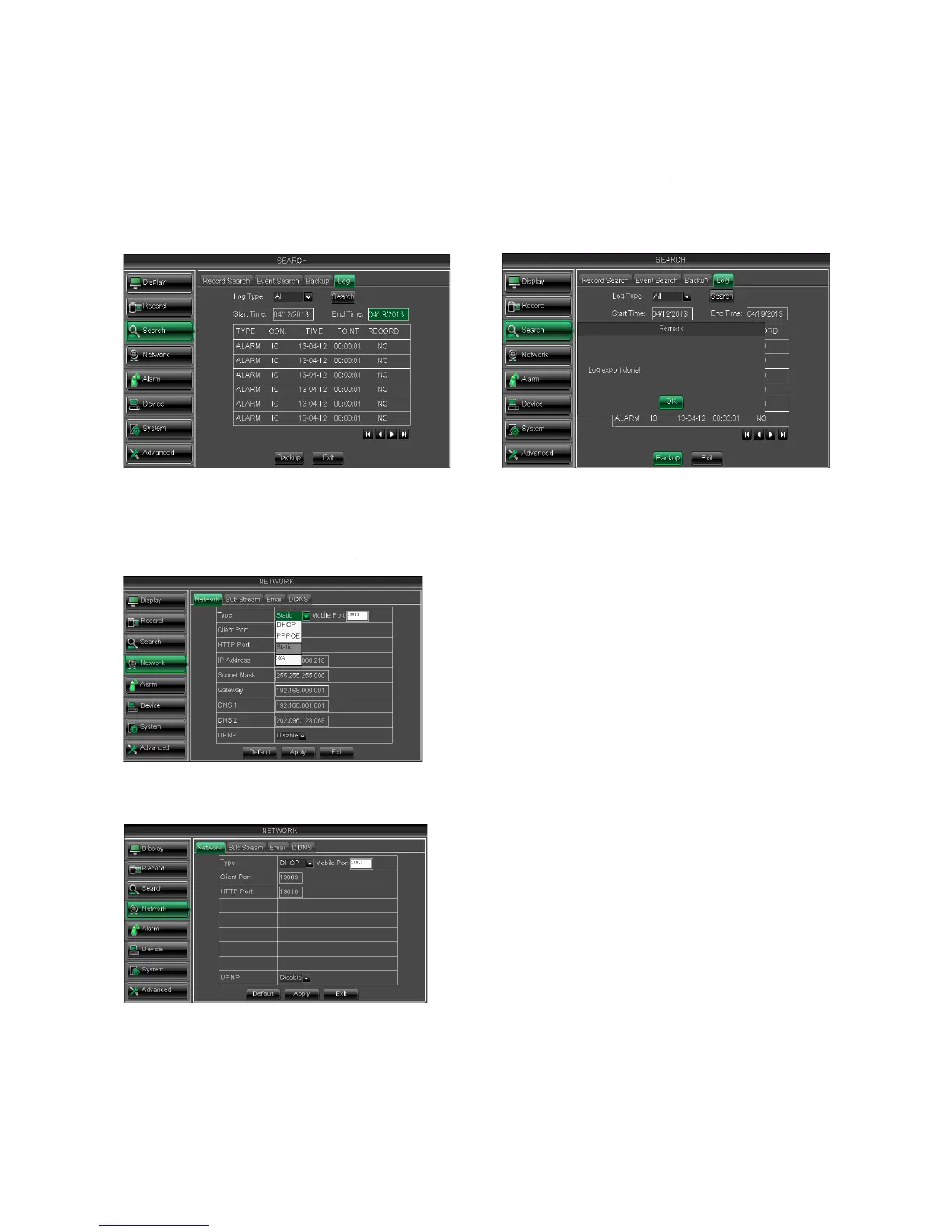
Log Search
5.2.4 Network
5.2.4.1 Network set
Click [Main menu
: DNS server is generally provided by local ISP. Herein please enter the IP address of your DNS
Set IP address captured by
Input the IP address of your domain name server
enter into the Log search interface shown as
Network] to enter into the below interface shown as Picture 5
: DNS server is generally provided by local ISP. Herein please enter the IP address of your DNS
Set IP address captured by
DVR and HTTP port to a router
port (such as: 19010 - only use for Intranet)
Input the IP address of your domain name server
After selecting network mode -
UPnP (Universal Plug and Play) function:
P function and set <UPnP> to
will automatically forward port to router.
enter into the Log search interface shown as
Herein allow you preview the log information you
have searched. And click [Backup] to export all
the log information which is listed. For other
button functions please refer to previous section
will automatically allocate IP address for your DVR.
After restarting each time, the IP address captured
by your DVR may be different.So, port forwarding is
required when you visit a remote DVR.
Input media port and HTTP
Network] to enter into the below interface shown as Picture 5
: DNS server is generally provided by local ISP. Herein please enter the IP address of your DNS
UPnP (Universal Plug and Play) function:
P function and set <UPnP> to
will automatically forward port to router.
Herein allow you preview the log information you
have searched. And click [Backup] to export all
the log information which is listed. For other
button functions please refer to previous section
will automatically allocate IP address for your DVR.
After restarting each time, the IP address captured
by your DVR may be different.So, port forwarding is
required when you visit a remote DVR.
Input media port and HTTP


 To Next Page