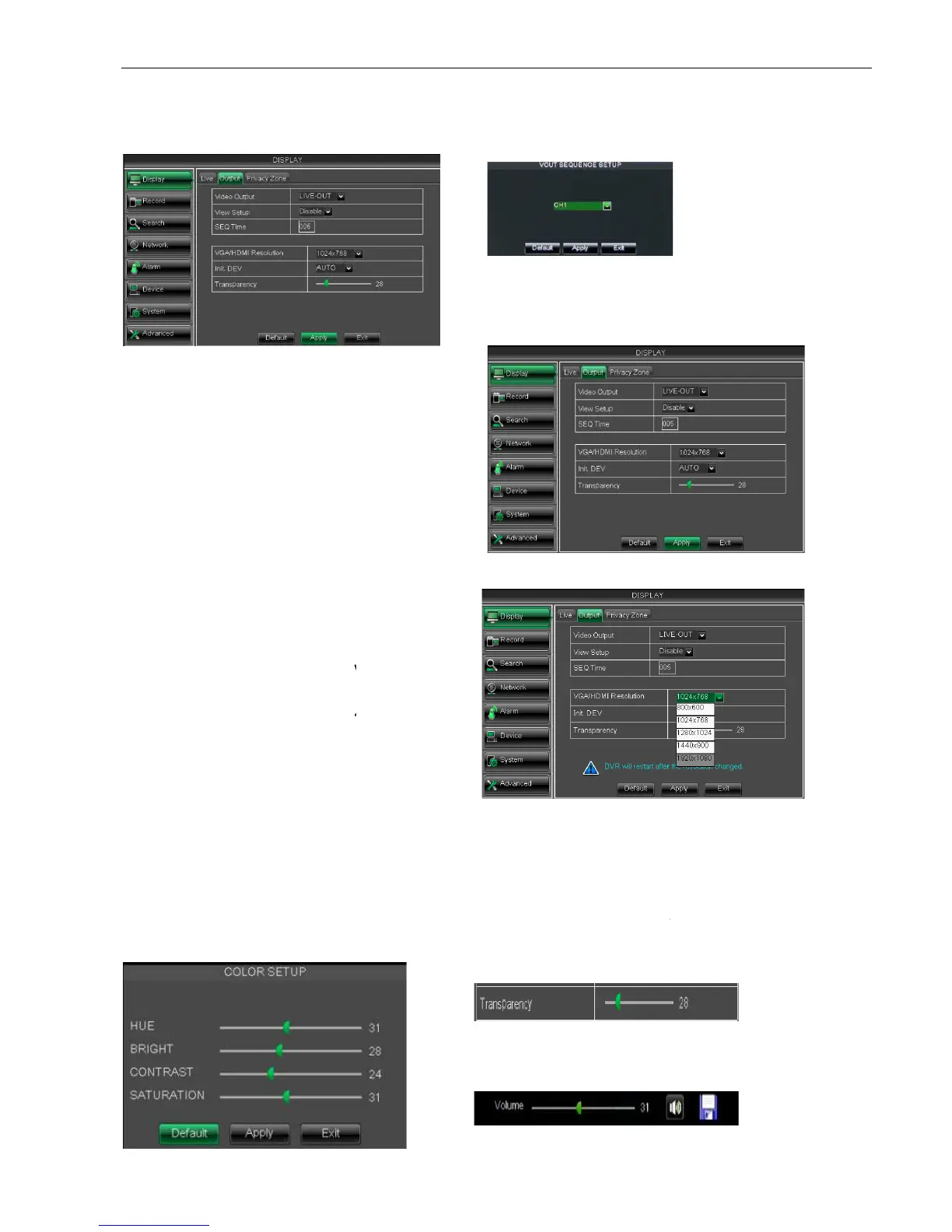
Live output: display window will include Single,
Spot output: display window will include Single, Quad and 9
allow you adjust menu’s transparency, and its range is 1~128
allow you adjust the whole screen’s margin. De
allow you adjust the DVR volume shown as Picture 5
Picture 5-5
Go to [Main menuDisplay
enter into the output set interface
Click [Spot output] option and set relative
parameters shown as Picture 5-
simultaneously, and Live is
main output, and Spot is auxiliary output.
the option is defaulted to
“Off” and sequence time is 5 second. User
can activate the option as per request.
allow you set sequence time,
VGA or HDMI output, including 800x600,
1920 x1080.
Picture 5-10
9
Live output: display window will include Single,
Spot output: display window will include Single, Quad and 9
allow you adjust menu’s transparency, and its range is 1~128
allow you adjust the whole screen’s margin. De
tails operations please refer to the Picture 5
allow you adjust the DVR volume shown as Picture 5
enter into the output set interface
Click [Live] to pop up the interface
perform channel sequence setting.
Click [Spot output] option and set relative
simultaneously, and Live is
main output, and Spot is auxiliary output.
the option is defaulted to
“Off” and sequence time is 5 second. User
can activate the option as per request.
allow you set sequence time,
VGA or HDMI output, including 800x600,
Picture 5-11
Picture 5-9
User Manual
allow you adjust menu’s transparency, and its range is 1~128
tails operations please refer to the Picture 5
Click [Live] to pop up the interface
perform channel sequence setting.


 To Next Page