USER MANUAL
5. Record Schedule
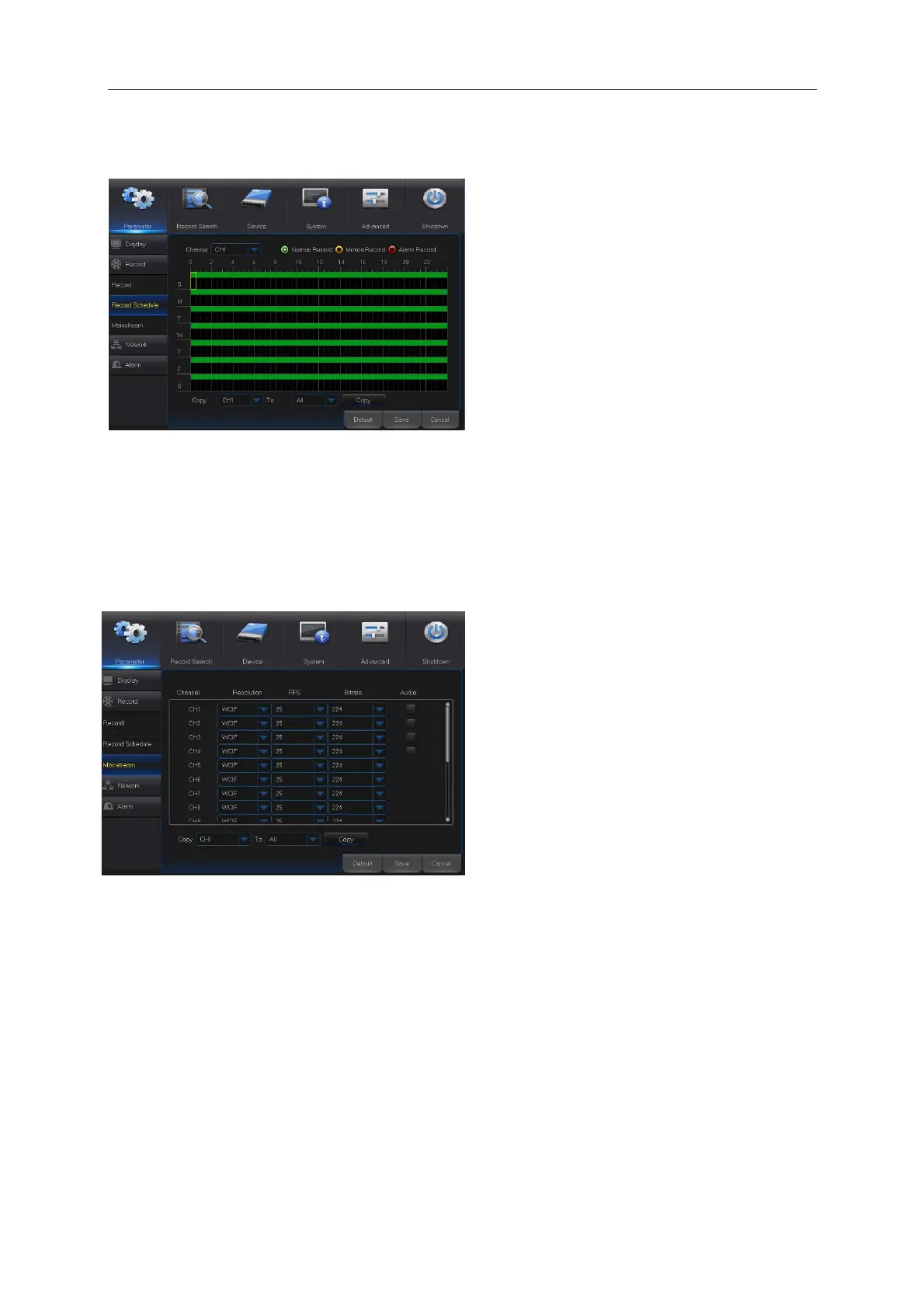
Go to “Main Menu” → “Parameter” → “Record” → “Record Schedule” to enter into the Record
Schedule interface to make record schedule for DVR, as shown in Picture 5-9.
Picture 5-9
6. Mainstream
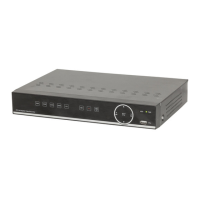
Go to “Menu” → “Parameter” → “Record” → “Mainstream” to enter into the menu interface, as
shown in Picture 5-10.
Picture 5-10
Select the channel and the date to be set.
One week’s schedule can be set.
The record schedule of the current
channel can be copied to any other channel or
all channels.
Note:
1. In the Record menu and Record Search
menu, No Color stands for no record;
2. “Green” stands for normal record and
“yellow” stands for motion record
3. “Red” stands for alarm record,
“Main Menu”→ “Record” → “Mainstream”
Mode: Support 960H and D1. Select a
resolution, save and exit main menu. Then
the system will automatically restart to take
effect.
Resolution (960H): Support three kinds of
picture quality: WD1, WHD1, WCIF.
Resolution (D1): Support three kinds of
picture quality: D1, HD1, CIF.
Note: In AHD series, the supported record
resolution includes 960H/720P/1080P; In
TVI series, the supported record resolution
includes 720P/1080P.
FPS:
::
:PAL: 1--25f/s; NTSC: 1--30f/s.
Bitrate: Bitrate for local storage. User may
select in the drop down list.
Audio: Check the box to record channel
audio during recording and there will be
audio output during playing record.
Un-check the box to disable recording audio
and there will be no audio output during
playing the record


 To Next Page