Need help?
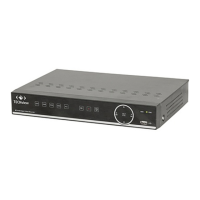
Do you have a question about the TECHVIEW QV-3147 and is the answer not in the manual?
note: please use the power supply attached or specified by the manufacturer
so as to avoid electric shock or other accidents.
Do not put the equipment in the dusty field.
Do not place the equipment under humid environment like basement.
Use soft damp cloth to clean the outer case of DVR.
If there are any strange smell or sound from DVR, unplug the power cable.
Warning: Do not remove the cap of DVR so as to avoid electric shock.
If DVR does not work normally because of hitting on the hard object, please contact the authorized dealer.
Note: Use the batteries attached or specified by the manufacturer
The DVR system includes HDD, which produces large amount of heat.
The attached power adapter can only be used for 1 set of DVR.
Prevent the equipment from water dropping or splashing.
Support output by monitor, VGA and HDMI, support real-time monitoring by web application manager and mobile phone.
Support video compression standard of H.264. Adjustable video quality, resolution and frame rate.
Support high capacity HDD with SATA port and multi-channel search and playback.
Backup records from DVR to U flash disk, mobile HDD, disk burner or network.
Support alarm management and authorized remote client access.
Support USB mouse operation and PTZ decoder control via RS485.
Description of the front panel components and their functions.
Description of the rear panel interfaces and their connections.
Details the buttons and functions of the remote control unit.
Connect the DVR to the power adapter and turn it on.
The initial setup process after connecting power and turning on the DVR.
Guides the user through initial configuration settings upon startup.
The primary display screen of the DVR after initial setup.
Accessing and navigating the context-sensitive menu.
Hierarchical overview of the DVR's main menu structure.
Covers Main Menu, Parameter, Record Search, and Record Schedule configurations.
Covers Device, PTZ, Cloud Storage, and System settings.
Covers Advanced, Shutdown, Menu Lock, Split Mode, Mute, and Start Sequence.
Downloading and installing the ActiveX control and logging into the web interface.
Viewing live video feeds and searching/playing back recorded footage remotely.
Configuring network, display, recording, alarm, and system parameters via web interface.
Covers firmware updates, event management, exception detection, and maintenance via web.
Configuring local save paths, intervals, and exiting the web application.
Common issues and solutions for the DVR system.
Guidelines for maintaining the DVR's performance and longevity.
Visual representation of how the DVR connects to cameras and peripherals.
List and description of included accessories.
 General
| Hard Drive Support | 1 SATA HDD |
|---|---|
| Video Compression | H.264 |
| Motion Detection | Yes |
| Operating System | Embedded Linux |
| Video Input | 4 channels |
| Video Output | 1 channel |
| Audio Output | 1 channel |
| Hard Drive Capacity | Up to 2TB |
| Remote Viewing | Yes |
| Power Supply | DC 12V |

 To Next Page