Macro Setting
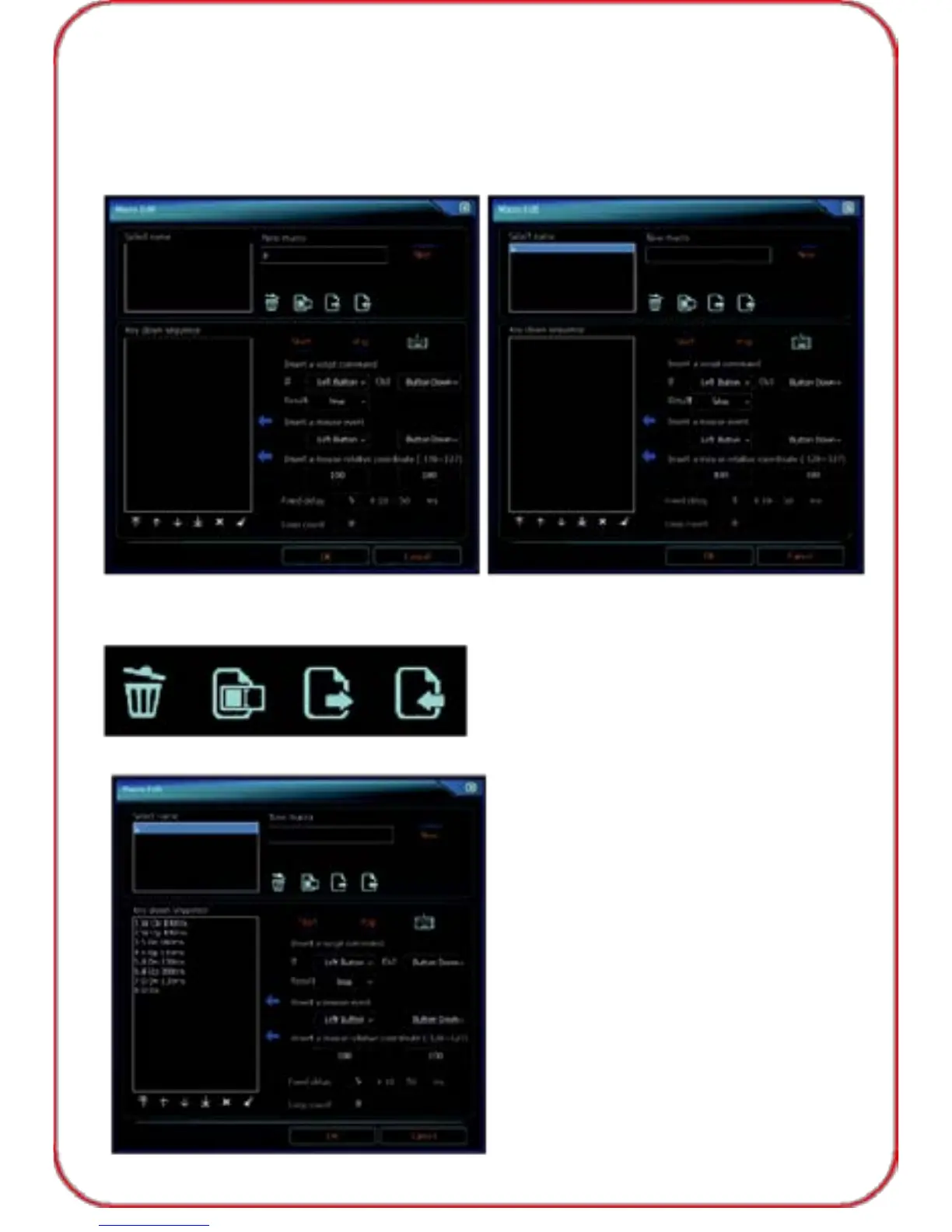
Click "Macro Setting", a pop-up window as below shown.
1) Creat a new macro, input the macro name in the box under "New
macro", then click "New". The macro name would be shown on the list of
"Select name".
You can delete the macro, re-name, export, import the macro through
below button:
2) Click "Start" to set up the macro. Input the keys needed and click to save.
17



 To Next Page